46
3. Driver configuration
3.1. Checking printer properties
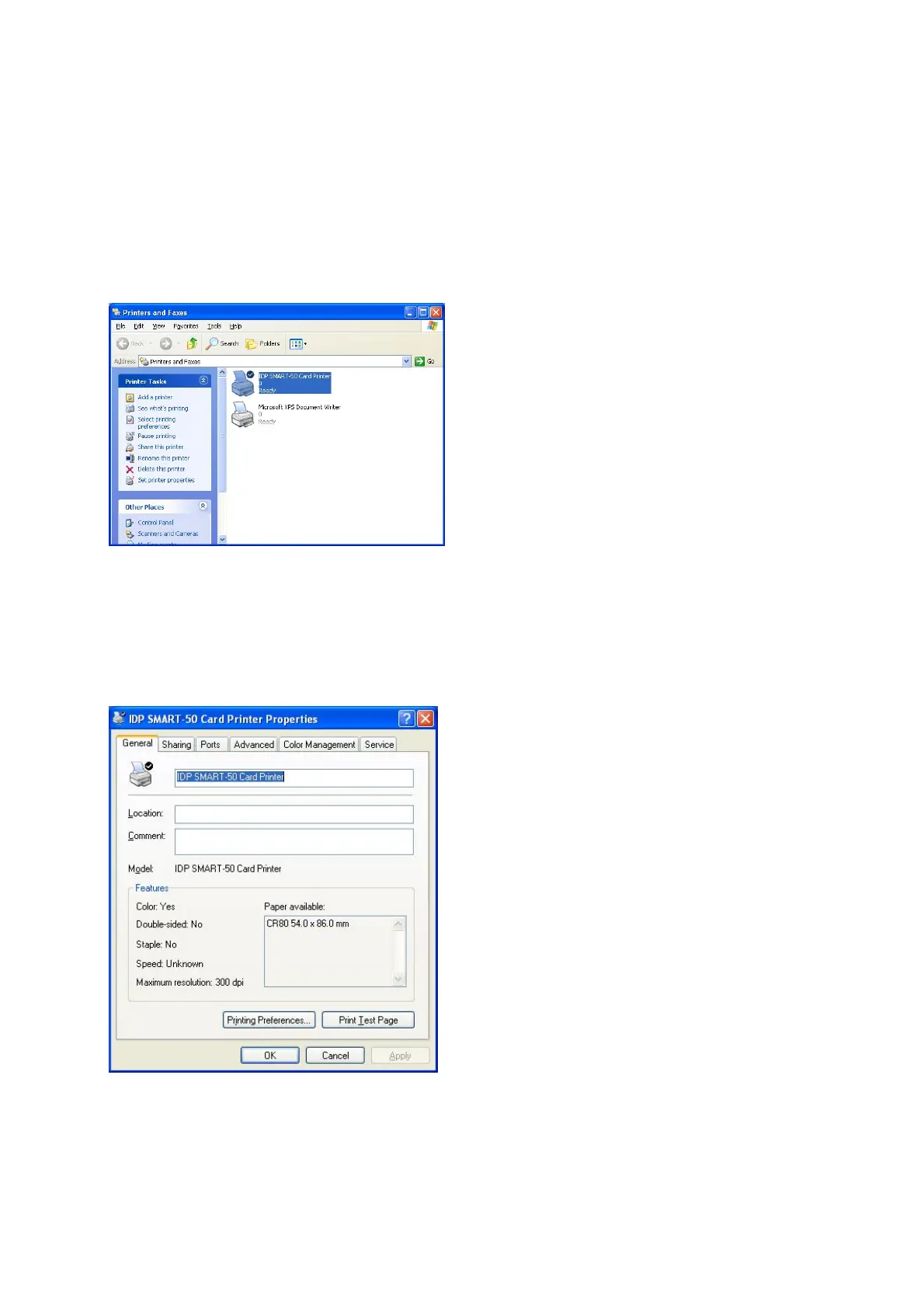
To check printer properties, you need to open printer driver. Please open “Drivers
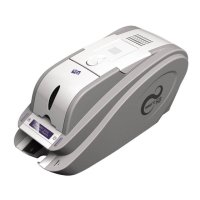
and Printers” and right-click “IDP SMART-50 Card Printer”. Click “Properties”. For
Windows 7 or 8, please click “Printer Properties”.
Pic.96 Printer properties 1
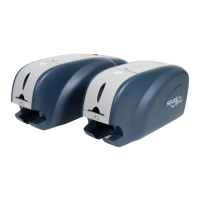
When you click “Printer Properties” as like
picture, a device driver of “IDP SMART-
Card Printer” is shown.
3.2. Changing printer properties
In the general tab shown, you can check the printer model and specifications.
Pic.97 Printer properties 2
3.2.1. Printing Preferences
Please click “Printing Preferences” shown on the
bottom of the left picture..
There are 3 tabs of “Layout”,
and “Side/Media”.
(You can set the options for printing shown)


 To Next Page