EasyManua.ls Logo

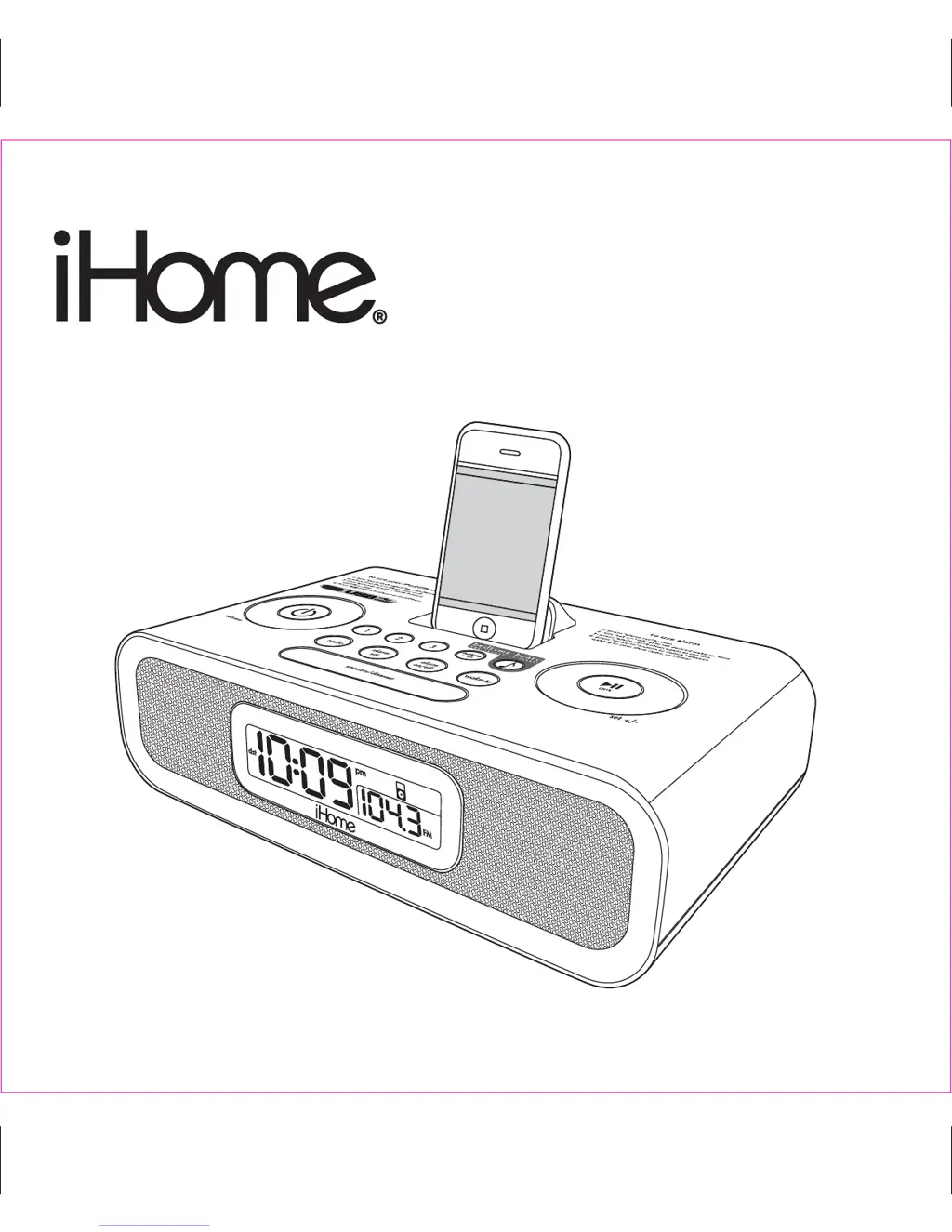
iHome HiP99 - User Manual

iHome HiP99
11 pages
Print Icon
To Next Page IconTo Next Page
Loading...
Model HiP99
The Hotel System
For Your iPhone
or iPod
®

Questions and Answers

  • R
    ronaldhernandezAug 14, 2025
    What to do if my iHome Docking Station iPhone/iPod doesn't respond to the unit or no sound comes out?
    • M
      Michael RichardsonAug 14, 2025
      First, remove your iPhone/iPod from the dock and check for any obstructions on the connectors, then reseat it. If the issue persists, your iPhone/iPod software may be outdated; consider upgrading it. Also, verify the volume setting and ensure your iPhone/iPod is working correctly before docking. The HiP99 cannot control 1st or 2nd generation iPod, iPod Shuffle or other devices.
  • P
    Patricia HillAug 17, 2025
    Why my iHome Docking Station HiP99 does not turn on?
    • D
      dboltonAug 17, 2025
      The AC adapter might not be properly plugged into a working wall socket or into the power supply jack on the back of the unit. Ensure the AC adapter is plugged into a working outlet and the connector is securely plugged into the supply jack on the unit. Also, if the outlet is controlled by a switch, make sure the switch is turned on.
  • D
    David HodgeAug 20, 2025
    What to do if my iHome HiP99 iPhone/iPod didn’t charge up?
    • T
      thomasleahAug 20, 2025
      Ensure that your iPhone/iPod is properly docked by removing it and checking for any obstructions on the connectors, then reinserting it. Also, confirm that your iPhone/iPod is working correctly before docking it into the unit.
  • N
    Nicholas WilsonAug 23, 2025
    Why is the sound distorted on my iHome Docking Station?
    • R
      Richard RubioAug 25, 2025
      The volume level might be set too high; try decreasing it. If the original sound source (MP3) is of poor quality, distortion may be noticeable, so try a different audio source. If using an external sound source like an older iPod, reduce the output volume on the device itself and turn bass boost OFF.
  • R
    Raymond ZhangAug 27, 2025
    What to do if my iHome Docking Station HiP99 doesn’t respond?
    • M
      Michael CrossAug 27, 2025
      If the unit is plugged in but not responding, reset it by removing the iPhone/iPod from the dock, unplugging the unit from the power source, removing the back up batteries and then reinstalling them, and readjusting the settings. Also, remove the iPhone/iPod and check for any obstructions on the connectors before reseating it in the dock.
  • L
    Linda HallAug 30, 2025
    Why is the FM radio very noisy on my iHome HiP99?
    • W
      wardtracyAug 30, 2025
      The FM antenna or unit may not be located properly. Fully extend the FM antenna and keep both the antenna and the unit at least 3 feet away from the AC adapter.
  • W
    William TerrySep 2, 2025
    Why is the Battery Low icon always on in my iHome HiP99 Docking Station?
    • M
      Megan MillerSep 2, 2025
      The batteries may be weak, so replace them with new ones. Also, ensure the batteries are installed correctly, matching the polarity (+ and – ends) with the diagram in the battery compartment.
  • M
    Mackenzie JohnsonSep 6, 2025
    Why is my iHome Docking Station HiP99/iPhone/iPod performance erratic?
    • J
      James WestSep 6, 2025
      The HiP99 might be reacting to external interference. Try moving the unit away from potential sources of interference such as computers, modems, wireless devices (routers), or fluorescent lights.
  • C
    Catherine CookSep 9, 2025
    Why is my iHome HiP99 Docking Station unit/adaptor getting warm after extended play at high volume?
    • L
      leegarciaSep 9, 2025
      This is normal. Turn the unit off for a while or lower the volume.

Summary

Quick Start Guide

Rear Cover Access

Staff can access settings like Time Zone, Clock Adjust, DST, volume, and power jack on the rear. Attach rear cover with thumbscrew.

Power Connection

Connect the AC adapter cable to the HiP99 and plug the other end into a wall socket.

Time Zone Setup

Press and hold the Time Zone button, turn Set Wheel to select your zone, then press the button again to confirm.

Clock Adjustment

Set DST, then press and hold Clock Adjust, turn Set Wheel for time, year, and date. Press Clock Adjust to confirm.

Radio Tuning

Press Radio button, use Set Wheel to tune, and press preset buttons (1-3) to save stations.

Security Tether Installation

Attach security tether to the unit's bottom and secure the other end to a wall or permanent surface.

Controls and Indicators

Top Panel Controls

Identifies buttons and controls on the top surface, including Dock Adjust Knob, USB Port, Power Button, and Volume Wheel.

Rear Panel Controls

Identifies rear panel components such as Rear Cover, Thumb screw, AC Adaptor Jack, Aux-in cord, and various buttons/switches.

Setting Up the HiP99

Connect to Power Source

Plug the AC adapter cable into the AC Adaptor Jack and a standard 120 VAC wall socket. The unit requires AC power.

Set Clock Time and Calendar

Adjust DST, then press Clock Adjust to set time, year, month, and date using the Set Wheel.

Adjust Room Volume

Slide the Volume Switch on the back of the unit to High for large rooms or Low for smaller rooms.

Operating the HiP99

Using the Alarm

Set, arm/disarm, and configure alarm times and sources (iPod/iPhone, radio, buzzer) with gentle wake system.

Docking and Charging iPhone;iPod

Dock iPhone/iPod using Dock Adjust Knob. Unit charges docked device via AC power; does not overcharge.

Listening to iPhone;iPod

Play docked or standby iPhone/iPod via the Play/Pause button. Adjust volume with Volume Wheel.

Bedtime Beats and Nature Sounds

Listen to four built-in Bedtime Beats or nature sounds by pressing respective buttons and adjusting volume.

Additional Operating Features

Listen to External Audio Devices

Connect iPods or MP3 players via Aux-in patch cord to play audio through the HiP99.

Listening to Radio

Extend FM antenna, press Radio button, tune stations with Set Wheel, adjust volume, and set presets.

Dimmer Operation and USB Charger

Control LCD brightness with Snooze/Dimmer button. Use USB port to charge portable devices.

Replacing Backup Batteries

Replace 2 "AA" batteries when Battery Low icon appears to maintain alarm and clock settings during power failure.

Troubleshooting Guide

HiP99 Not Turning On or Responding

Check power connection or reset the unit by removing iPhone/iPod, unplugging, removing batteries, then reseating.

Battery Low Icon and Charging Issues

Replace weak batteries, ensure proper installation, or check iPhone/iPod docking and software.

iPhone;iPod Playback Problems

Reseat iPhone/iPod, check software, volume settings, or consult device manual for issues like no sound or erratic performance.

Radio and Sound Quality Issues

Adjust FM antenna placement, volume, sound source quality, or device output volume for clear audio.

Alarm Not Working

Ensure AM/PM time and alarm time are set correctly, paying attention to the AM/PM indicator.

Consumer Safety Instructions

General Safety Precautions

Avoid water, ensure proper ventilation, keep away from heat sources, and use correct power sources and cords.

Usage and Maintenance Guidelines

Prevent object entry, use recommended attachments, protect against surges, and follow cleaning instructions.

Service and Damage Handling

Refer servicing to qualified personnel for damaged cords, liquid spills, or performance changes. Unplug during storms.

iHome HiP99 Specifications

General IconGeneral
BrandiHome
ModelHiP99
CategoryDocking Station
LanguageEnglish

Related product manuals