22
How to connect to WiFi
If your operating software isn’t listed
here, please contact your software
provider for support.
■ Windows 7: Page 23
■ Windows 8: Page 23
■ Windows XP: Page 24
■ Android OS: Page 24
■ Mac OSX: Page 25
■ iPhone/iPad iOS: Page 25
1. Take your WPS-enabled device to the same room
as your modem.
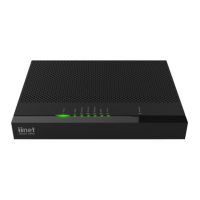
2. Press the WPS button on the left side of the
modem to turn on WPS search mode. The Status
light on the modem will flash.
WPS Setup
Please see your
Default Wireless
Settings card,
or learn how to
customise your
WiFi settings on
page 16.
3. Turn on WPS search mode on your device. If
you’re not sure how to do this, please consult
the device’s user manual.
4. The modem and device should establish a
connection to each other automatically.
Your modem also has WiFi Protected Setup (WPS) which can be used to connect WPS-enabled devices to the
WiFi. Please note that Apple devices (e.g. iPhone) are not WPS-enabled.


 To Next Page