©2011, Attendance on Demand
®
, Inc. Information in this document is subject to change without notice.
Working with Proximity Badges
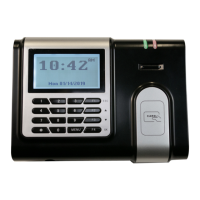
The IDpunch 7 Finger Reader reads proximity badges to punch employees In and Out and perform
transactions. This section describes how to prepare and use badges with the IDpunch 7 Finger Reader.
Understanding Proximity Technology
The proximity technology used in IDpunch 7 Finger Readers is simple and effective. Proximity badges
store a small amount of information, a series of digits, using an encoding that the proximity reader can
scan and process. Instead of having to remember a PIN, employees simply wave their badges in front of
the proximity reader to punch.
Punching In or Out
After badges are assigned to employees, they can punch In/Out.
1. Wave a proximity badge 3¼ inches away from the reader (or closer) or type the employee’s badge
number at the clock.
2. If the badge is read successfully, no messages are displayed on the IDpunch 7 Finger Reader screen.
If the badge read is not successful, error messages are displayed, such as “Access Denied”.
Customized messages can be displayed for different situations, such as “Double Punch”, or “Not a
member of this unit”. Make sure the employee is enrolled using the correct badge.
Preparing Badges for Use
Before proximity badges are ready to use, some preparation is required.
Scan the badges at the clock to register them with the system. See Registering Badges in the System
on page 15.
Issue badge numbers to employees, print badge labels, and give badges to employees. See Issuing
Badges to Employees on page 16.
Registering Badges in the System
Badges must be registered in the system so employees can easily be assigned an appropriate badge
number. This operation is performed at the IDpunch 7 Finger Reader.
1. Press MENU on the IDpunch 7 Finger Reader. If needed, identify an administrator at the clock with a
PIN.
2. Use the arrow keys to navigate to Settings and press OK.
3. Use the arrow keys to navigate to Allocate Badges and press OK. The IDpunch 7 Finger Reader
displays Register RFID’s.
4. Pass each proximity badge over the sensor, one after the other, to register the badges.


 To Next Page