©2011, Attendance on Demand
®
, Inc. Information in this document is subject to change without notice.
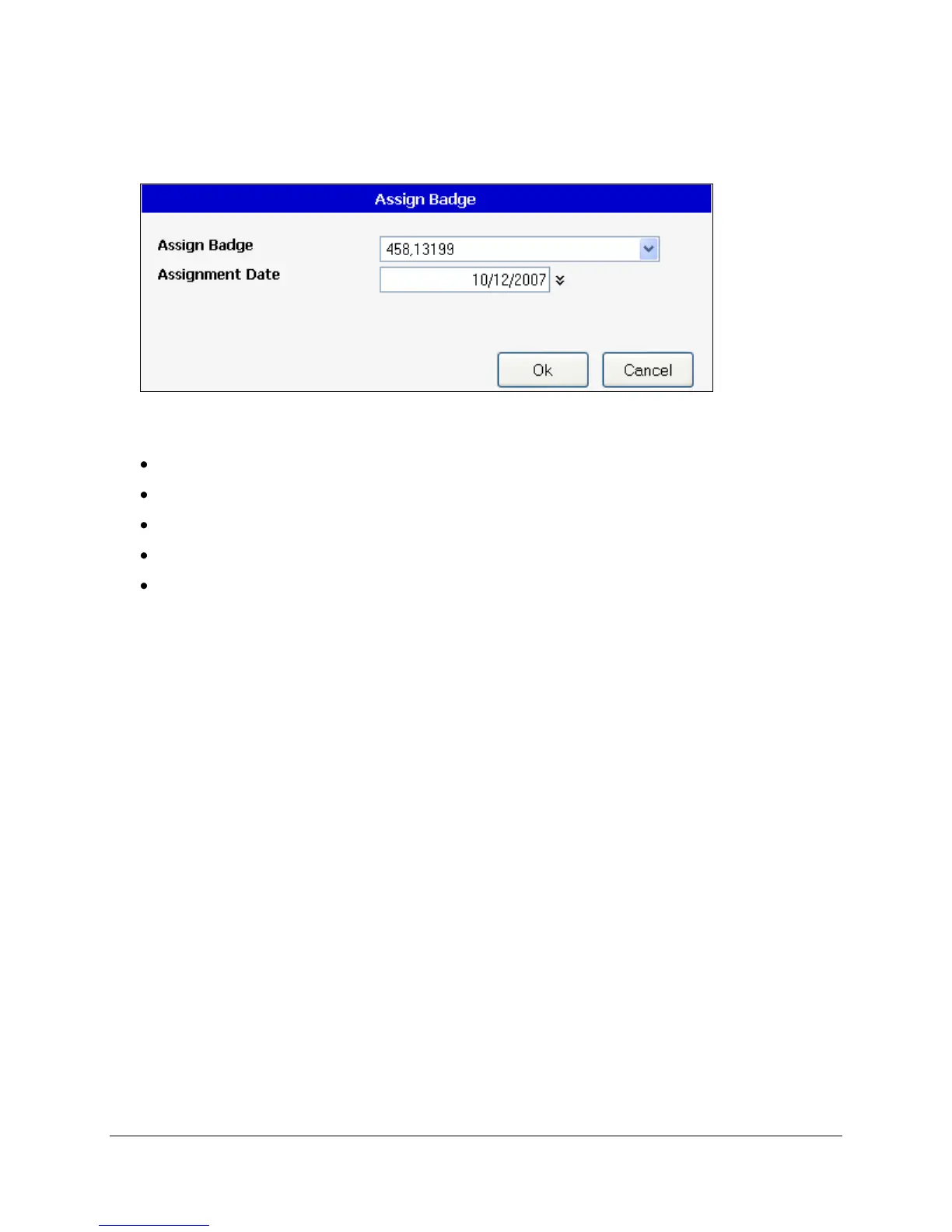
2. If an employee has a badge number of zero and inactive badges are available for use in the system, the
Assign link is available. Use the Assign Badge window to assign an inactive badge to an employee.
3. Check to make sure the employee is assigned to one of the clock groups assigned to the IDpunch 7
Finger Reader.
Click System Setup in the Operations menu group.
Click Time Clock Stations.
Click the name of the IDpunch 7 Finger Reader where the employee should punch.
Click the Clock Groups tab.
Make sure the employee’s clock group is listed. If not, change the employee’s clock group or add
the employee’s clock group to the Clock Groups tab.
4. Force a synchronization operation by pressing the synchronization button or wait until the next
automatic synchronization. (By default, the IDpunch 7 Finger Reader synchronizes with the hosted
system once an hour.)


 To Previous Page