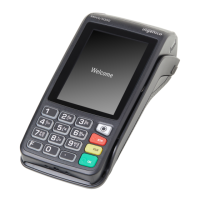
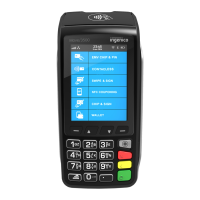
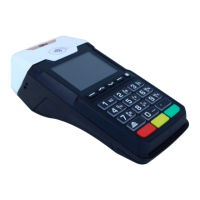
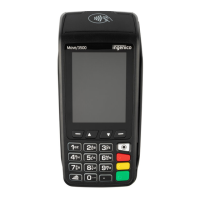
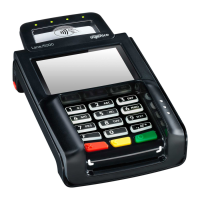
4.
Press Menu then choose Select Network.
5. Use the F2 and F3 keys to move up and down the list and highlight the network
you want from the list provided.
6. Then click OK.
Supervisor Menu and Password
When you go to the Supervisor menu, you will be prompted for a password.
The first time you go to the menu, the password is 01483. You will be prompted to
change it before you can process any transactions.
Processing a Sale
Chip & PIN
1. Insert the customer’s card into the reader, face up, chip forward.
2. Enter the sale amount, including pence, and press the key.
3.
Ask the customer to enter their PIN code, and press Confirm.
4. If you see a “BAD READ” message, check the card orientation and try again.
After three bad reads the terminal will prompt you to swipe the card.
5. DO NOT remove the card until instructed to do so by the terminal.
6. The terminal connects to Valitor for authorisation.
7. If the transaction is authorised then an “AUTH CODE” will be shown.
8. The terminal will print two receipts. The merchant copy is printed automatically.
Press Confirm to print the customer copy.
Contactless
1.
Enter the sale amount, including pence, and press Confirm .
2.
(If you make a mistake, press Clear and try again.)
7
valitor.com



 To Next Page
 Loading...