6
3. Installation
The following scenario describes the product installation for use in
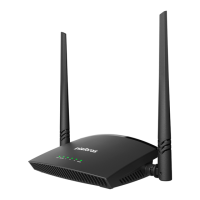
Router
mode. In order to know other scenarios for
use in other modes, such as
Repeater
,
Wireless client
, among others, please refer to the topic
4.2. Conguration in
other product usage scenarios.
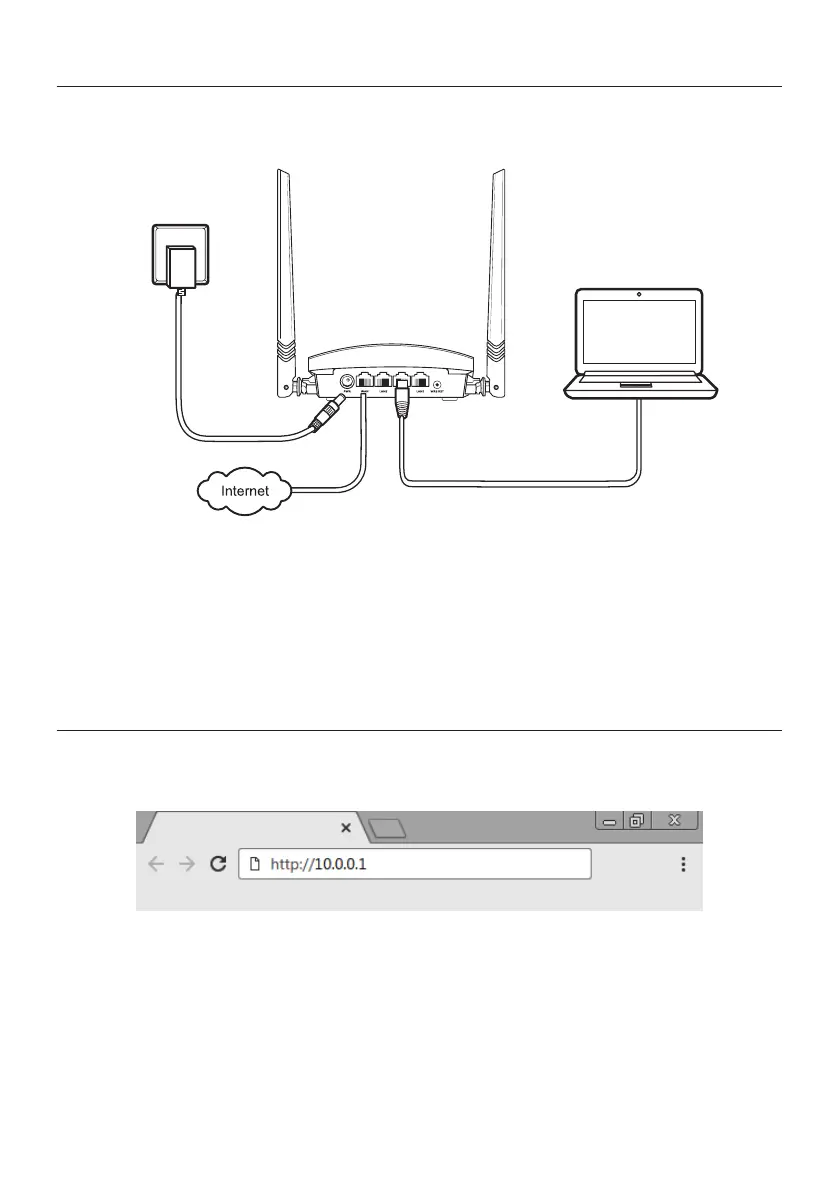
Example of Installation in
Router
mode
1. Connect the power supply to the router and then plug it into the electrical outlet. The LEDs will light up;
2. Connect the network cable from the Internet (for example, from your modem or other device) the
WAN
port of the router;
3. Connect the computer to one of the
LAN
(1/2/3/) ports on the router using a network cable;
Note: If you wish to access your router via Wi-Fi instead of via network cable, connect to the
Wi-Fi
network under
the name INTELBRAS after performing steps
1
and
2
.
4. Conguration
On your computer, open your web browser (we recommend using the most current versions of Google Chrome
®
, Mo-
zilla Firefox
®
or Microsoft Edge
®
) and go to
http://10.0.0.1
as shown in the following image. This procedure should be
performed whenever you need to change any conguration of your router.
Example of a web browser with the address lled in


 To Next Page