19
4.10. System settings menu
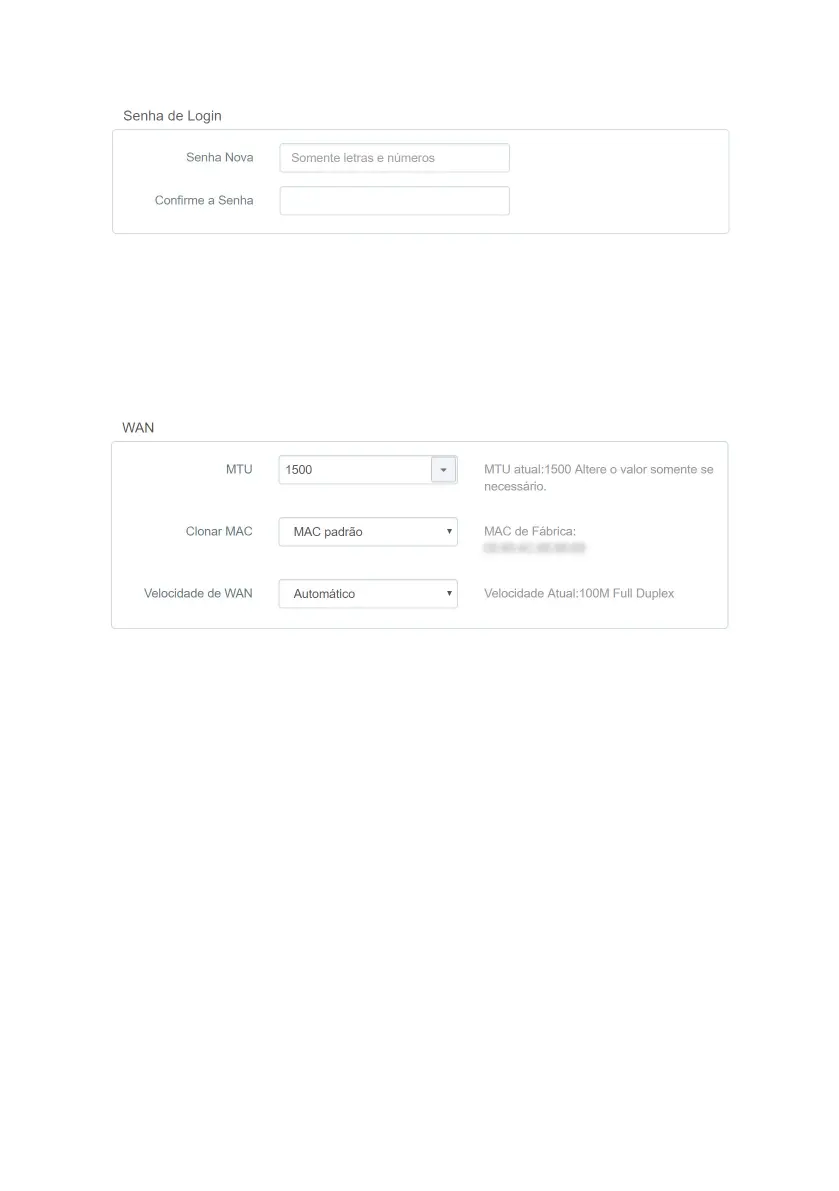
Login password
Conguring the router administration password
To change your router's web conguration interface password, you must enter the old password (password you cur-
rently use) in the eld
Old Password
e, then ll in the new password in the eld
New Password
, and conrm the pass-
word in the eld
Conrm Password
. Finally, click
Save
to apply the changes.
When you do this, you will be directed to the screen where you should log into your router’s web conguration interface,
using the user
admin
and entering the registered password.
WAN
Advanced WAN settings
It groups some more advanced
WAN
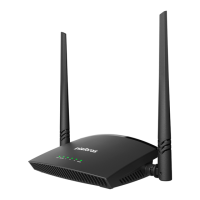
port of the RF 301K:
» MTU: only modify this eld if your operator indicates a value different from the default.
» Clone MAC: allows you to associate a non-default
MAC
address with the
WAN
interface of the RF 301K. You can
manually enter the
MAC
address selecting
Manual
or clone the
MAC
address of the device you are using to access the
conguration web interface by selecting
Clone MAC of this device
. If you wish to return to the router’s default MAC,
select
default MAC
.
» MTU: only modify this eld if your operator indicates a value different from the default.


 To Next Page