20
LAN
Advanced LAN settings
You can change the following settings:
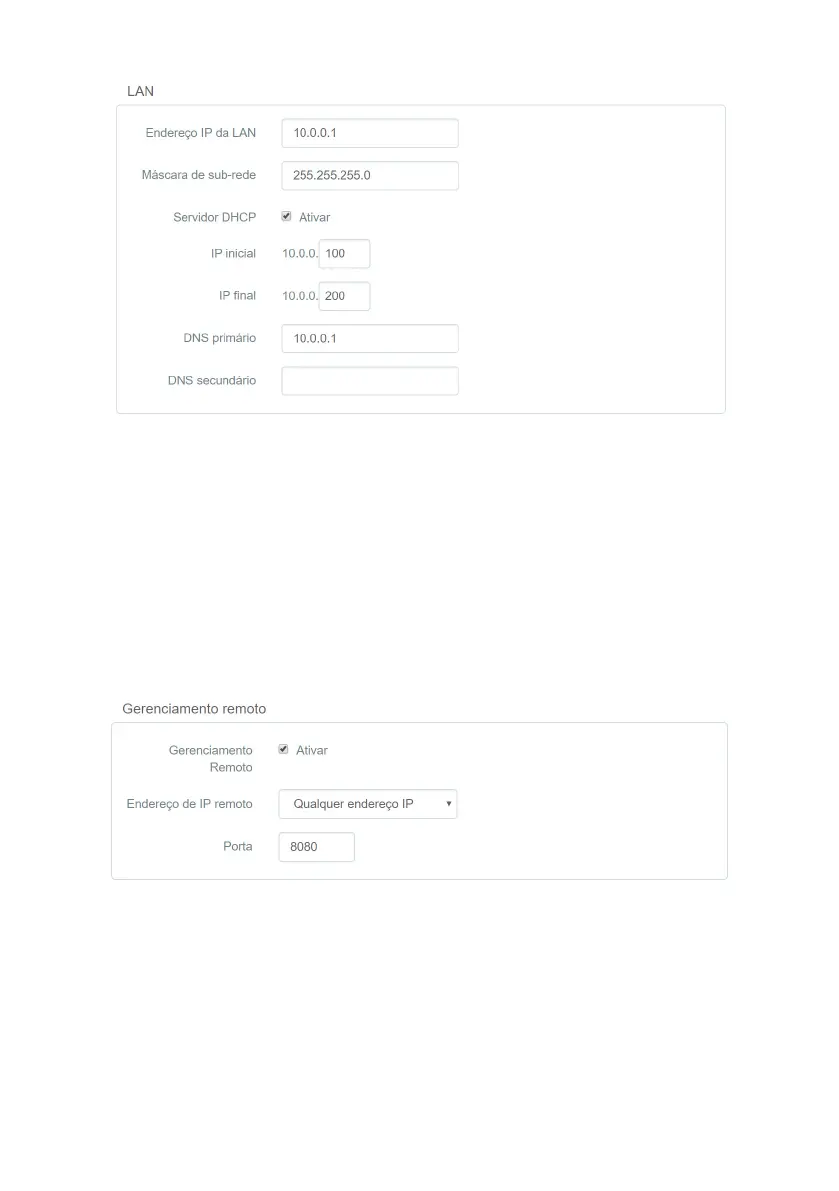
» LAN IP
address
:Router’s LAN IP
address
. When changing this information, you should use the new
IP
address to access
the router interface or perform access using the address
http://meuintelbras.local/
» Subnet mask: LAN subnet mask of the router.
» DHCP
server
: allows you to enable or disable the
DHCP
server in the router’s LAN. When disabling the
DHCP
server, you
must congure an
IP
address in each device connected to the router.
» Start IP and End IP: the
DHCP
server will deliver to the devices connected to the router an
IP
address within the
specied range.
» Primary DNS and Secondary DNS: if you want to use specic
DNS
servers, you can enable this option and enter the
servers in the elds
primary DNS
and
secondary DNS
.
Remote management
Remote management settings
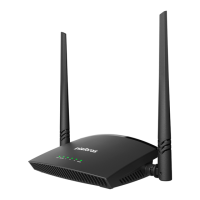
Remote management settings allow access to the RF 301K conguration web page via the Internet (WAN).
» Activate: allows you to enable the function, so that the router releases access to the conguration page via incoming
connections via the
WAN
interface. Once the function is enabled, you can specify a port for the connection through the
eld
Port
.
» Remote IP Address: If you want to limit access to the conguration page to only one
IP
address, select
Manual
. If you
prefer any
IP
address to access the product web conguration page, select
Any IP Address
.
» Port: port through which you want to allow access, via internet, to the router’s web conguration interface. By default
the congured port is
8080
.
To make any change, click
Save
and wait for the conguration to complete.


 To Next Page