7
4.1. Conguration via installation wizard
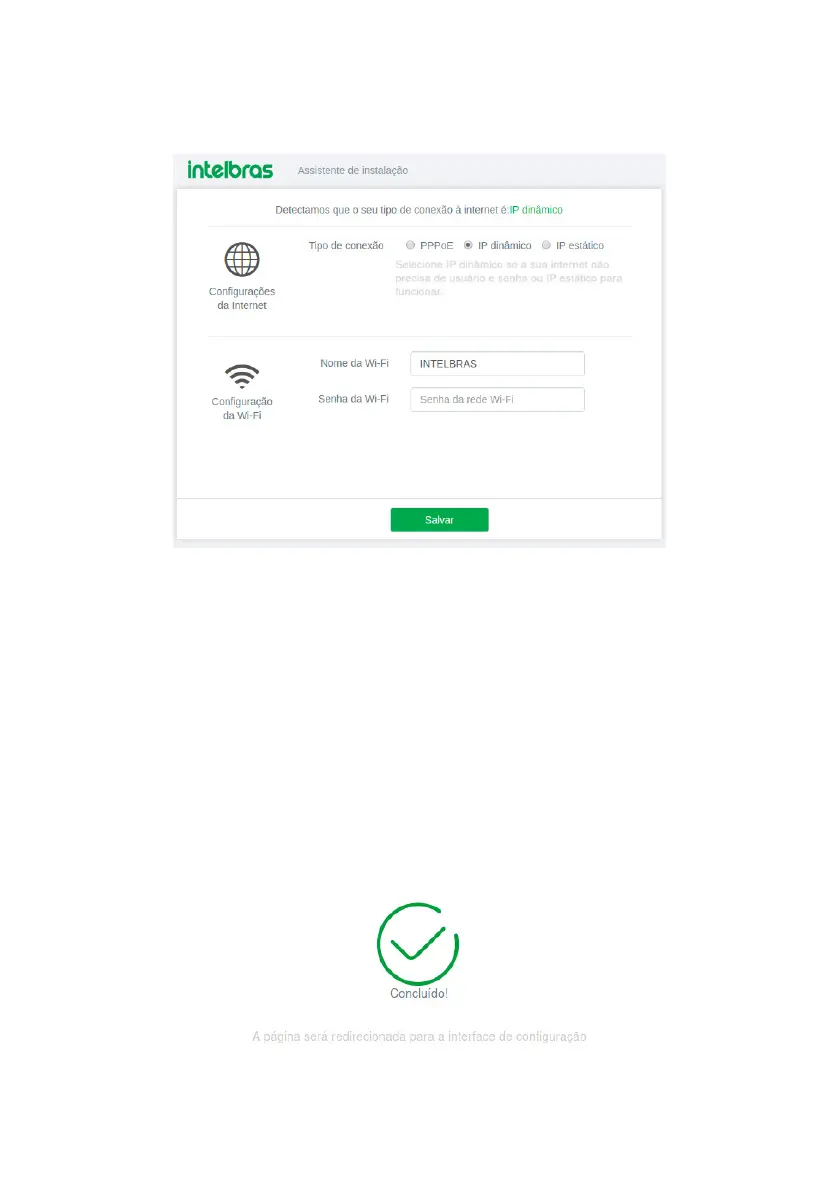
When accessing the RF 301K web page address, you will be directed to the installation wizard, as the following image.
It will help you congure Internet access, and quickly and easily create your own
Wi-Fi
network.
To congure your router, follow the instructions in the installation wizard.
Installation wizard home screen
After this procedure, your internet connection will be recognized automatically. Please wait and follow the guidelines
described in the installation wizard.
You can also choose, manually, the type of internet connection:
1. Select the option
PPPoE
if you need to perform authentication (PPPoE) with the operator to surf the Internet. Then enter
your user name and password (if you do not have this information, please contact your internet service provider). This
way, the router will automatically make this connection for you;
2. Select the option
dynamic IP,
if to have access to the Internet, simply connect to your network and open the browser
(Google Chrome
®
, Mozilla Firefox
®
, Microsoft Edge
®
, etc.). In this case, the router will not need to perform any authenti-
cation with the operator (this usually occurs when there is a modem or other device that already performs the connection
with the operator);
3. Select the option
static IP
if your Internet access is provided via a static
IP
address. All information for the conguration
in this mode must be provided by your Internet operator.
Choose your Internet connection type and your
Wi-Fi
network settings and click on
Ok
.
Final screen of the installation wizard


 To Next Page