20
Updating and Calibrating the Countess
™
Automated Cell Counter
Introduction
Instructions are included below to update and calibrate the
Countess
™
automated cell counter to ensure its optimal
performance. The update feature allows you to update the counter
when new firmware versions are available. The calibration function
sets the background of the instrument to a solution of trypan blue
in the slide.
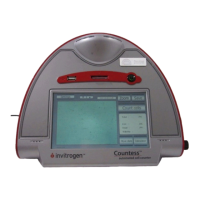
The Countess
™
automated cell counter is supplied precalibrated.
However, if you have updated the Countess
™
firmware, or if you
choose to use a different formulation of trypan blue that is not
supplied with the instrument, you will need to calibrate the
Countess
™
automated cell counter.
Updating the
Counter
1. Save any data from the .CSV file you wish to archive as follows:
Go to the save menu>Press View .CSV file>Press Save to USB
2. Start a new .CSV file as follows:
Go to the Save Screen>Press Start new .CSV>When prompted,
press OK to erase previous data and start new .CSV file.
3.
Visit the Countess
™
website at www.invitrogen.com/countess
to download the firmware which is supplied as a .zip file to
your desktop.
4.
Unzip the .zip file and save the firmware to a USB drive
supplied with the instrument.
5.
Insert the USB drive into the USB port on Countess
™
counter.
6.
Push the
Power
button to start the instrument and press
Settings
.
7.
Press
Update
.
8.
The instrument prompts you to update, press
OK
. The update
process takes a few minutes.
9.
When the update is complete, you are prompted to restart the
instrument by pressing
Restart
.
10. Once the start u
screen is dis
la
ed, calibrate the instrument as
described on the next page.
Continued on next page


 To Next Page