Need help?
Do you have a question about the iodd ST Series and is the answer not in the manual?
Details product compatibility and feature support across different IODD models.
How to navigate files and menus using specific keys.
Explains the functions of various keys for disk status, tooltips, and file information.
Covers operations triggered by long presses and keys used during startup.
Interpreting icons for device status, encryption, and USB connection speed.
Information on mounted files and browsing file lists within the interface.
Guides on configuring virtual drive options like write protection and drive order.
How to view TXT files, especially encrypted ones, and password convenience features.
Describes how to use the disk write-protect feature for data security.
Details AES256bit-XTS encryption, administrator mode, and the second password.
Covers setting individual passwords and drive permissions for multiple users.
Introduces the Windows application for managing IODD functions and users.
Highlights crucial points about data initialization and password loss during encryption.
Step-by-step guides for setting, removing, and changing the administrator password.
Explains how administrators manage individual user passwords and permissions via the interface.
Options for users to change or remove their passwords and accounts.
Information on downloading the IODD Admin Manager and its basic features.
Details on locking/unlocking the IODD and managing passwords using the Admin Panel.
Steps for administrators to set, change, or delete user passwords and permissions.
How to check encryption lock status and user permissions.
Displaying and clearing progress status logs for operations.
Lists common error messages and their potential causes or solutions.
Guidance on improving USB recognition failures and managing disk defragmentation.
Steps for creating VHD files and using Rufus for bootable VHDs.
Notes on VHD file usage, potential errors, and using IODD for Mac Bootcamp.
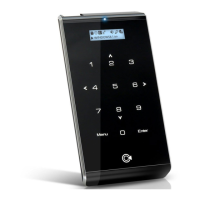
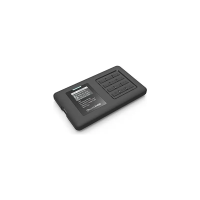
The IODD ST/LK is a versatile external drive enclosure designed to enhance data management and security. It supports 2.5-inch drives with a thickness of 7mm or less, making it compatible with a wide range of SSDs and HDDs. The device offers a suite of features including virtual drive functionality, robust encryption, and various administrative controls, making it suitable for both personal and professional use.
The core functionality of the IODD ST/LK revolves around its ability to act as a virtual drive, encryption device, and secure data storage solution. It supports the mounting of one virtual ODD (CD/DVD/Other) and up to three VHDs (Virtual Hard Disks) or RMDs (Removable Media Devices) simultaneously. This virtual drive capability allows users to boot operating systems, install software, or access data from ISO, VHD, RMD, VMDK, and IMA files as if they were physical drives. The device automatically identifies mountable files on the largest partition (supporting GPT, MBR, NTFS, exFAT, and FAT32) upon initial setup, with the option to select a default partition. An advanced mode manager provides granular control over individual virtual drive settings.
A key feature of the IODD ST/LK is its AES256-XTS encryption, offering a high level of data security. This encryption does not require a separate driver installation and is compatible with all operating systems. The password length can range from 4 to 38 digits, with an enhanced security feature that uses a random keypad for input. The device supports a "2nd Password" which is required when setting a password on the drive or when installing an encrypted drive into another IODD ST/LK. This 2nd password, also up to 38 digits, is crucial for drive management and cannot be recovered if lost, emphasizing the importance of secure password management.
The IODD ST/LK also incorporates an Administrator Mode, which is particularly useful in multi-user environments. An administrator can set individual user passwords and manage drive permissions for up to four users. Administrators have the authority to reset user passwords at any time and are the only ones who can decrypt the entire device. Users, on the other hand, can access internal data based on the permissions granted by the administrator and can change their own passwords if allowed. To facilitate administrator functions, the IODD Admin Manager, a Windows-only application, provides a PC-based interface for managing users, passwords, and configuration files, offering the same functionalities as the device itself with added file management capabilities.
The IODD ST/LK is designed for intuitive operation through a combination of physical keys and an LCD display.
The device features an LCD display that shows various status icons, indicating:
The Mount Information Area displays the active ISO/VHD/RMD file name, virtual drive status (removable/fixed), and write protection status. The File List Area shows folders and available files in the selected directory. To switch partitions, users must unmount all virtual drives and press button 4 for 3 seconds to enter the partition selection menu.
The IODD ST/LK allows configuration of virtual drives through the "Mode setting" menu. Users can configure options for selected drives, enable/disable write protection, and toggle between removable and fixed disk types. The order and number of active drives can also be configured, with inactive drives being those below the "--Disabled--" item. Any changes in the Mode Manager will cause the device to reboot and unmount all currently mounted virtual drives.
The device includes a built-in TXT viewer, allowing users to open TXT format files. When encryption is active, it provides a secure way to view password-related text data.
For convenience, particularly during installations requiring reboots, the device can be configured to keep the password active for 2 minutes after initial entry. This reduces the need for re-entering the password multiple times, unless two minutes have passed or a second reboot occurs within that timeframe. This feature can be enabled or disabled in the [USB Control] menu.
The write-protect feature safeguards the disk from unauthorized modifications. It can be activated by pressing and holding key 3 for 3 seconds, or through the [USB Control] menu.
The IODD ST/LK uses AES256-XTS encryption, which is driverless and compatible with all operating systems. Passwords can be 4 to 38 digits long, and security is enhanced with a random keypad. The device supports an administrator mode for managing multiple users (one administrator and up to four users). The "2nd Password" is a critical security layer for drive setup and transfer.
Administrators can set, remove, or change their password through the [Encryption] [Admin] menu. Setting or deleting an administrator password initializes all data on the IODD drive and deletes all user accounts. If the administrator password is forgotten, the drive can be initialized, but all existing data will be lost. The 2nd password is vital; if lost, the encrypted drive becomes inaccessible to other IODDs.
Administrators can manage user passwords and disk permissions for up to four users. This includes setting/removing user passwords, defining read-only access, allowing users to change their own passwords, and deleting user accounts. User passwords start with their identification number (1-4) followed by up to 37 digits. The IODD Admin Manager application provides a PC interface for these management tasks.
User authority and initial passwords are set by the administrator. Even if a user changes or deletes their password, the data on the drive remains intact. Administrators can change or delete passwords for all users. Users can access specific encryption menus based on the permissions granted by the administrator, such as allowing password change/delete, only password change, or only password delete. If "Change/Delete Password Not Allowed" is set, users cannot activate the encryption menu.
Users can download the latest firmware and software, including the IODD Admin Manager and VHD Tools, from http://dir.iodd.kr/.
If USB recognition repeatedly fails, users can try the "Device Cleanup" utility (available at https://www.uwe-sieber.de/misc_tools_e.html). This tool helps by deleting USB usage information stored in the registry, which can improve recognition rates and speeds, especially on PCs that have connected many USB devices. After running the utility and removing device entries, a PC reboot is recommended.
For optimal performance and longevity, especially with SSD/HDD drives, it is recommended to turn off disk defragmentation. When using VHDs, it is crucial to cancel any defragmentation reservations. Instructions are provided for Windows 8/10 and Windows 7 to disable scheduled optimization or defragmentation for the IODD ST drive. If multiple partitions are used, defragmentation schedules must be canceled for each drive individually.
The IODD ST/LK supports VHD files for virtual drives. Users can create continuous fixed VHDs using the VHD Tool (downloadable from ftp://iodd.kr/open/vhd_tools/). It is critical never to delete a mounted VHD file or change its location, as this can lead to fatal errors. Unscheduling disk defragmentation for the IODD ST is also advised when using VHDs. The device also supports creating bootable UEFI VHD files or Windows-to-Go disks using the RUFUS utility (https://rufus.ie/), with specific settings for partition schemes and target systems.
The WTG and encryption features enable secure booting on Macs. Preparations include having an external USB or VHD file for the boot camp driver and a VHD file for boot camp installation (fixed recommended). RUFUS settings are generally the same as for UEFI boot. After installation, users connect the IODD ST to their Mac, hold down the [option] key during startup, and select the yellow UEFI disk to boot. Installing the bootcamp support driver is then necessary.
The IODD ST/LK assembly involves holding the back cover and main body, sliding the rear cover off, connecting the SATA port side of the disk drive, installing the disk into the main body, and reattaching the cover until it clicks into place. Users are advised to check that the rear latch is properly engaged.
 General
| Supported Drive Types | 2.5" SATA HDD/SSD |
|---|---|
| Compatibility | Windows, macOS, Linux |
| Interface | USB 3.0 |
| Features | Write Protect Switch |
| Encryption | AES 256-bit |
| Weight | 150 g |

 To Next Page