EasyManua.ls Logo

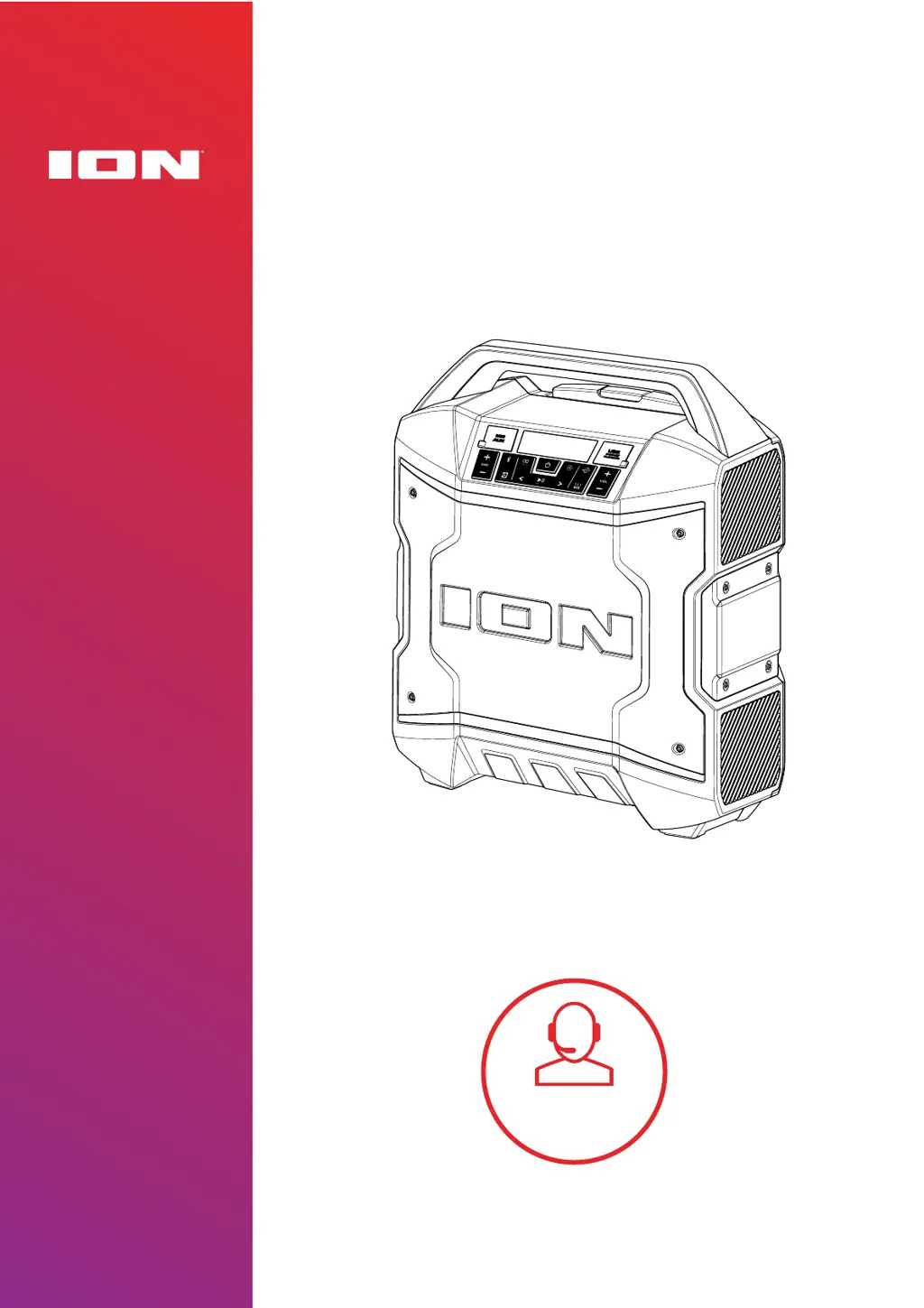
ION BLOCK ROCKER - User Manual

ION BLOCK ROCKER
22 pages
Print Icon
To Next Page IconTo Next Page
Loading...
BLOCK ROCKER
®
User Guide
English
Tap or click
for technical
support.
ionaudio.com/support

Other manuals for ION BLOCK ROCKER

Questions and Answers

  • J
    Jonathan RussellJul 29, 2025
    Why is my ION Speakers audio cutting out when using Bluetooth?
    • C
      christopherdavidsonJul 29, 2025
      To resolve audio dropouts while playing music from a Bluetooth device on your ION speaker, first, exit Stereo-Link™ mode by double-pressing the Stereo-Link™ button. This issue may occur if your unit is attempting to connect to another speaker. Alternatively, wait for your unit to link to another speaker if one is within range.
  • B
    Brian EvansAug 7, 2025
    How to troubleshoot ION BLOCK ROCKER that are not charging?
    • K
      Kathleen StoneAug 7, 2025
      Ensure the power cable is properly connected to both the power input on the unit and the power outlet.
  • C
    chayesAug 11, 2025
    How to fix distorted sound on ION Speakers?
    • R
      Richard CollinsAug 11, 2025
      If the sound from your ION speakers is distorted, try lowering the volume control of your sound source.
  • D
    drakejohnAug 15, 2025
    How to reduce bass on ION BLOCK ROCKER Speakers?
    • J
      Julie ShahAug 16, 2025
      To decrease the amount of bass on your ION Block Rocker® speaker, try adjusting the tone or EQ control either on the Block Rocker® itself or on your sound source to lower the bass level. Also, check if the BOOM function is enabled and disable it by pressing the BOOM button™.
  • A
    Anna TylerAug 19, 2025
    What to do if I can’t hear the microphone over the music volume on my ION BLOCK ROCKER?
    • K
      Kimberly ThompsonAug 20, 2025
      To hear the microphone over the music volume on your ION speakers, either turn down the music volume from your source or increase the microphone volume using the Mic + button.
  • A
    Amber SmithAug 25, 2025
    Why do I hear a hum when cables are connected to my ION Speakers?
    • H
      haleyharoldAug 25, 2025
      If you hear a hum when cables are connected to your ION speakers, try these steps: * Disconnect cables from the input jacks to see if it’s a faulty cable. * Ensure the signal cables are not placed near power cables. * Connect all audio equipment power cables to outlets which share a common ground.
  • R
    Rhonda SextonNov 1, 2025
    How to connect my device to ION Block Rocker® Speakers via Bluetooth?
    • T
      tanyamitchellNov 1, 2025
      If you cannot connect your audio device to the Block Rocker® via Bluetooth, try the following steps: 1. Ensure your audio device (e.g., smartphone or tablet) and the Block Rocker® are as close as possible during the connection attempt. 2. Double-press the Bluetooth button to disconnect the Block Rocker® from any other audio device and restart the search process. 3. Reset the Bluetooth connection on your audio device by turning Bluetooth off and then back on. 4. In your audio device's Bluetooth menu, find the Block Rocker® in the list of available or previously connected devices, tap the 'gear' or 'i' icon, and select 'Unpair' or 'Forget'. 5. Turn the Block Rocker® off and then back on, and try pairing again once it reappears in your available devices list. 6. Repeat the process with...

Summary

INTRODUCTION

Box Contents

Lists the items included in the Block Rocker speaker package: speaker, power cable, microphone, and quickstart guide.

Support

Provides information on where to find the latest product details, technical specifications, system requirements, and additional product support.

SETUP

Charging and Battery Information

Instructions for charging the Block Rocker speaker battery, including charge time, battery icon indicators, and tips for battery lifespan.

Outdoor Use and Care

Guidelines for using the Block Rocker speaker outdoors, focusing on water resistance and precautions against extreme weather conditions.

FEATURES

Front Panel

Detailed description of the Block Rocker's front panel controls and display, including buttons for volume, source, and playback functions.

Rear Panel

Details about the rear panel of the Block Rocker speaker, highlighting the power input port for charging the unit.

OPERATION

Pairing a Bluetooth Device

Step-by-step guide on connecting a Bluetooth device to the Block Rocker speaker for wireless audio playback and disconnecting paired devices.

Linking Two Speakers

Instructions for wirelessly connecting two Block Rocker speakers for stereo sound, designating primary and secondary speaker roles.

Light Modes

Explains the different LED light modes available on the Block Rocker, including Solid, Two-Tone Cycle, Beat Sync, Random, and Off.

Using the Radio

Guide on tuning FM radio stations, saving presets, and recalling saved stations on the Block Rocker speaker.

USB Mode

Instructions for playing music from a USB drive, including connection, playback controls, and repeat/shuffle modes.

Using the USB Charge Port

How to use the Block Rocker's USB port to charge external devices like smartphones, tablets, and other compatible electronics.

App Control

Guide to downloading and using the ION Sound Control app to manage speaker functions like volume, EQ, lights, and firmware updates.

TROUBLESHOOTING

Common Issues and Solutions

Addresses common problems like charging, distorted sound, hum, microphone feedback, and Bluetooth connectivity issues.

APPENDIX

Technical Specifications

Detailed technical specifications of the Block Rocker speaker, including output power, speakers, frequency response, USB, Bluetooth, battery, and dimensions.

Trademarks & Licenses

Information regarding trademarks and licenses for ION Audio, Bluetooth, App Store, and Google Play, and other product names.

ION BLOCK ROCKER Specifications

General IconGeneral
Product colorWhite
Housing material-
Recommended usageOther
Suitable for outdoor useYes
Speaker type2-way
Speaker enclosureClosed
Speaker placementFloor
Audio output channels1.0 channels
Impedance- Ω
Frequency range- Hz
RMS rated power50 W
Apple docking compatibilityiPad, iPad mini, iPhone, iPod
Bluetooth range15 m
Connectivity technologyWireless
Power source typeAC, Battery

Related product manuals