ION Audio Explorer™ Express User Guide 15
USB Playback Mode
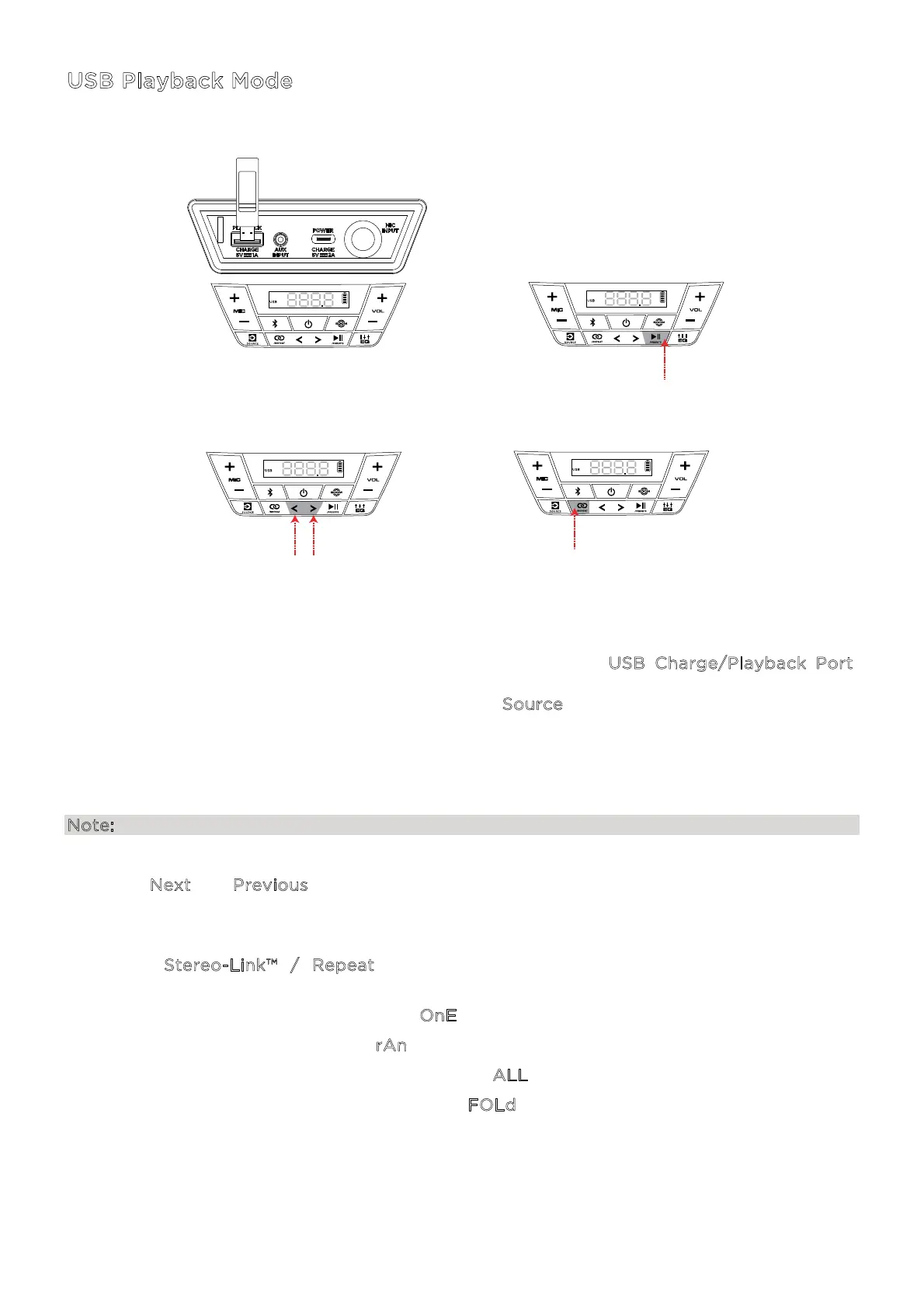
When a USB drive with compatible files is inserted into the USB Charge/Playback Port,
Explorer™ Express will automatically switch to USB mode. If the USB drive has already been
inserted and you are using another mode, press the S
ource button until USB mode is selected.
Explorer™ Express will automatically play the first compatible MP3 file. Files are played in
alphabetical order of what is on the root level, then alphabetical by folder, and then
alphabetical by track name. Media playback will stop when all media has been played on the
USB drive.
Note: The USB drive must have playable MP3 files for it to appear on the media panel’s display.
Press the N
ext and Previous (</>) buttons to go to the next or previous track. Press and hold
these buttons to fast forward or rewind within the track.
Press the S
tereo-Link™ / Repeat button to cycle through the repeat/shue options
(abbreviations will show on the display):
• Play the current USB track on repeat (O
nE). This is the default mode when powered on.
• Play the tracks in random order (r
An).
• Play all the tracks on the USB drive on repeat (A
LL).
• Play the current folder’s tracklist on repeat (F
OLd). The folder used is based on what song
is playing when it is activated. For instance, if a song playing is on the root level, selecting
FOLd will repeat only songs at the root level. If a song is in folder “A”, then only songs in
folder “A” will be repeated.
1 - CONNECT
3 - PRESS
(Previous/Next Track)
4 - PRESS TO CYCLE
(ALL, FOLDER, ONE RANDOM)
2 - PRESS
(Play/Pause Playback)



 To Next Page