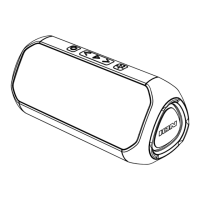
ION Audio Uber™
Boom User Guide 11
T
o disconnect a Bluetooth device from the primary speaker in Stereo-Link
TM
mode, press
and hold the P
lay/Pause button for two seconds. The speaker will begin searching for a new
Bluetooth device to pair to, and you will hear "Bluetooth Pairing" if voice prompts are enabled.
T
o exit Stereo-Link
TM
mode, continue to press and hold the Play/Pause button for another
two seconds (four seconds total). Hold the P
lay/Pause button for an additional second (five
seconds total) to clear the Bluetooth device memory.
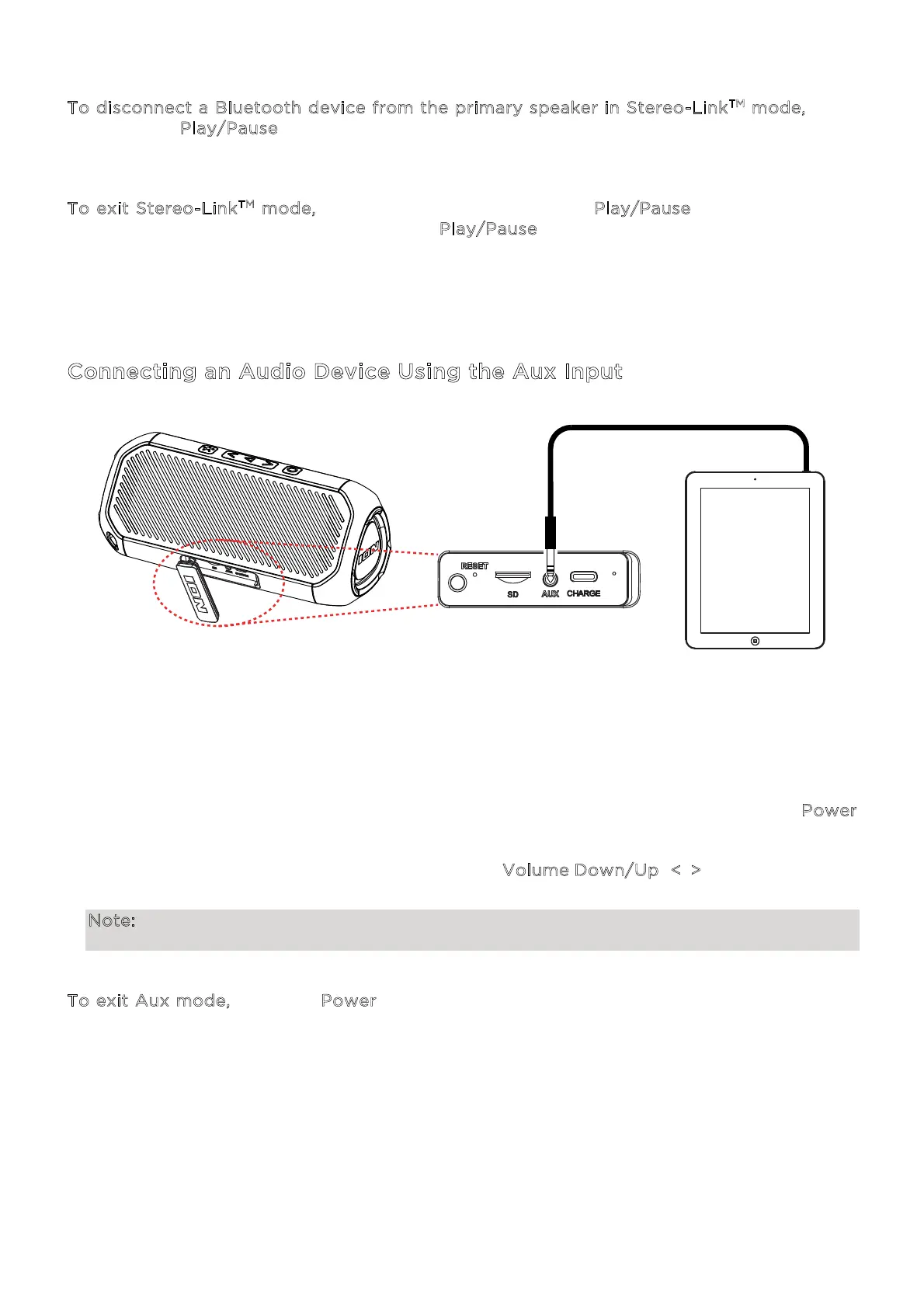
Connecting an Audio Device Using the Aux Input
1. Connect a 1/8” (3.5 mm) auxiliary cable to the input in the connection port on Uber
TM
Boom
and connect the other end to an audio device such as an MP3 or CD player.
2. Uber
TM
Boom will automatically switch to aux mode, and you will hear “Auxiliary Mode” if
voice prompts are enabled.
If Uber
TM
Boom is already connected to an aux device but in another mode, press the Power
button until aux mode is selected.
3. Press play on your device’s music player. Use the V
olume Down/Up (</>) buttons to adjust
the aux volume on Uber
TM
Boom, or adjust the volume from your source device.
Note: The Uber
TM
Boom speaker volume controls act independently from your connected
device. Lower the volume on your device if signal distortion occurs.
T
o exit Aux mode, press the Power button to switch to Bluetooth or SD playback (if a card
is inserted). Alternatively, remove the aux cable to return to the previous mode (Bluetooth or
SD).


 To Next Page