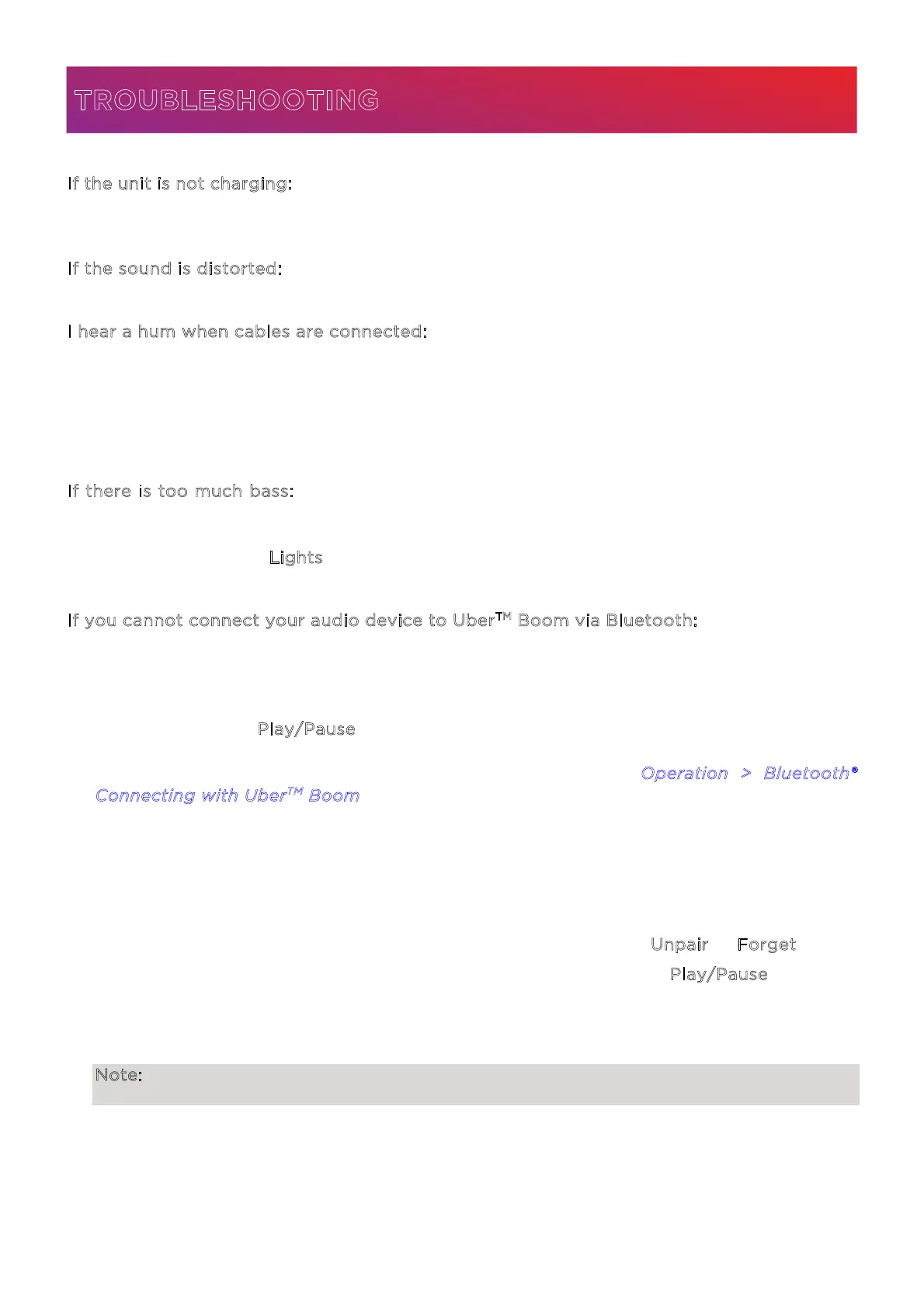
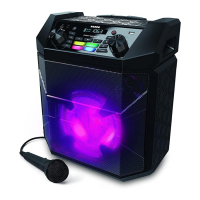
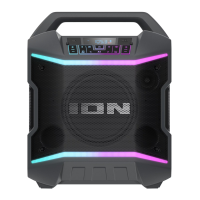
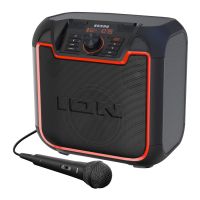
ION Audio Uber™
Boom User Guide 15
I
f the unit is not charging: Make sure the USB-C® charging cable is properly connected to the
power input, the power adapter, and the power outlet.
I
f the sound is distorted: Try lowering the volume control of your sound source.
I
hear a hum when cables are connected:
• Disconnect cables from the input jacks to see if it’s a faulty cable.
• Make sure the signal cables are not placed near power cables.
• Connect all audio equipment power cables to outlets which share a common ground.
I
f there is too much bass: Try adjusting the tone or EQ control on your sound source or on
Uber
TM
Boom to lower the bass level. This will allow you to play the music louder before
clipping (distortion) occurs. You can also check to make sure the Bass Boost function is o
by double-pressing the L
ights button.
I
f you cannot connect your audio device to Uber
TM
Boom via Bluetooth:
• Have your audio device (e.g., smartphone or tablet) and Uber
TM
Boom as close together as
possible while trying to connect. Make sure both the audio device and Uber
TM
Boom are
unobstructed by walls, furniture, etc.
• Press and hold the P
lay/Pause button for three seconds to disconnect Uber
TM
Boom from
any other audio device and restart the search process. If this does not work right away,
power o Uber
TM
Boom and then power it back on. See Operation > Bluetooth®
C
onnecting with Uber
TM
Boom for more information.
• Reset the Bluetooth connection on your audio device by turning Bluetooth o and back
on. You can find this under the Bluetooth menu in the Settings for your phone or other
audio device.
If this does not work, and you have connected to Uber
TM
Boom before, find Uber
TM
Boom
in the list of available or previously connected devices in your audio device's Bluetooth
menu, tap the "gear" or “i” icon located next to it and then select U
npair or Forget.
Alternatively, while disconnected from a device, press and hold the P
lay/Pause button on
Uber
TM
Boom for five seconds to clear the pairing memory.
Turn Uber
TM
Boom o and back on and try pairing again once it reappears in your available
devices list.
Note: If Uber
TM
Boom has been paired to another audio device recently that is still within
range, you may need to repeat this process with that audio device to fully disconnect.
TROUBLESHOOTING


 To Next Page