6. freeREC2 Using Basic Features
11
Modifying or disabling Instant Preview (optional)
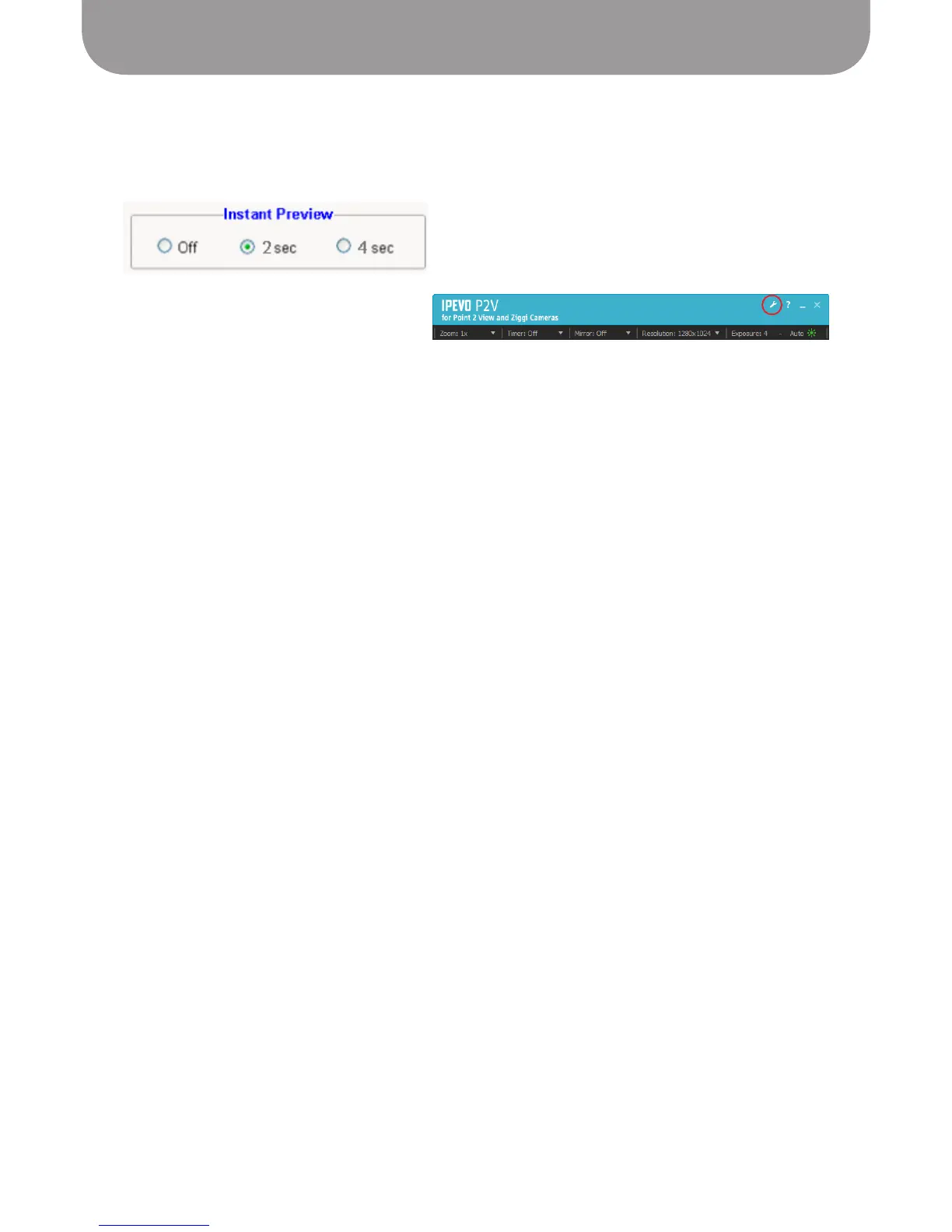
Instant Preview is set to 2 seconds as a default. You can choose to reset Instant Preview to 4 seconds, or
you can turn it off.
Windows:
1. Click the Settings icon in the menu bar
2. Click the General tab
3. In the Instant Preview box, click your preference: 4 seconds or 2 seconds, or turn Instant Preview off.
Mac:
1. Click
P2V > Preferences...
menu
2. Click the General tab
3. In the Instant Preview box, click your preference: 4 seconds or 2 seconds, or turn Instant Preview off.
Using the Timer function
Make sure that P2V Software is in Camera mode, and then locate the Timer menu. You can choose
between 3 seconds and 10 seconds.
• The 10-second mode is useful for taking group shots with your family and friends.
• The 3-second mode is particularly useful when taking a snapshot with Point 2 View; it allows a buffer
time for Point 2 View to stabilize, making for a crisper picture.
When using the Timer function:
• A countdown “beep” will be generated each second until the shutter snaps.
• Countdown number icons will replace the Focus/Snapshot graphics.


 To Next Page