5 Viewing in Full Screen
19
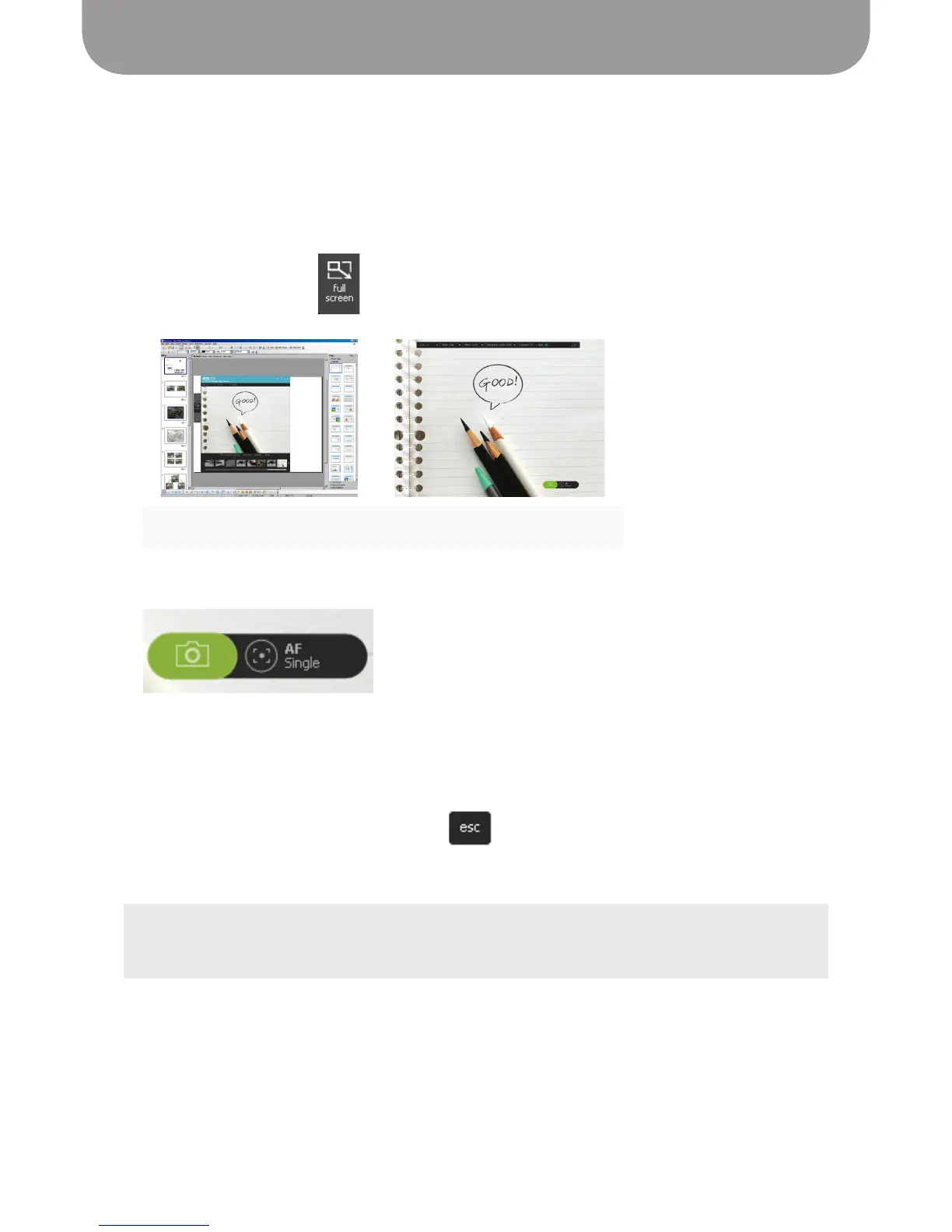
The Full Screen mode expands the video images into a full-screen presentation. This mode is particularly
useful for presenting to an audience.
Entering Full Screen mode
1. Make sure you are in Camera mode with a video image showing on the screen.
2. Click the Full Screen tab. The video image will expand into full screen.
3. By default, the same set of functional icons as in Camera mode will appear in the screen.
Clicking any part of the screen will hide the icons, providing an unobstructed view. Click the screen again
to bring the icons back.
Canceling Full Screen mode
1. To cancel Full Screen mode, click the Esc icon at the top right corner of the screen , or press the
Esc key.
2. The screen goes back to the Camera mode.
Before After
TIP:
You can switch to Full Screen mode from Review mode, but you will always go to Camera mode when
canceling Full Screen mode.


 To Next Page