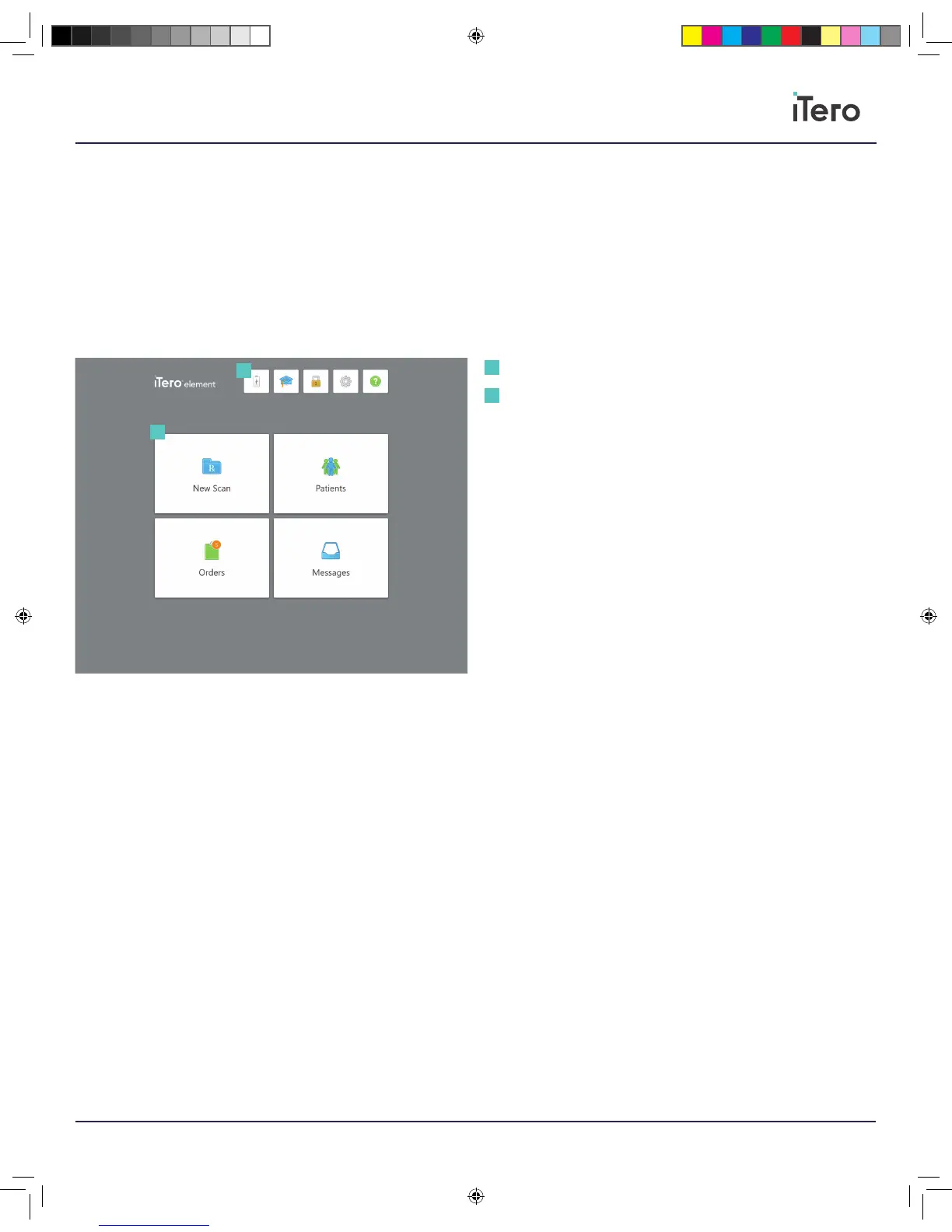
Home screen
The iTero Element 5D home screen provides access to all the main
features of the iTero software.
Below is an image of the iTero Element 5D application’s home screen.
Main desktop icons
There are four main home screen icons for the iTero Element
5D software.
New Scan: To begin a new scan for a patient, select the New Scan
icon. This home screen icon navigates to the iTero Rx form to fill out the
prescription form for a patient and begin scanning.
Patients: To look up any patient on your system, select the Patients
icon. This home screen icon navigates to the Patients page. Search for a
specific patient, scroll through recently scanned patients, review scans,
access iTero TimeLapse, view patient history, add new scans, or add a
treatment plan.
Orders: To view the status of your orders, select the Orders icon. This
home screen icon navigates to a list of orders in progress or past orders.
Messages: To read messages, select the Messages icon. This home
screen icon navigates to the message inbox, where you may read on the
latest notifications from the Align team regarding new updates, improved
features, enhanced tools, and latest developments.
Chapter 3:
iTero Element 5D main features
Main home screen icons
Utility icons
1
1
2
2
206721RevC_iTeroElement5D_IFU.indd 7 1/9/19 3:12 PM



 To Next Page