Zoom in button: Viewfinder window will be enlarged and only the specific
image will be displayed in the viewfinder.
Brightness and contrast toolbar: Opens the brightness and contrast
adjustment toolbar.
After review and confirmation that the scan has been captured with
sucient data, the following features can be used to view the scan in
color or monochrome, edit the scan, remove any extra scanned artifacts,
and erase additional scanned materials.
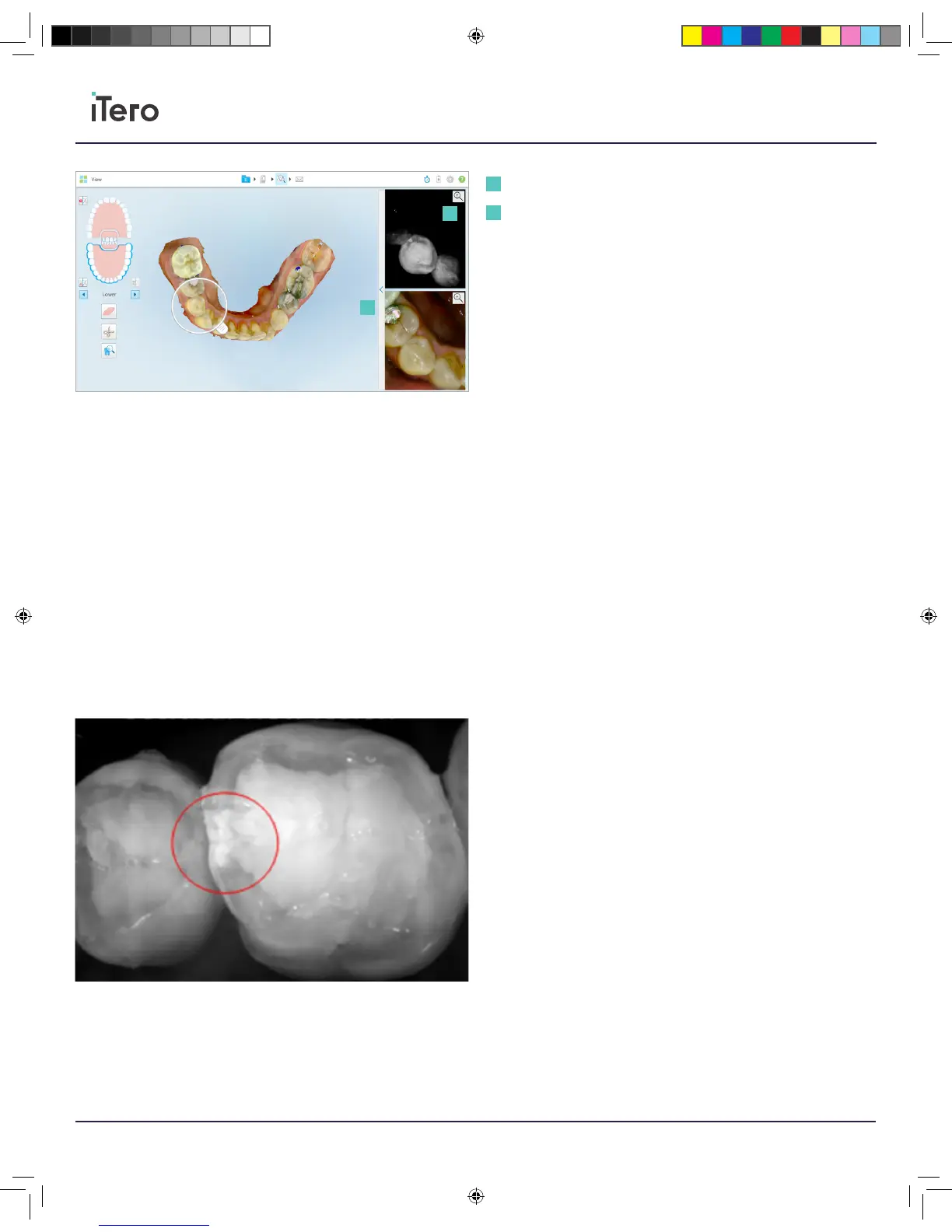
Using NIRI
NIRI provides imaging of the internal tooth structure.
Structure translucency translates in the NIRI image to brightness level;
the darker the object the higher is its translucency and vice versa.
Healthy enamel appears dark, translucent, while dentin or caries are less
translucent and appear brighter.
Proximal lesion will appear as bright stripe/wedge-like features as in the
image above, in this case proximal lesion reaching all the way to
the dentin.
Zoom in button
Brightness and contrast toolbar
1
2
1
2
206721RevC_iTeroElement5D_IFU.indd 18 1/9/19 3:12 PM



 To Next Page