Chapter 1:
System registration
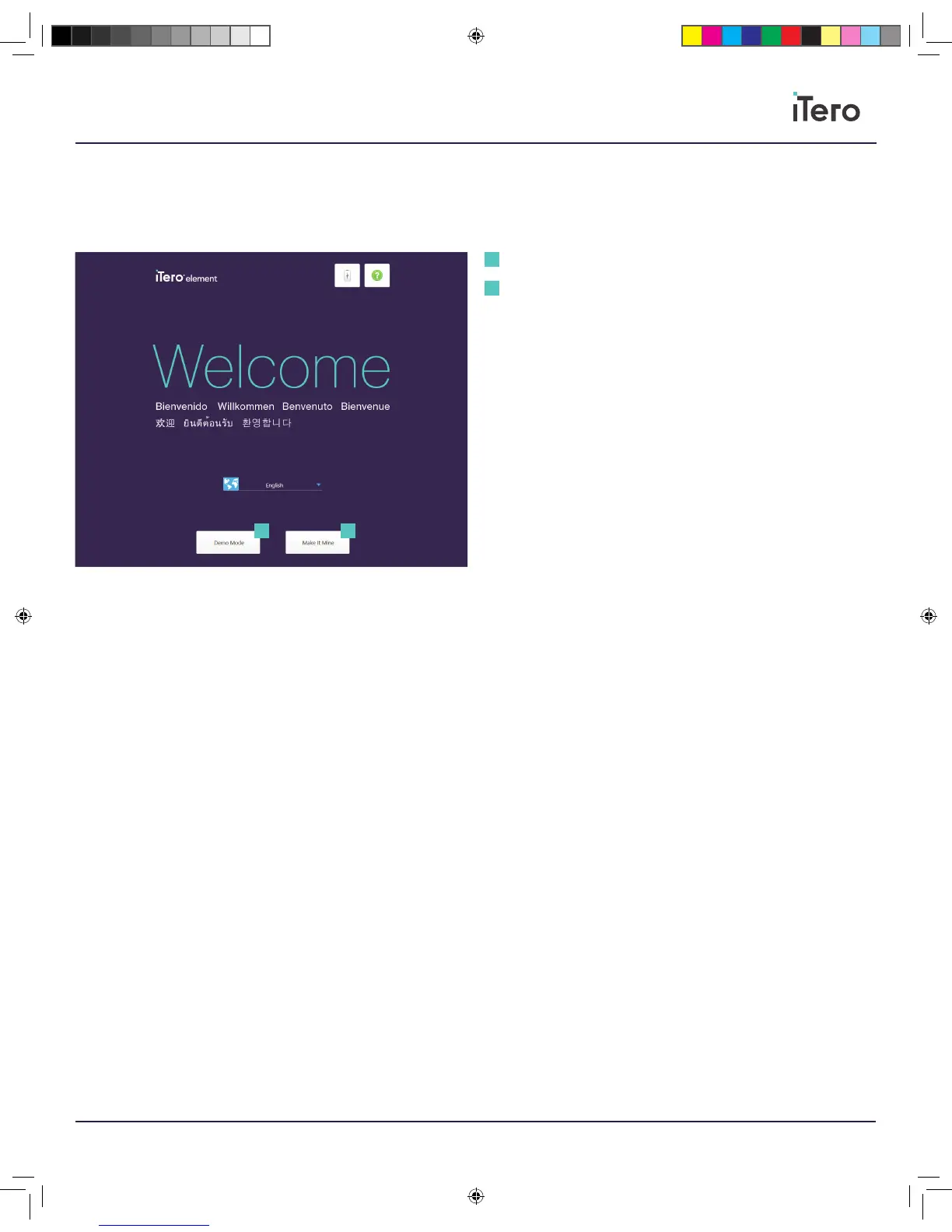
Demo Mode
Press Demo Mode to familiarize yourself with the scanner’s features
and perform practice scans without submitting the scans. Demo Mode
is designed for training new sta members and practice. Demo Mode
is available anytime for dental practices to train on an iTero Element
5D device, for scanning techniques, how-to guidelines for prescription
forms, case types, and to familiarize with the iTero interface. Demo
Mode will feature all the aspects of the scanning process and include a
wide variety of cases. Sample cases oered will include clinical cases,
Invisalign cases, and restorative cases for your convenience.
When Demo Mode is in use for practice scanning, a lightly striped
background and red tag in the upper left-hand corner will indicate Demo
Mode. Any scans captured in Demo Mode cannot be saved or submitted
for patient treatment. Demo Mode is available to access on the Welcome
screen or at any point by pressing the iTero Element logo button on the
home screen.
Make it Mine
Press Make It Mine to register your scanner. Please have your
User Name, User Password, and Company ID ready to complete
the registration process. You will receive an email from an iTero
representative with login credentials and detailed information on the how
to Make it Mine procedure.
Demo Mode
Make it Mine
1
1
2
2
206721RevC_iTeroElement5D_IFU.indd 3 1/9/19 3:12 PM



 To Next Page