6
Changing Watch Faces
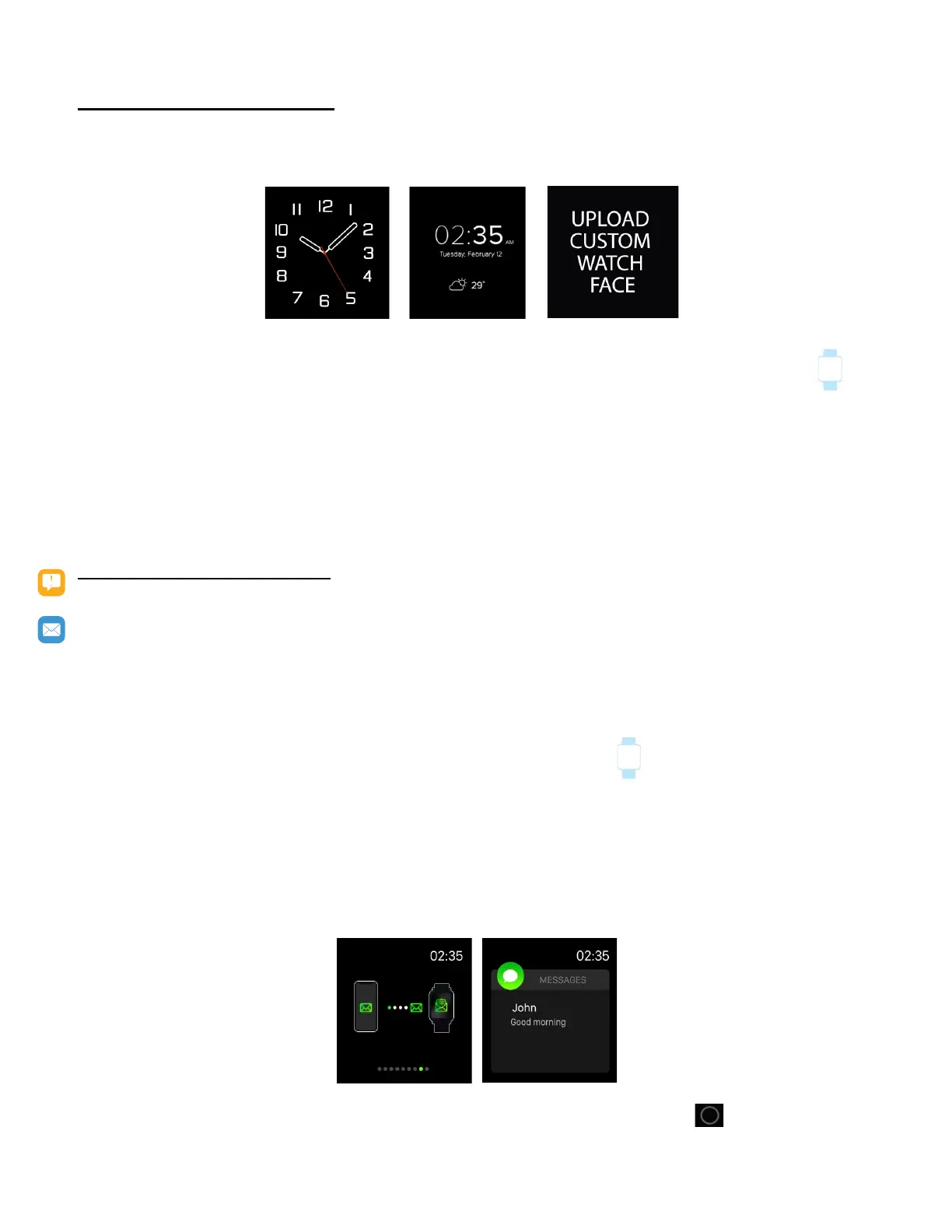
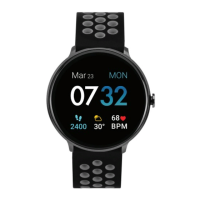
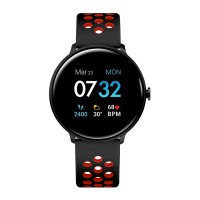
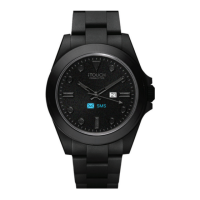
iTOUCH AIR Special Edion app comes with 3 selectable interchangeable watch faces.
(Analog, Digital, Custom)
Watch Faces
To change your watch face from the iTOUCH AIR Special Edion App:
1. With your smartwatch nearby, from the iTOUCH AIR Special Edion app dashboard, tap
icon from the navigaon bar below.
2. Tap Watch Faces to navigate to the selecon of watch faces.
3. Browse available and select your preferred watch face.
To build your own watch face, select Edit
First select a picture from your photo gallery as a base image. Next, select prefered color for me shown,
me posion, and more. Once completed, hit save and your watch face will update.
NOTIFICATIONS and MESSAGING
iTOUCH AIR 2S can display call, text, social media, calendar, and app nocaons from your smartphone
to keep you informed. The smartwatch and phone device must be within Bluetooth range of each other
to receive such nocaons.
Set up nocaons
Check that the Bluetooth on your phone is on and that your phone can receive nocaons (oen under
Sengs > Nocaons). Then set up nocaons:
1. From the iTOUCH AIR Special Edion app dashboard, tap the icon from the navigaon bar
below. Tap Nocaons.
2. From Nocaons, you may select the nocaons you wish to receive from your smartwatch.
Viewing incoming nocaons
When your iTOUCH AIR 2S and smartphone are within range, nocaons causes the smartwatch to vi-
brate. If you don’t read the nocaon when it arrives, you can check it later by navigang to Messages
on your smartwatch.
To view messages and nocaons from dierent social applicaons, simply hold buon.



 To Next Page