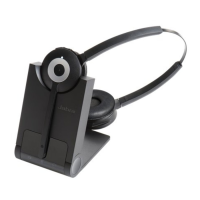
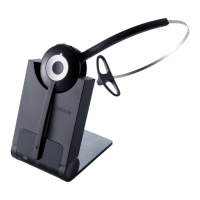
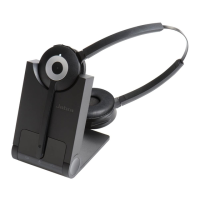
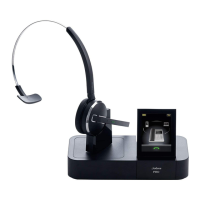
ash x6
Remote call
control
(some phones
may not be
auto-detected,
and will need
to be manually
congured)
Auto-detect
(Default)
GN1000/RHL/none
Jabra IQ
DHSG
MSH
Optipoint
ash x7
Wideband
audio
O (default)
On
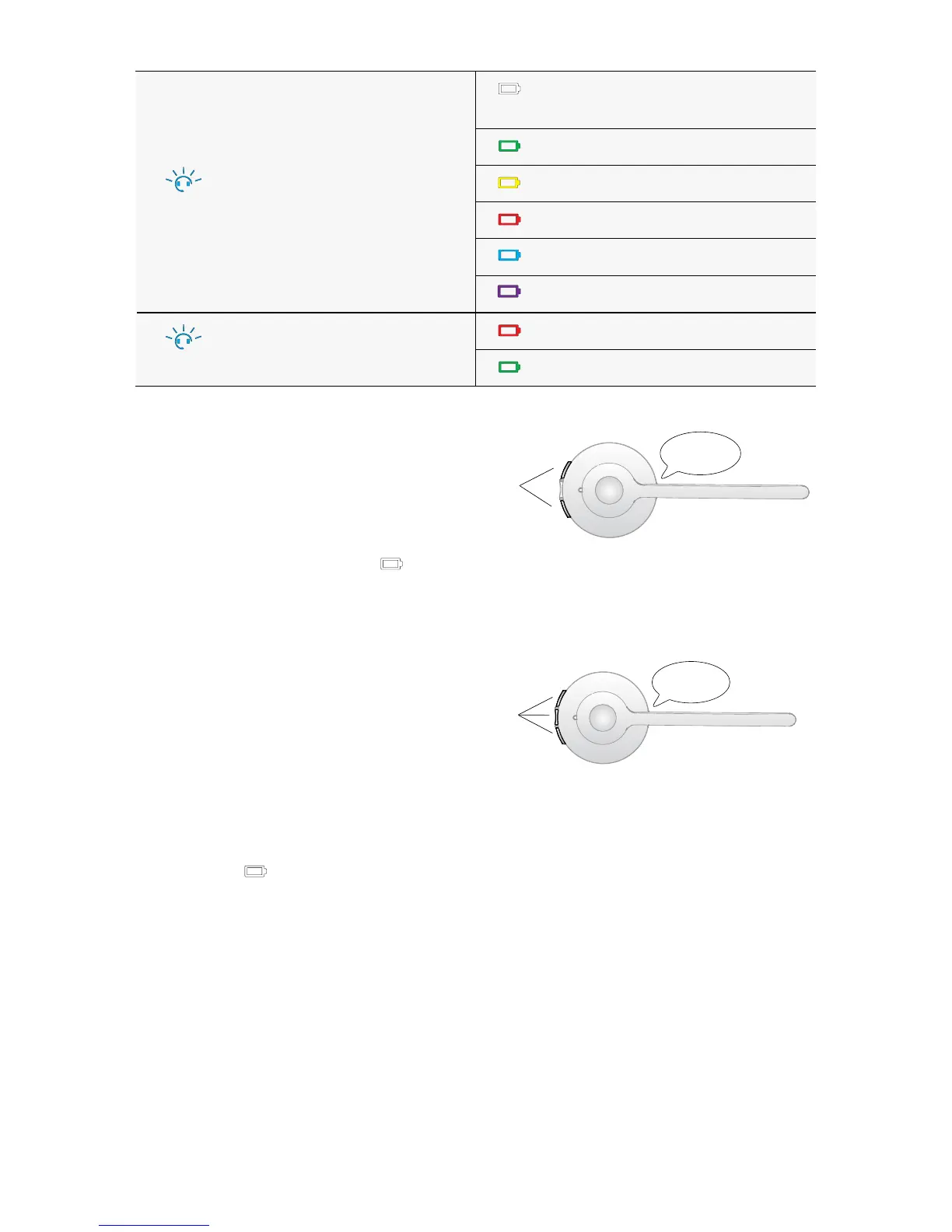
3 End setup mode
When nished, simultaneously press and hold
both headset volume buttons until the voice
prompt says “Goodbye” and then release the
buttons.
The base will restart and update the settings,
indicated by the white battery icon
on the
base.
End
setup
GOODBYE
7.7 HOW TO RESET ADVANCED SETTINGS
•Put on the headset.
•Simultaneously press and hold the
mute button and both headset
volume buttons until the voice
prompt says “Factory default” and
then release the buttons.
The base will restart and reset the
settings, indicated by the white
battery icon
on the base.
Reset
settings
FACTORY
DEFAULT
7.8 COPY SETTINGS TO mULTIPLE jABRA PRO 920 BASES
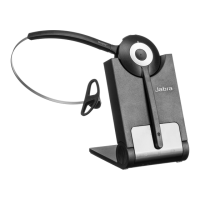
Jabra PRO 920 settings can be manually copied onto other Jabra PRO 920
bases.
1. Dock the headset in the base.
2. Press and hold the headset mute button until the headset LED ashes, and
then release. When the settings have successfully copied, the headset LED
will turn solid white.


 To Next Page