EasyManua.ls Logo

Jensen J1CA7W - User Manual

Jensen J1CA7W
32 pages
Print Icon
To Next Page IconTo Next Page
Loading...
INSTALLATION &
OWNER’S MANUAL
J1CA7W
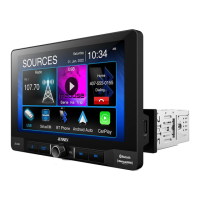
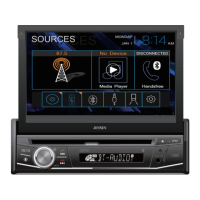
7” CAPACITIVE TOUCH SCREEN
2 DIN MEDIA MECHLESS RECEIVER
AM-FM
USB Media Player
Rear Camera Input

Questions and Answers

Jensen J1CA7W Specifications

General IconGeneral
BrandJensen
ModelJ1CA7W
CategoryReceiver
LanguageEnglish

Summary

Safety Notes

General Safety Notes

General safety precautions and warnings for operating the unit and handling the device.

Copyright Notes

Legal information regarding copyright protection technology and trademarks.

WARNING

Driver Distraction Warnings

Critical safety warnings about driver distraction from video functions and volume levels.

Parking Brake Lock-Out

Explanation and requirements for the parking brake lock-out feature to prevent operation while driving.

FCC Compliance

FCC Rules

Details compliance with Part 15 of FCC Rules and radiation exposure limits.

Interference Prevention

Measures to correct harmful interference to radio or television reception.

Preparation

Installation Preparation

Instructions to disconnect the battery and avoid unsuitable installation locations.

Installation Guide Components

Lists trim ring and mounting screws required for installation.

Wiring Diagram

Wiring Connections

Visual representation of unit connections for power, audio, video, and accessories.

Fuse and Wiring Notes

Guidance on fuse replacement and specific wiring considerations for audio outputs.

Control Locations

Touchscreen Control Overview

Identifies numbered controls on the touchscreen display and their functions.

General Operation

Basic Controls

Explains power, volume, mute, and mode selection functions.

Source Selection

Describes how to access different sources like Radio, USB, BT Phone, etc.

External Inputs

Details connection and use of A/V Input and USB ports.

General Operation (Setup Menu)

Setup Menu Navigation

Guide to accessing and navigating the Settings menu categories.

Configuration Options

Settings for General, Audio, Display, and Other categories.

Audio Operation

Equalizer Menu

Details on adjusting Fader, Balance, and EQ presets/custom settings.

Time Alignment Menu

Instructions for setting time alignment based on speaker distances for optimal sound staging.

AM;FM Tuner Operation

Radio Operation Controls

Explains how to use the radio interface, including tuning, presets, and dimming.

Tuning Functions

Details on Seek Tune Up/Down, AM/FM band toggling, and local/distance settings.

USB Audio Operation

USB Interface Controls

Overview of USB playback controls like List, Repeat, Random, Search, and EQ.

Media Playback Functions

How to skip tracks, pause/resume playback, and access equalizer settings.

Media Compatibility

File System and Format Support

Lists compatible file systems, extensions, MPEG formats, sampling frequencies, and bitrates.

Other Media Information

Details on directory depth, file name length, total files/folders, and MP3 ID3 TAG support.

Media Compatibility (Continued)

Incompatible File Types

Lists file types and formats that are not supported by the unit.

Compatible Recording Formats

Guidelines on ISO9660 standards and recommended settings for MP3 files.

Bluetooth Operation

Bluetooth Setup and Pairing

Instructions for pairing a new Bluetooth device and auto-connect features.

Bluetooth Interface Elements

Explains icons and indicators for Bluetooth status, phone book, and call logs.

Bluetooth Operation (Continued)

Bluetooth Music and Calls

How to play music, make calls, use the keypad, and manage calls.

Audio Transfer and EQ

Details on transferring audio between devices and using the equalizer.

SiriusXM Satellite Radio Operation

SiriusXM Radio Overview

Introduction to SiriusXM® Satellite Radio service and required components.

Activating SiriusXM Radio

Step-by-step guide for activating the SiriusXM® Connect Vehicle tuner.

Accessing SiriusXM Radio

How to navigate to and start using the SiriusXM® mode from the main menu.

SiriusXM Satellite Radio Operation (Continued)

Main Menu and Band Selection

Navigating the main menu and selecting between SXM bands.

Program Information and Search

Displaying song/artist info and using the search function for channels or artists.

Preset Channel Management

How to display and manage preset channels within the current band.

SiriusXM Satellite Radio Operation (Additional Options)

Mode, Tune Scan, and Go to Live

Features for selecting modes, scanning channels, and resuming live broadcast.

Parental Control Features

Setting and managing parental codes and channel lock/skip options.

TuneStart and TuneScan

Explains the TuneStart feature for previewing songs and TuneScan for sampling music.

SiriusXM Satellite Radio Operation (Preset Buttons)

Preset Button Functions

How to save and play presets, access direct channel, and navigate channels.

Replay and Track Navigation

Using controls for Replay mode, skipping tracks, and fast forwarding/reverse.

SiriusXM Radio Advisory Messages

Troubleshooting Common Issues

Recommendations for common SiriusXM® advisory messages like antenna, tuner, or signal issues.

Subscription and Channel Issues

Guidance for subscription updates, unavailable channels, unsubscribed channels, and locked channels.

Apple CarPlay Operation

Apple CarPlay Features

Overview of CarPlay's voice control, messaging, music, and map functionalities.

Compatible iPhone Models

Lists iPhone models compatible with Apple CarPlay.

Starting Apple CarPlay

Step-by-step instructions for establishing a wireless CarPlay connection.

Apple CarPlay Operation (Controlling)

CarPlay Menu Navigation

How to use the home button, summon Siri, and navigate the CarPlay interface.

Basic CarPlay Controls

Explains touch, swipe, and drag gestures for controlling CarPlay features.

Exiting Apple CarPlay Mode

Procedures for disconnecting or exiting CarPlay mode.

Android Auto Operation

Android Auto Features

Description of Android Auto's integration with Google Assistant, Navigation, Calls, and Messages.

Compatible Devices and Requirements

Lists requirements for compatible devices and the Android Auto app.

Starting Android Auto

Step-by-step guide for wireless Android Auto connection via Bluetooth.

Android Auto Operation (Using)

Android Auto Home Screen

Overview of the personalized information displayed on the Android Auto home screen.

Talking to Google Assistant

How to activate Google Assistant via voice command or microphone icon.

Exiting Android Auto

Instructions for exiting Android Auto™ mode.

Rear RCA A;V Input & Rear Camera Operation

A;V Input Connection

How to connect an optional audio/video source to the rear RCA input.

Rear Camera Connection

Instructions for connecting an optional rear camera to the Camera Input.

Automatic Camera Selection

How the unit automatically selects camera mode when connected to reverse lamp circuitry.

SWC Input Operation

Steering Wheel Control Compatibility

Information on the built-in SWC interface and compatible steering wheel control modules.

PAC SWI-RC Installation Hints

Programming hints for the PAC SWI-RC adapter for JENSEN units.

SWC Function Mapping

Table detailing function order, mapping, and voltage reference for SWC control.

Troubleshooting

General Troubleshooting

Common problems and their solutions, such as no power, no sound, blown fuses, or no video.

For Your Records

Advice on keeping sales receipts for service and registering the product.

Specifications

FM;AM Tuner Specifications

Technical details for FM and AM tuner performance, including tuning range and sensitivity.

Monitor and General Specifications

Specifications for the monitor (panel size, resolution) and general unit details.

CEA-2006 Power Standard

Details power output and signal-to-noise ratio according to CEA-2006 standards.

One-Year Limited Warranty

Warranty Coverage

Details what is covered, what is not covered, and the duration of the warranty.

Obtaining Warranty Service

Instructions on how to get service, including packing, shipping, and contacting support.

Exclusion of Damages

Limitations on liability for indirect, incidental, or consequential damages.

Customer Support

Contact Information

Provides customer support phone number and website for assistance.

Related product manuals