28
2. Press Add to create a line to setup a rule.
3. Enter the name of the rule you want to set up.
4. Enter IP address of the site you want to restrict outbound forward packet.
5. Enter Port number of the outbound forward packet.
6. Select Protocol and Status ON/OFF: ON means the rule is in active. OFF means
the rule is not active.
7. Press OK to complete set up, then press Save Changes.
- Port Forwarding – You can allow inbound packet for specific port number by setting
up port forwarding rule. To set up Port Forwarding,
1. Turn ON Port Forwarding.
2. Press Add to create a line to set up a rule.
3. Enter the name of the rule you want to set up.
4. Enter WAN port number of allowed inbound forward packet.
5. Enter LAN IP address your connected device that is assigned by your device.
6. Enter LAN port number of allowed inbound forward packet.
7. Select Protocol and Status ON/OFF: ON means the rule is in active. OFF means
the rule is not active.
8. Press OK to complete set up, then press Save Changes.
- Firewall IPv6
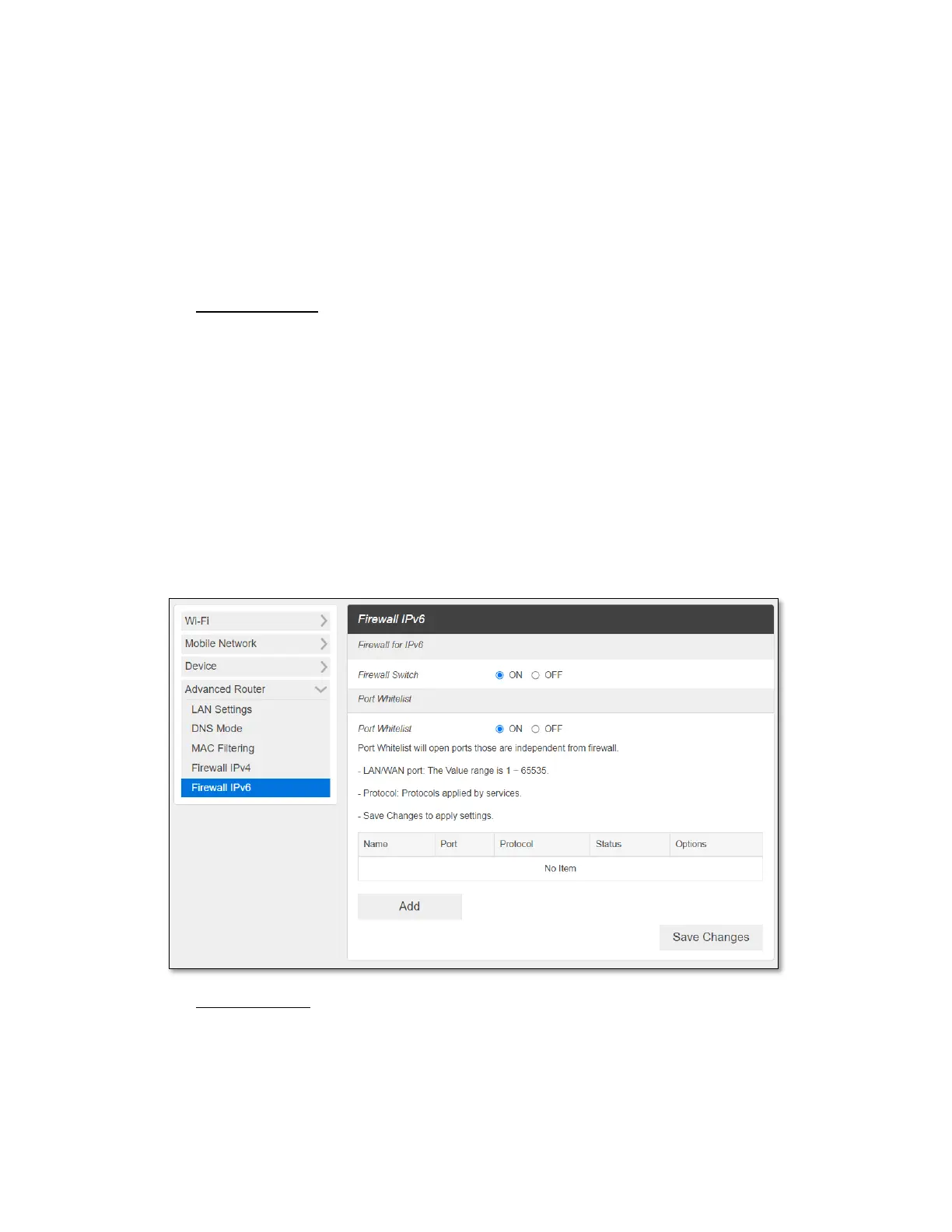
- Firewall Switch – To set up Port Whitelist, turn Firewall Switch ON. If Firewall Switch
is OFF, Port Whitelist settings is not active. By default, the Firewall Switch for IPv6 is
ON to restrict inbound forward packet from outside.


 To Next Page