30
4-6
6
7
5
8
9
10
2 3
1
4
11 11b
12
Layout
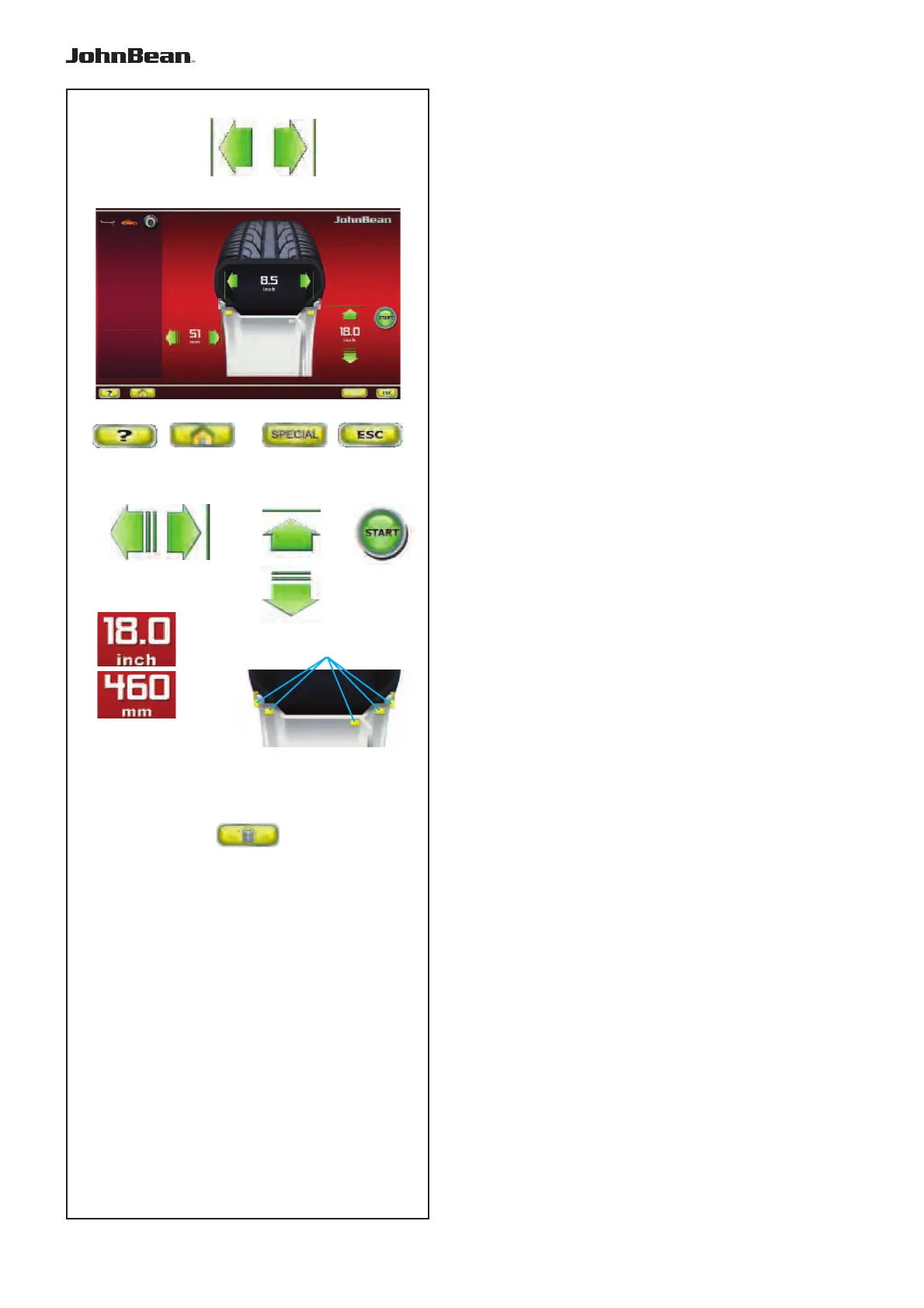
Fig. 4-6 RIM DATA ENTRY
Rim data input Screen.
Open using the Manual Data Entry key (11, Fig. 4-5).
Specifi c commands:
1 - HELP key - Selects HELP texts.
2 - HOME key - Returns you to the starting page
(INTRO SCREEN).
3 - SPECIAL key - Opens the WHEEL PROFILES
screen page, for saving or selecting wheels with preset
dimensions (F 6.1.4.1).
4 - ESC key -
- Returns you to RIM DATA ENTRY
5 - DISTANCE key - (OFFSET) - To change the value
press one of the arrows.
- The right arrow increases the value.
- The left arrow reduces the value.
6 - WIDTH key - For changing the rim nominal width
value set.
- The right arrow increases the value.
- The left arrow reduces the value.
7 - DIAMETER keys - For changing the rim nominal
diameter value set.
- The upper arrow increases the value.
- The lower arrow reduces the value.
8 - START key - Starts the measuring run, provided
that the wheel guard is lowered in advance.
9 - “INCH / MM” key - For selecting alternatively
inches or millimetres, press directly on one of the
measurements shown.
10 - “ALU” key - For directly selecting the positions
for application of weights on the rim.
11 - “TOGGLE” key - For activating the “Easy Alu
Toggle” (F 5.6) option. After a fi rst selection the key
is no longer active and appears greyed out (11b).
12 - For manually entering wheel dimension information.
..
_
..........
11
11 - For manually entering wheel dimension information.


 To Next Page