10
Playing Audio
From the home screen of the Juke web app, you will see your 4 available inputs listed at the
bottom of the page. Tapping on any of them will turn that input light blue to signify that is the
input you are now controlling.
You can then turn any combination of zones on for that selected input, e.g., every zone, just a
couple, or none. A zone will be light blue to signify that it’s been turned on. Please note that
you can not have a zone turned on for multiple inputs at one time.
Once you have the zones turned on for your desired input, it is time to leave the Juke web app
and begin playing the music directly from the app or device of your choice. The options are as
follows:
Apple Airplay
Stream any content or app of your choosing that you can access on an Apple product, e.g,
iPhone, iPad, AppleTV, etc. directly to Juke. This provides unlimited options from the apps you
can choose – AppleMusic, Pandora, Amazon Music, Spotify, etc.
How to access: There are different ways to connect to Juke’s
Airplays. For example, on older iOS devices, swipe up from
the bottom edge of any screen. On iPhone X or later, or iPad
with iOS 12 or later, swipe down from the upper-right corner
of the screen.
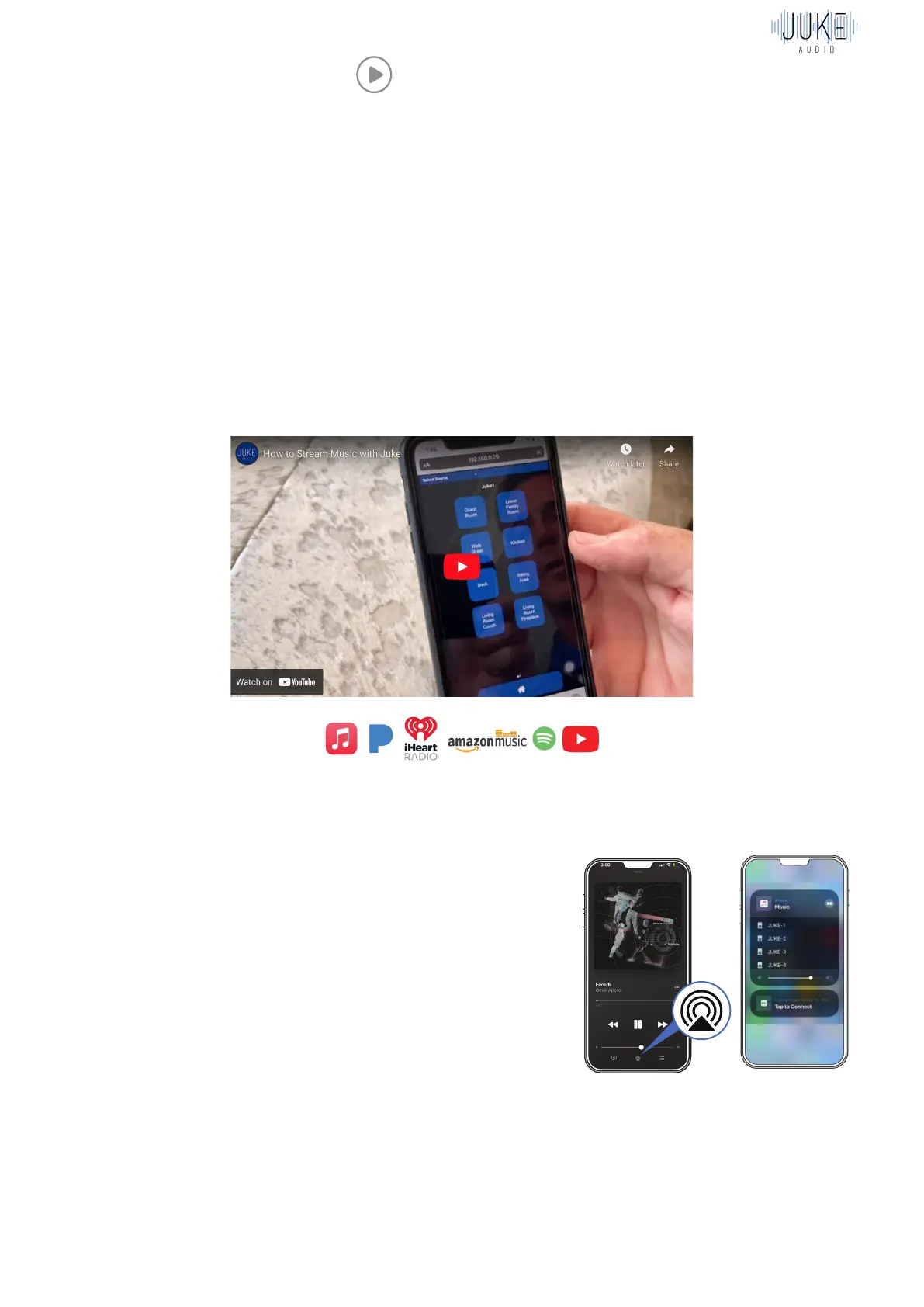
You can follow the pictures or watch the video tutorial
1.Click on the Airplay icon in the top right corner.
2.Click on one of the Jukes airplay inputs that you have
zones turned on for and then begin playing your music.
Note: One of Juke’s 4 inputs can be adjusted to Airplay2. The advantages of this over original
Airplay is the ability to stream to Juke and other Airplay2 enabled devices together, and also
not have the music stop when a phone call comes in.
1 2



 To Next Page