08
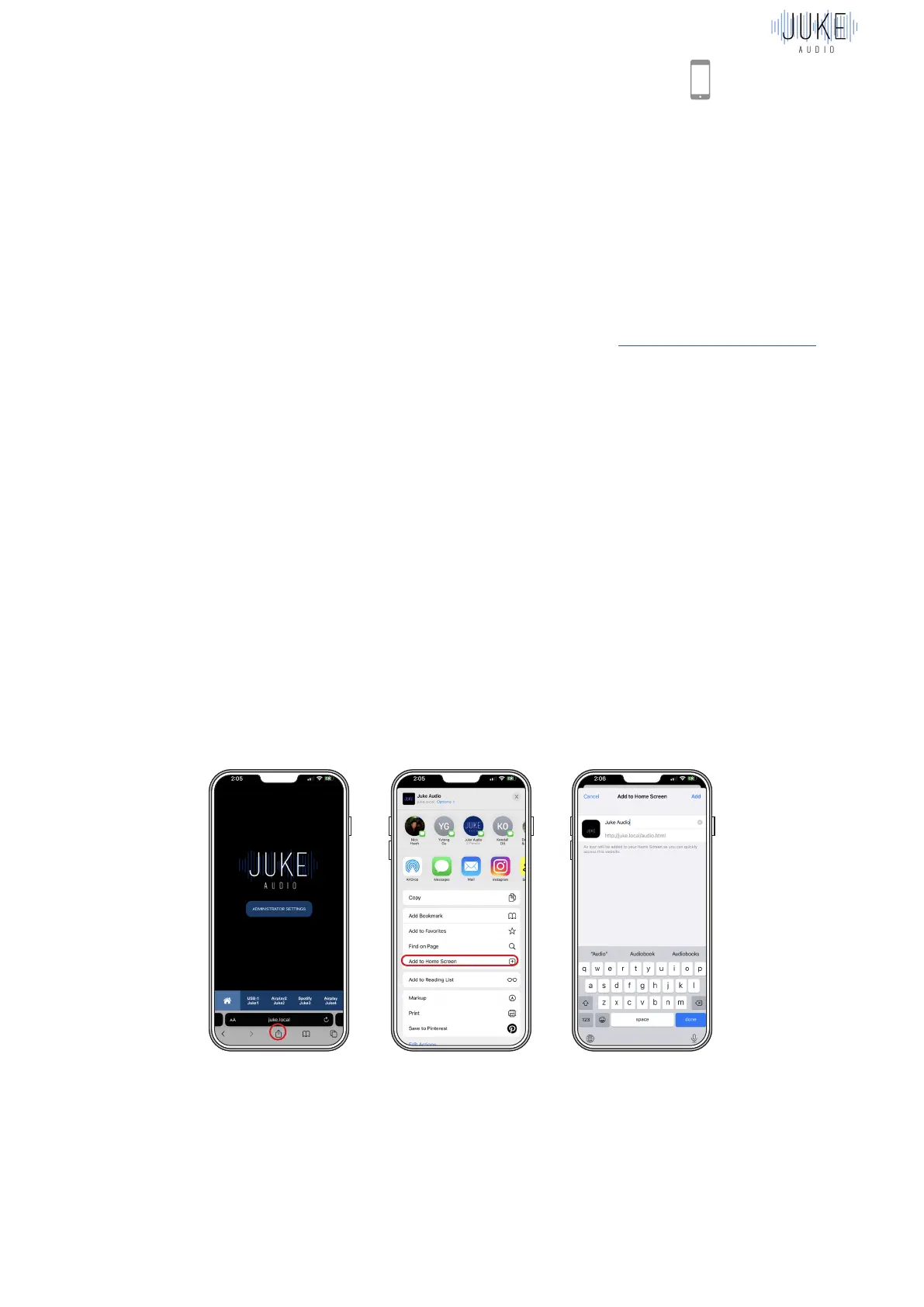
Saving A Shortcut
We recommend saving a shortcut to this webpage on the home screen of your device for
easier access. In order to do so with Apple, you can hit the square with the arrow coming out of
it in Safari, on Android tap the three dots in the upper right hand corner to save the shortcut Wait
a minute, hit refresh in your browser, and you’re done!
Accessing the Juke Web App
Once you have merged the Juke onto your network you’ll be able to access the web app from
any device connected to that same network.
On Apple product: type in Juke.local into the web browser of Safari
On Android / PC: type in the IP address assigned to Juke by your router into your web
browser. (Note: the IP address will no longer be 10.0.0.5 after you’ve connected your Juke
to your network.) The assigned IP can be located by going to jukeaudio.com/lookup/ and
typing in the serial number which can be found on the underside of the unit. If it fails to find
your device, then please revert back to the first two networking steps.
Please note: The IP address of your Juke may change if there is a power outage. See
troubleshooting tab for instructions on reserving an IP address for Juke so it does not change.



 To Next Page