06
Getting on the Network
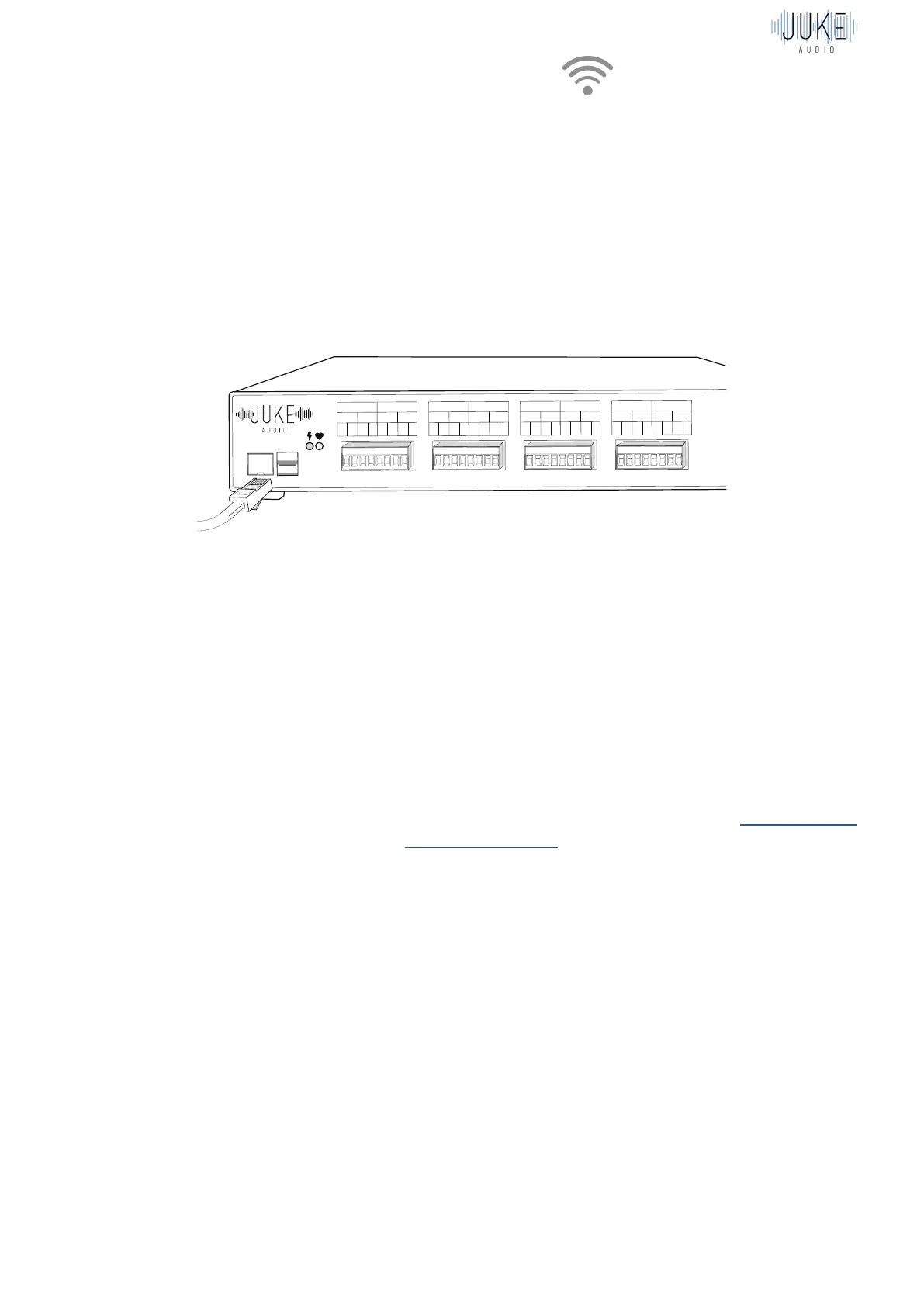
Hard-Wired Ethernet Connection
Zone 1 Zone 2
L R L R
+ - + - + - + -
Zone 1 Zone 2
L R L R
+ - + - + - + -
Zone 1 Zone 2
L R L R
+ - + - + - + -
Zone 1 Zone 2
L R L R
+ - + - + - + -
If available, it is preferable to connect Juke to your network via Ethernet. Note: make sure to
connect Juke to the LAN port on your main router. Juke must be on the same network as the
devices (e.g. your phone or tablet) you wish to control it with. If you plug Juke into a port on your
cable modem, but your home network is provided by a different router, you won’t be able to
access Juke. If connected via Ethernet, please skip the next section since there is no need
to configure a wireless connection.
Wireless connection
If Juke is within approximately 10 to 15 feet of an access point, you can use its internal Wi-Fi.
Otherwise, if the distance is greater, we recommend either connecting Juke to a TPLink N300
with an ethernet cord, or connecting this Wi-Fi USB adapter directly into one of Juke’s USB
ports.
Steps:
1. Go to your settings then Wi-Fi to see your available networks. Disconnect from your local
network and connect to the “JukeAudio” Wi-Fi.
2. If on Apple: Go to safari and type in Juke.local as a URL
3. If On Android / PC: Go to your internet browser and type in 10.0.0.5
4. Go to Admin settings and type in the password “Admin”
5. Go to Network Set- Up and type in the credentials for your Wi-Fi and hit submit
6. Then, reconnect your device to your Wi-Fi network. (This will likely happen automatically
because Juke stops acting as an access point once it’s on your network.)
7. Wait a minute, hit refresh in your browser, and you’re done!
Juke can be connected to your network either through a hard-wired ethernet connection or
wirelessly over Wi-Fi as well. Whenever possible, we recommend a hard-wired connection for
most stable performance.


 To Next Page