09
Configuring
All the Juke device configuration can be done in the Administrator settings of the Juke web app.
The password to this is preset to “Admin” with a Capital A but can be changed inside of the
Admin settings. See troubleshooting section of this guide for how to reset the password.
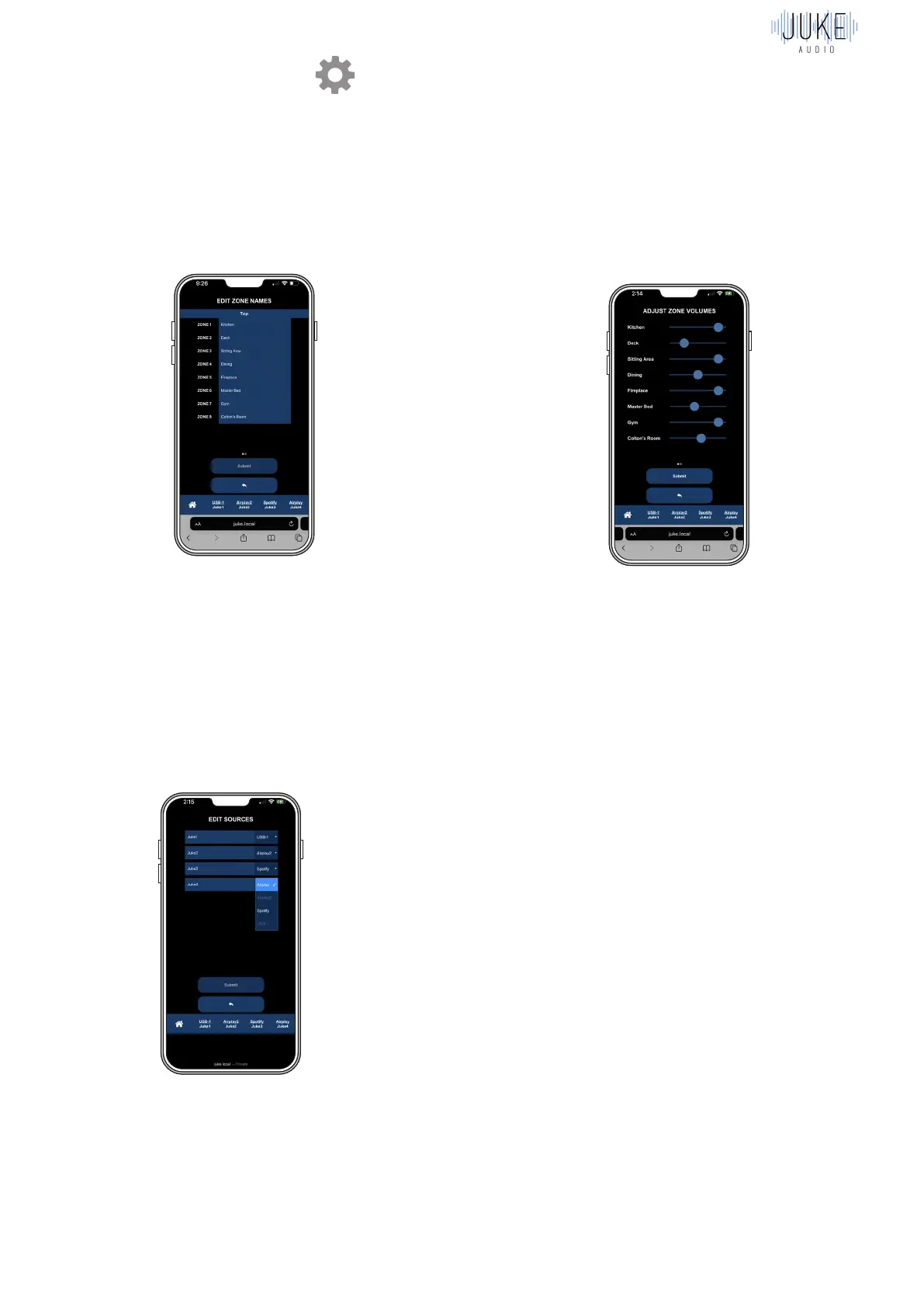
Editing Zone Names
When Juke is first installed, the zones are
numbered. You will want to give them
names that you recognize (e.g. kitchen,
deck, master bedroom, etc.).
In the blue boxes on the right, enter the
names for the zones, and click Submit.
Adjusting Inputs
Juke supports 4 simultaneous audio inputs.
All of which are set to Airplay by default,
but can be adjusted to Airplay2, Spotify
Connect (especially important for Android),
or a connected analog input to Juke’s USB
port via the DigitNow adapter (see full info in
USB portion of the using tab).
Editing Zone Volumes
While using Juke, you typically control
the volume with your device the way you
normally do (e.g. by using the volume
buttons on your phone) or adjusting the
volume slider directly from the input itself
within Apple Music, Pandora, etc. However,
you may want to adjust the relative volumes
of the zones to make certain areas quieter
or louder than the rest. To do so, go to the
edit zone volumes tab, drag the sliders to
the desired levels, and click Submit.


 To Next Page