96 Allegro 2 Rugged Handheld Owner’s Manual
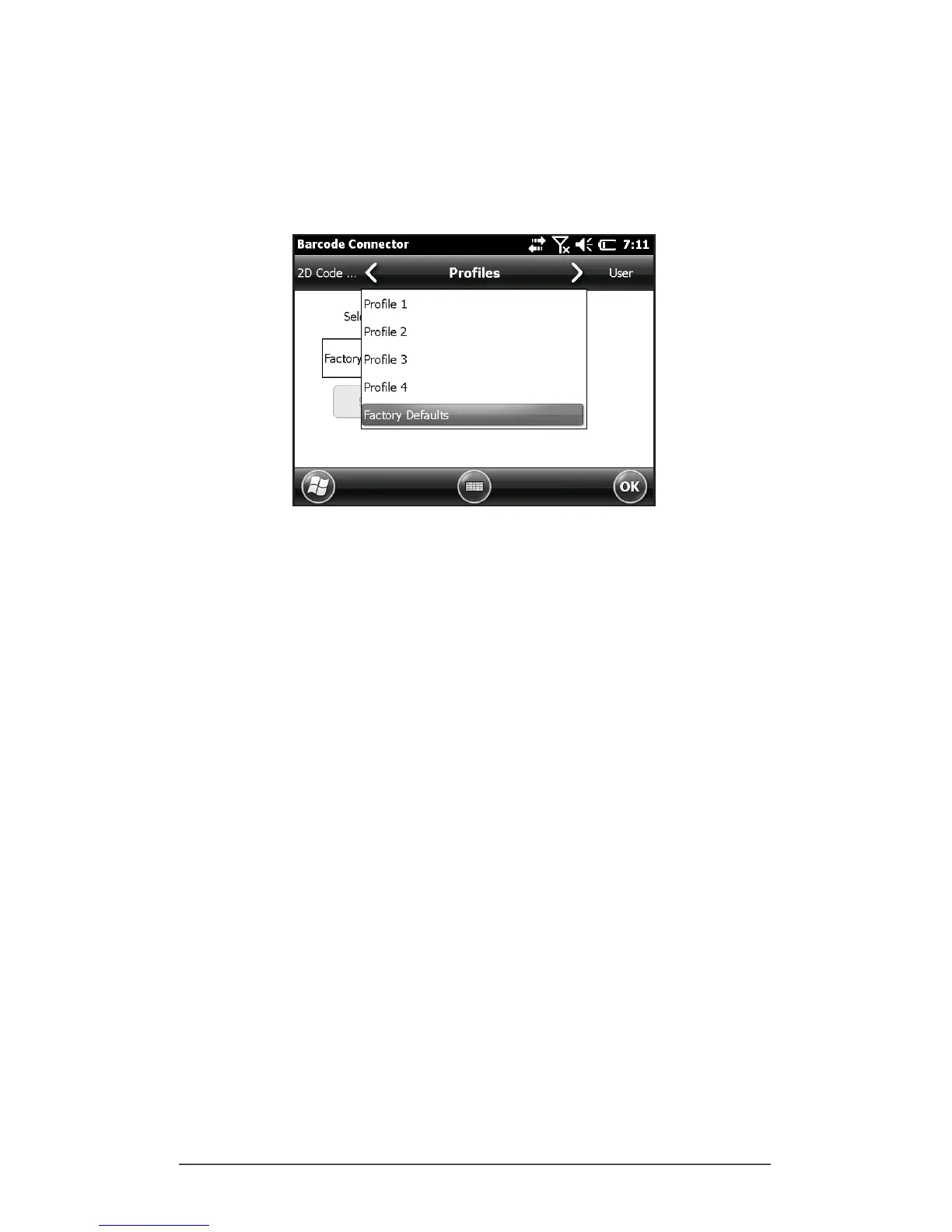
Note: When a setting is changed, a hidden prole (called
“last user”) is updated. When this utility is launched, it loads
the settings from the last user prole.
Up to four proles with different settings can be saved.
To save a new prole, congure the settings previously
discussed, come to this screen, select the prole name you
want to use, and select Save.
Note: Any changes to settings after a prole is loaded will
not automatically get saved out to the prole, but will get
saved out to “last user.”
Barcode Troubleshooting
1. When I read a barcode, the data returned is not correct.
Reason/Solution: Ensure that the congurations are set up
correctly so you are given the information you need. For
example, to read a Code 32 barcode, on the 1D Code Type
tab, ensure that Code 39 is selected. Select Options, and on
the Code 39 tab ensure that Convert Code 39 to Code 32 is
selected.
2. I don’t know what type of barcode I am trying to scan.
Reason/Solution: Enable all the barcode types on the 1D
Code Types, Composite/Postal Code Types, and 2D Code
Types tabs (some types are mutually exclusive). Go to the
Test screen. Scan the barcode and the Code Type window
shows the type of barcode scanned. When you are nished,
go back and deselect barcode types you are not using.


 To Next Page