Chapter 2 Hardware Components 19
Note: The keyboard backlight turns off when the display
backlight dims or the Allegro 2 is suspended.
Display and Touchscreen
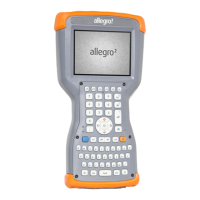
The Allegro 2 has a bright color display and capacitive
touchscreen with a diagonal viewing area of 4.2 inches
(107 mm). It is easy to view outdoors and is sealed against
water and dust. The Windows
®
Embedded Handheld
operating system enhances the ability of the Allegro 2 to
recognize touch gestures, making it easy to use a nger
to make selections and navigate. You can also use a
capacitive stylus.
Display and Touchscreen Settings
Type and Orientation
To adjust the display settings, including the text size and
orientation, go to the Screen control panel by pressing Start
> Settings > System > Screen.
The screen is designed to be used in landscape orientation.
Note: Capacitive touchscreens do not need to be aligned.
Touchscreen Modes
The touchscreen is optimally designed for nger use. The
default touchscreen mode can be adjusted to best match
your application and environment, especially if you are
using a capacitive stylus.


 To Next Page