Chapter 1 Getting Started 9
For more precise positioning, touch, hold, and move the
screen up or down.
Use the scroll bar if it is available.
Use the navpad to move around on a screen.
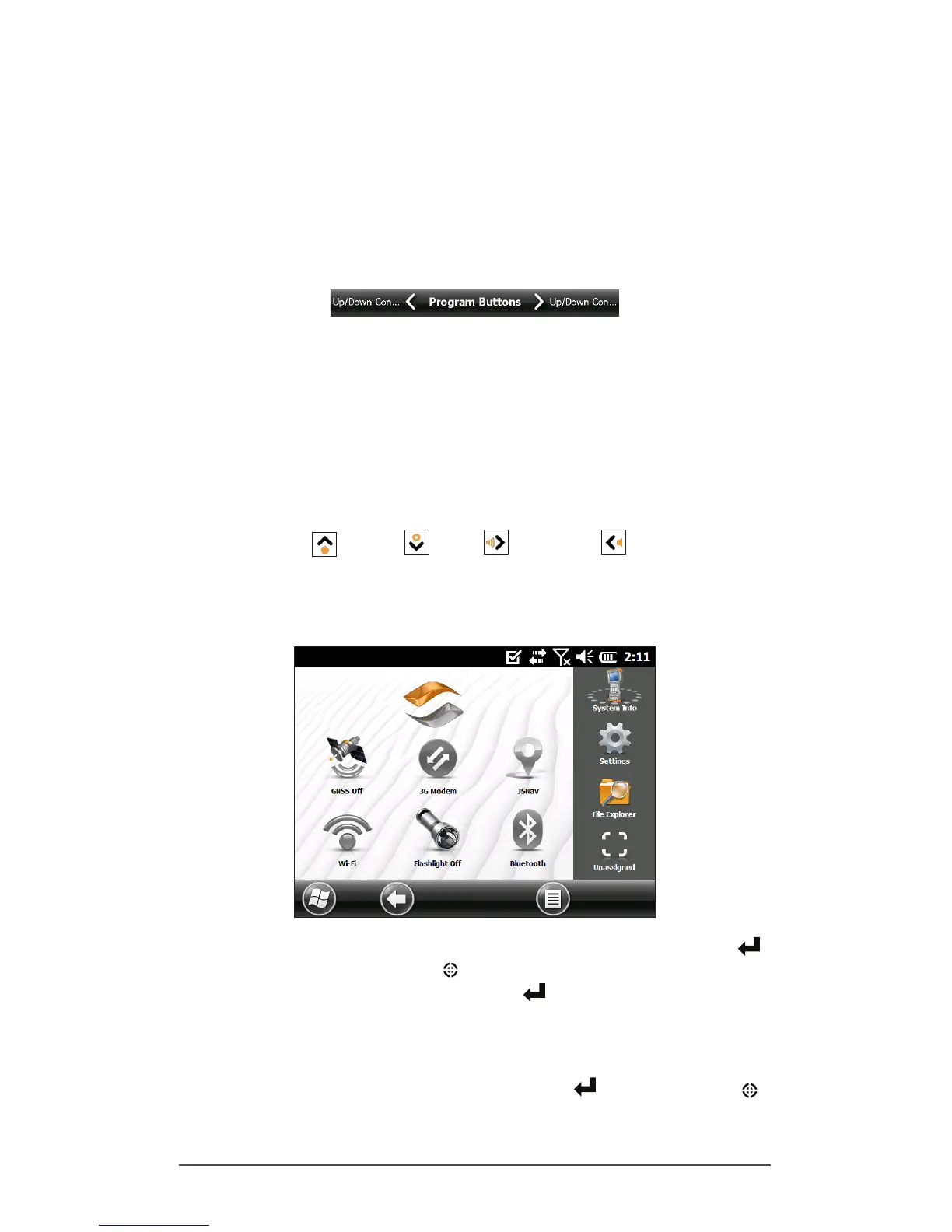
A horizontal scrolling menu is located on control panel
screens near the top.
Make a Selection
Using the Touchscreen
Press or tap the function gadget or application icon you
want to select, turn on, activate, or turn off.
Press and hold a function gadget to bring up a control
panel, menu, or list.
Using the Keyboard
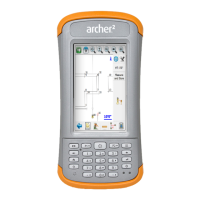
Use the up down right and left arrow keys on
the navpad to select (highlight) a gadget or icon on the
screen. A ring appears around the selection. System Info
has been selected below:
Perform the selected action by pressing the return key
or the center action key . For dashboard gadgets like
Wi-Fi, one press of the return key shows you which icon
is selected, a second key press performs the action, and
a third key press turns the action off. For application icons
on the Start screen or in favorites, continue to use the
arrow keys on the navpad and return or action keys
until you get to the screen or menu you want.


 To Next Page