Chapter 9 Barcode Scanner 87
To congure a button to use for the scan operation, see
Programmable Keys in Chapter 2.
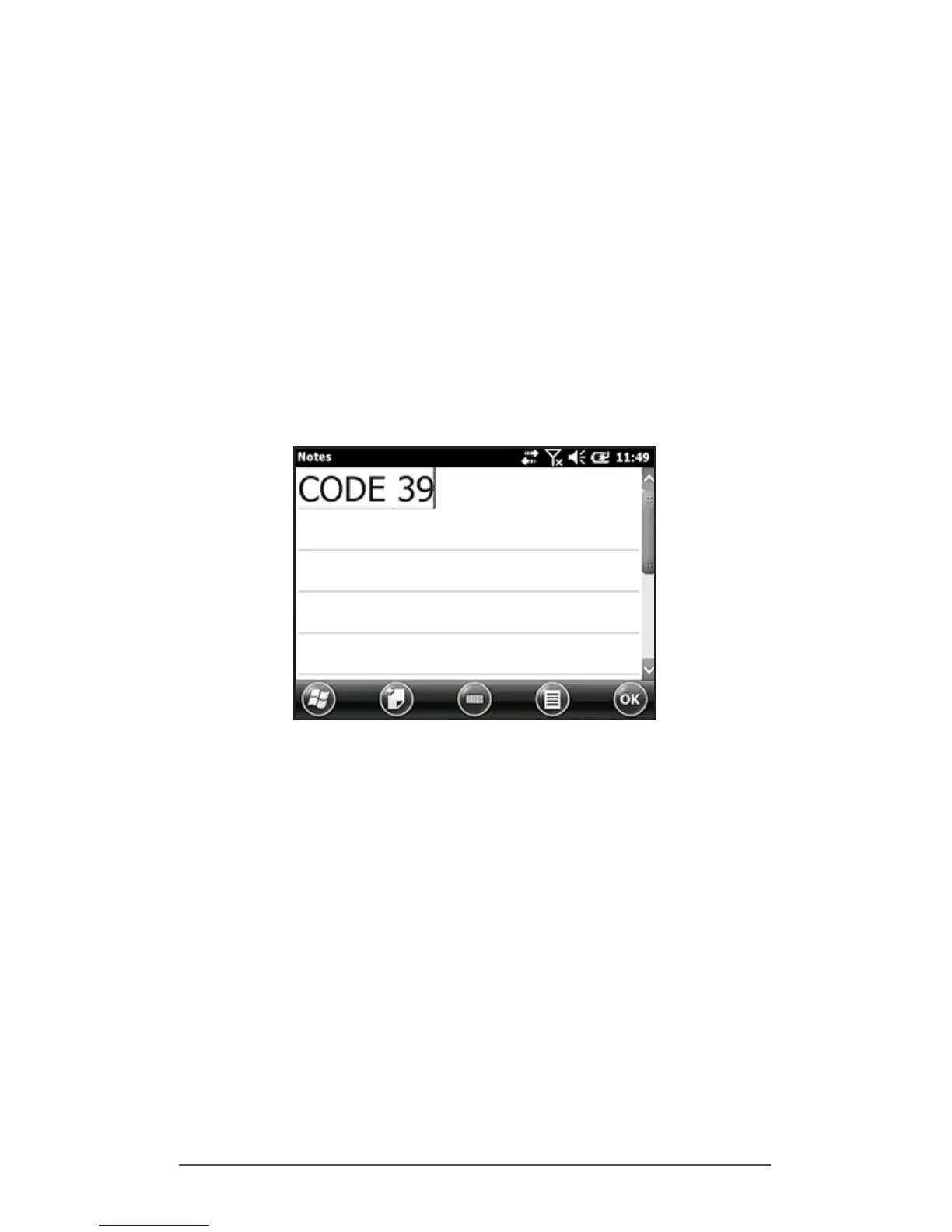
5. Open a document to receive the barcode data. (The
Notes application is provided on the Allegro 2.)
6. Put the cursor where you want the barcode data to be
placed.
7. Using the red crosshairs, aim the scanner at the barcode
you are scanning. Press the button you programmed as
Barcode Scan to begin scanning.
8. When the scanner decodes the barcode, the data
is placed in your document. (With Excel, tap on the
column you want the data to appear in.)


 To Next Page