EasyManua.ls Logo

Juniper SRX300 - User Manual

Juniper SRX300
12 pages
Print Icon
To Next Page IconTo Next Page
Loading...
Quick Start
SRX300
IN THIS GUIDE
Step 1: Begin | 1
Step 2: Up and Running | 5
Step 3: Keep Going | 11
Step 1: Begin
IN THIS SECTION
Meet the SRX300 | 2
Install the SRX300 in a Rack | 2
Power On | 5
In this guide, we provide a simple, three-step path, to quickly get you up and running with your new SRX300. We’ve
simplified and shortened the installation and configuration steps, and included how-to videos. You’ll learn how to install
the SRX300 in a rack, power it up, and deploy it on your network.
NOTE: We think you'll want to check out our Guided Setup: SRX300 Line Firewalls. Our Guided Setup picks
up where this Day One+ ends, providing step-by-step instructions on how to easily secure and validate your
branch location.
Are you interested in getting hands-on experience with the topics and operations covered in this guide? Visit
Juniper Networks Virtual Labs and reserve your free sandbox today! You’ll find the Junos Day One Experience
sandbox in the stand alone category.


Other manuals for Juniper SRX300

Questions and Answers

Summary

Step 1: Begin

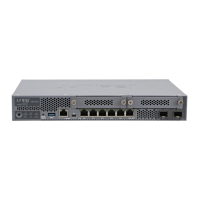
Meet the SRX300

Overview of the Juniper Networks SRX300 Firewall device features and connectivity.

Install the SRX300 in a Rack

Procedure for installing the SRX300 firewall device into a standard network rack.

Power On

Instructions for connecting and powering on the SRX300 firewall after installation.

Step 2: Up and Running

SRX300 Provisioning Options

Guidance on choosing configuration tools like Junos CLI, J-Web, Juniper Sky, or Contrail Service Orchestration.

Initial Configuration Using the CLI

Step-by-step instructions for performing initial configuration of the SRX300 via the Command Line Interface.

Step 3: Keep Going

Whats Next?

Guidance on further steps after initial SRX300 configuration, including advanced settings and resources.

General Information

Access to Juniper Networks documentation, guides, and licensing information for SRX firewalls.

Learn With Videos

Resources for video tutorials on SRX300 installation, configuration, and Junos OS features.

Overview

The Juniper Networks SRX300 Firewall is a compact desktop device designed to provide next-generation security, routing, switching, and WAN connectivity for small branch locations. It offers a comprehensive solution for securing network traffic and managing network services with ease.

Function Description

The primary function of the SRX300 is to act as a security gateway, protecting your network from various threats while enabling efficient data flow. It integrates several critical network functions into a single device, reducing complexity and cost.

  • Next-Generation Security: The SRX300 provides advanced security features to safeguard your network. This includes firewall capabilities to filter traffic based on defined rules, preventing unauthorized access and malicious attacks. It also supports features like intrusion prevention and detection, which identify and block known threats.
  • Routing: The device acts as a router, directing network traffic between different networks and subnets. This is essential for connecting your local area network (LAN) to the wider internet (WAN) and for managing traffic within your internal network.
  • Switching: With its multiple Gigabit Ethernet (GbE) ports, the SRX300 also functions as a network switch, allowing multiple devices within your LAN to connect and communicate with each other. This eliminates the need for a separate switch in smaller deployments.
  • WAN Connectivity: The SRX300 is designed to connect your branch office to the internet or other remote networks. It typically uses a dedicated WAN interface (like ge-0/0/0) to establish this connection, often configured to receive its internet access configuration from a service provider using DHCP.
  • Source NAT (S-NAT): For traffic originating from the trusted internal network (trust zone) and destined for the internet (untrust zone), the SRX300 performs Source Network Address Translation. This means it replaces the private IP addresses of internal devices with the public IP address of the WAN interface, allowing multiple internal devices to share a single public IP address and enhancing security by hiding internal network topology.
  • Zone-Based Security: The SRX300 employs a zone-based security model. By default, it defines a 'trust zone' for internal networks and an 'untrust zone' for external networks like the internet. Traffic rules are applied between these zones, allowing all traffic from the trust zone to the untrust zone by default, while blocking traffic from the untrust zone to the trust zone unless specifically allowed. This provides a robust security posture.
  • DHCP Server: The device can act as a DHCP server for devices connected to its LAN ports. This means it automatically assigns IP addresses and other network configuration parameters to these devices, simplifying network setup and management.
  • System Services: The SRX300 allows specific system services like HTTPS, DHCP, TFTP, and SSH to be accessed from the untrust zone to the local host, facilitating remote management and specific network functionalities. All local host services and protocols are generally allowed for traffic originating from the trust zone.

Usage Features

The SRX300 is designed for straightforward deployment and management, offering multiple options to suit different user preferences and network requirements.

  • Quick Start Guide: The device comes with a "Quick Start" guide that provides a simple, three-step path to get it up and running quickly. This includes simplified installation and configuration steps, often accompanied by how-to videos for visual guidance.
  • Installation Flexibility: The SRX300 can be installed in various environments. It can be placed on a desktop, mounted on a wall, or installed in a standard equipment rack using an appropriate rack mount kit. The installation process involves securing mounting brackets and a power supply adapter tray to the device, then attaching it to the rack rails.
  • Power On Sequence: The device powers up automatically as soon as it's connected to power. A solid green STAT LED on the front panel indicates that the SRX300 is ready for use.
  • Multiple Provisioning Options: Users have several choices for provisioning and managing the SRX300:
    • Junos CLI (Command Line Interface): This guide focuses on using CLI commands, leveraging factory defaults for quick configuration. The CLI offers granular control and is preferred by network administrators familiar with Junos OS.
    • J-Web (Juniper Networks GUI): A preinstalled graphical user interface (GUI) with a setup wizard simplifies initial configuration, making it accessible for users who prefer a visual interface.
    • Juniper Sky™ Enterprise: A public cloud-based Software as a Service (SaaS) solution for configuring and managing the SRX300, requiring a subscription service.
    • Contrail Service Orchestration (CSO): For Junos OS Release 19.2 or earlier, CSO (including Network Service Controller) can be used to configure the SRX300 with Zero Touch Provisioning (ZTP), requiring an authentication code.
  • Initial Configuration via Serial Console: The initial configuration can be performed by connecting to the serial console port using a DB-9 to RJ-45 adapter and an Ethernet cable. This allows for direct access to the CLI to set up basic parameters like the root password and hostname.
  • Remote and Local Management: Once configured, the SRX300 can be managed locally via a LAN port (using the default IP address 192.168.1.1) or remotely over the WAN interface (using the IP address assigned by the WAN provider). Management can be done using either the CLI or J-Web.
  • Guided Setup for Branch Offices: Juniper offers a "Guided Setup: SRX300 Line Firewalls" that provides step-by-step instructions for easily securing and validating a branch location, picking up where the initial quick start guide leaves off.
  • Virtual Labs for Hands-on Experience: Juniper Networks Virtual Labs offer free sandboxes, such as the "Junos Day One Experience sandbox," allowing users to gain hands-on experience with the topics and operations covered in the guide.

Maintenance Features

The SRX300 is designed with maintenance and ongoing management in mind, providing tools and resources for updates, security enhancements, and troubleshooting.

  • Software Upgrades: The device supports software upgrades, which are crucial for maintaining security, adding new features, and resolving known issues. Documentation on "Installing Software on SRX Series Devices" is available for this purpose.
  • Security Design Center: Juniper's Security Design Center provides resources for seeing, automating, and protecting your network with Juniper Security solutions, helping users implement advanced security measures.
  • Documentation and Resources: Extensive documentation is available through the Juniper TechLibrary, including the "SRX300 Documentation" page, "Junos OS Release Notes" for updates, and "Juniper Licensing Guide" for managing software licenses.
  • Video Training Library: Juniper offers a growing library of web-based training videos that demonstrate various aspects of the SRX300, from hardware installation to advanced Junos OS network features. These resources, found on the Juniper Networks YouTube page and Learning Portal, help users expand their knowledge and troubleshoot issues.
  • Factory Default Configuration: The device ships with a factory default configuration, which simplifies initial setup. Users can view these settings using the show configuration operational mode command in the CLI. The initial configuration process often involves removing Zero Touch Provisioning (ZTP) settings if manual configuration is preferred, preventing periodic log messages related to ZTP status.
  • Console Port Access: The console port provides a direct, out-of-band access method for initial configuration and troubleshooting, ensuring access even if network connectivity is lost. It supports standard serial port settings for reliable communication.
  • Root Authentication Password: Setting a root authentication password is a critical security step during initial configuration, ensuring secure access to the device.
  • SSH Access: The SRX300 supports SSH (Secure Shell) for secure remote command-line access, allowing administrators to manage the device securely over the network. Enabling root login over SSH and allowing SSH access over the WAN interface are common initial configuration steps.

Juniper SRX300 Specifications

General IconGeneral
USB 2.0 ports quantity1
Connectivity technologyWired
SFP module slots quantity2
Ethernet LAN (RJ-45) ports6
Internal memory4000 MB
Flash memory8000 MB
Storage media typeFlash
Power consumption (typical)15.4 W
Noise level0 dB
Heat dissipation85 BTU/h
Concurrent connections64000
Mean time between failures (MTBF)389820 h
Storage temperature (T-T)-20 - 70 °C
Operating temperature (T-T)0 - 40 °C
Storage relative humidity (H-H)5 - 95 %
Operating relative humidity (H-H)10 - 90 %
Routing protocolsBGP, CLNS, IS-IS, OSPF, RIP-1, RIP-2
Number of users50 user(s)
Quality of Service (QoS) supportYes
Firewall throughput1000 Mbit/s
Mobile VPN IPSec250
IPS/IDS throughput100 Mbit/s
Harmonized System (HS) code85176990
Weight and Dimensions IconWeight and Dimensions
Weight1980 g
Dimensions (WxDxH)320.8 x 34.7 x 191 mm

Related product manuals