(No.PA045<Rev.001>)1-23
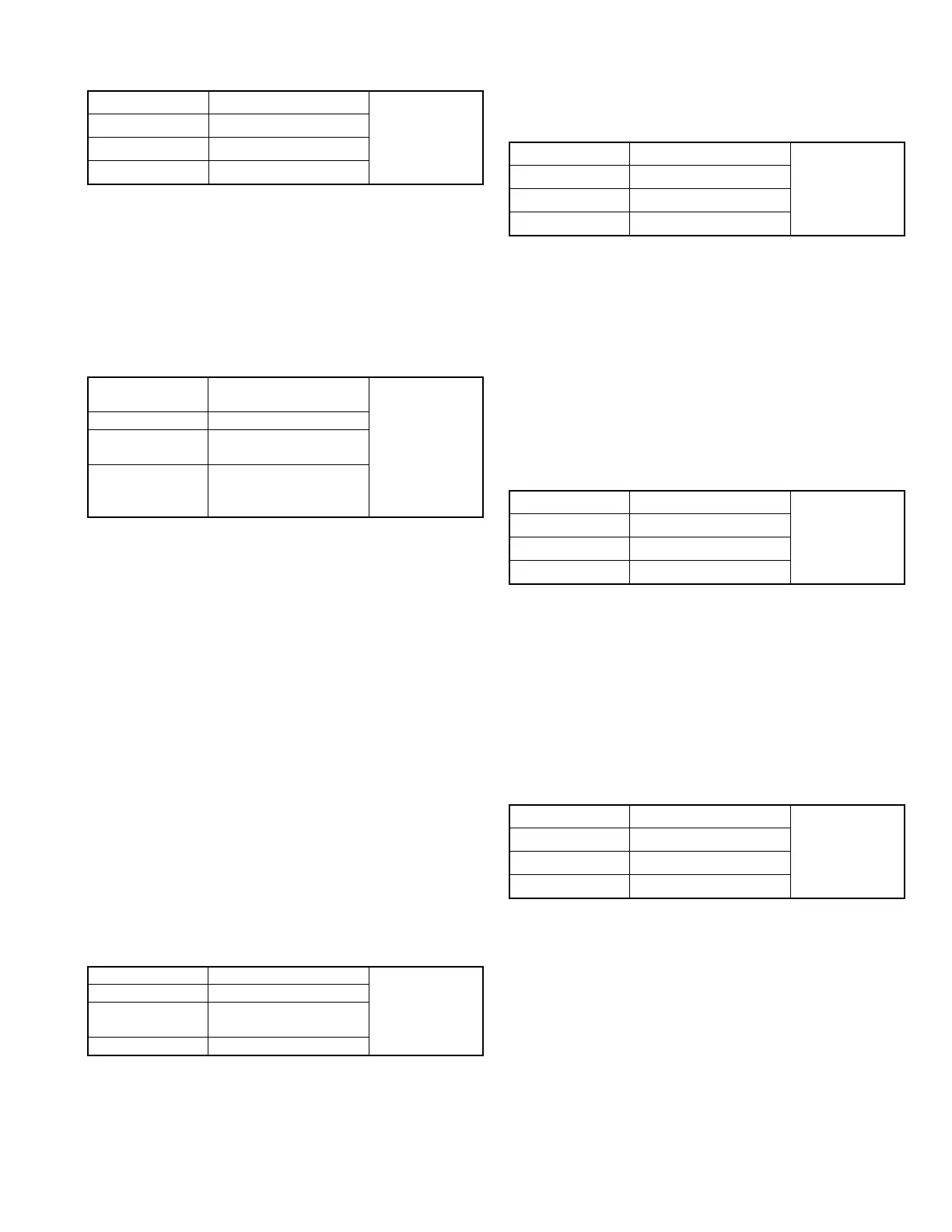
4.4.4 DESTINATION WRITING
Note :
Perform this operation during standby mode.
ADJUSTMENT
(1) Run Scaler Service Software.
(2) From the COM Port, select the [Connect to FP] and con-
nect PC and projector.
(3) Select the destination from the Location, and write the
destination.
4.4.5 COLOR TEMPERATURE
ADJUSTMENT
(1) Set CL-200 approximately in the center of the image,
facing the projector.
(2) Input 100% white raster pattern in the HDMI terminal
from the signal generator.
(3) Set lens shift position to mechanical center.
(4) From the Picture Adjust menu, set Contrast, Brightness
and Offset to “0”.
(5) Adjust the color temperature have the following settings.
Use Blue to adjust color temperature and Green to adjust
the deviation. For red, do not adjust.
5500K: Color temperature 5500 ± 50, Deviation 0 ± 0.05
6000K: Color temperature 6000 ± 50, Deviation 0 ± 0.05
6500K: Color temperature 6500 ± 50, Deviation 0 ± 0.05
7000K: Color temperature 7000 ± 50, Deviation 0 ± 0.05
7500K: Color temperature 7500 ± 50, Deviation 0 ± 0.05
8000K: Color temperature 8000 ± 50, Deviation 0 ± 0.05
8500K: Color temperature 8500 ± 50, Deviation 0 ± 0.05
9000K: Color temperature 9000 ± 50, Deviation 0 ± 0.05
9500K: Color temperature 9500 ± 50, Deviation 0 ± 0.05
NOTE:
If a backup is made in EEPROM, reset the color tempera-
tures in the Service Menu (X35/XC3800 only).
4.4.6 PIXEL SHIFT
ADJUSTMENT
(1) Input color cross-hatch signal.
(2) From the Service menu, set <Adjust> to <Pixel Shift>.
(3) Adjust [H Pixel Adj.R], [H Pixel Adj.B] to make H direction
(Pixel Shift) to become the best point.
(4) Adjust [V Pixel Adj.R], [V Pixel Adj.G] to make V direction
(Pixel Shift) to bectom best point.
4.4.7 CW DATA BACKUP
Note :
Perform the operation with the power ON.
ADJUSTMENT
(1) Run the M2 Writer application program.
(2) Select a COM Port.
(3) Click [Read], and save the CME file to the PC.
(4) After replacing the CW board, click [Write], and select
the saved CME file.
(5) The backup CW data is now imported.
* If the CW data cannot be backed up, replace the optical unit.
4.4.8 TRANSFERRING CROSTALK CORRECTION DATA
FROM DD BOARD (X35,XC3800)
Note :
Perform the operation with the power ON.
ADJUSTMENT
(1) Run the CCWriter application program.
(2) Select a COM Port.
(3) Click "Copy from Backup Data to ROM".
(4) The Crostalk correction data is now transferred from the
DD board to the processor board.
4.4.9 MODEL CODE WRITING (X75R/XC7800R/X95R/
XC9800R)
Note :
Perform this operation during standby mode.
ADJUSTMENT
(1) Run Scaler Service Software.
(2) From the COM Port, select the [Connect to FP] and con-
nect PC and projector.
(3) Select the X75R, XC7800R, X95R or XC9800R from the
Model, and write the model code.
Instruments Scaler Service Software REPLACING
COMPONENTS
zPROCESSOR
PWB
Te st p o i n t
Adjustment menu
Preparation
Instruments Color meter(CL-
200),Signal generator
REPLACING
COMPONENTS
zPROCESSOR
PWB
zOPTICAL
BLOCK
Te st p o i n t
Adjustment menu Service menu <Adjust>
→ <Color temperature>
Preparation Set lining has been exe-
cuted (more than 10 min-
utes)
Instruments REPLACING
COMPONENTS
zOPTICAL
BLOCK
Te st p o i n t
Adjustment menu Service menu <Adjust>
→ <Pixel shift>
Preparation
Instruments Scaler Service Software REPLACING
COMPONENTS
z CW Board
Te st p o i n t
Adjustment menu
Preparation
Instruments Scaler Service Software REPLACING
COMPONENTS
zOPTICAL
BLOCK
Te st p o i n t
Adjustment menu
Preparation
Instruments Scaler Service Software REPLACING
COMPONENTS
zPROCESSOR
PWB
Te st p o i n t
Adjustment menu
Preparation


 To Next Page