3
(For Windows Vista) Click “OK”.
4
Disconnect the USB cable and close the LCD monitor.
Organizing Files
After backing up your files, organize them by adding labels such as “Family
Trip” or “Athletic Meet”.
This is useful not only for creating discs, but for viewing the files too.
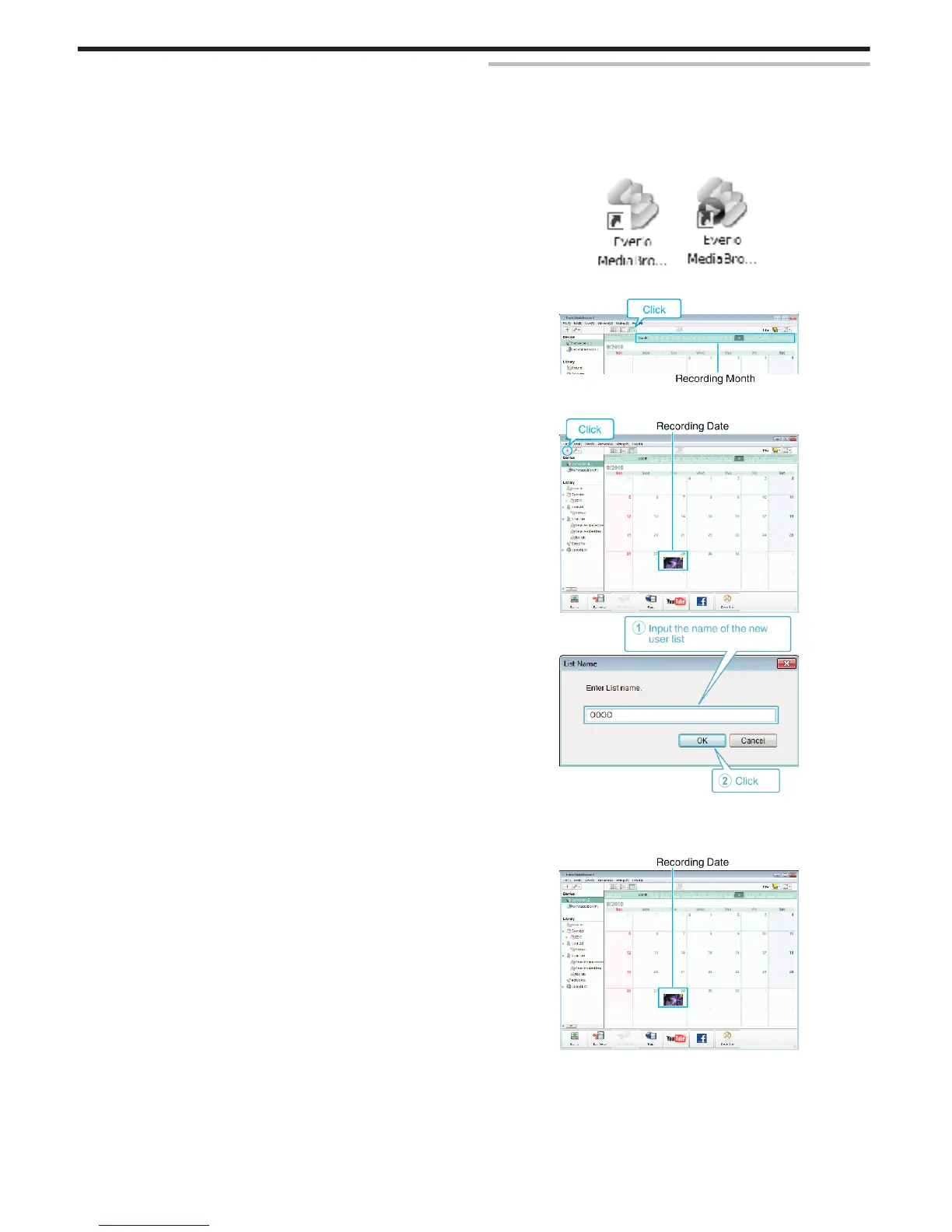
1
Double-click on the Everio MediaBrowser 4 icon.
0
The provided software starts up.
.
2
Display the month of the files to organize.
.
3
Create a user list.
.
.
0
A new user list is added to the user list library.
4
Click on the recording day.
0
The thumbnails of the files recorded on the day are displayed.
.
5
Register files to the created user list.
Copying
50



 To Next Page