VIDEO MAIL
o
Setting (Once setting is done, start from the “Regular
Operation” below)
Create a QR code.
Memo :
0
Perform operations in step 2 and 3 after creating a QR code, and read the
QR code one by one by the camera.
o
Enter values in the required items for setting the recipient’s
e-mail address.
0
E-mail address: set the recipient’s e-mail address.
0
E-mail function: set the function of the e-mail that is transmitted to the
recipient’s e-mail address.
0
Up to 8 e-mail addresses can be set.
o
Enter values in the required items for setting the sender’s
e-mail address.
0
E-mail address: set the sender’s e-mail address.
o
Enter values in the required items for setting the e-mail
server (SMTP server).
0
SMTP server: set the name of the e-mail server (SMTP server) from which
an e-mail account is obtained.
0
SMTP port number: set according to the condition when the e-mail
account is obtained. Normally set to “25”.
0
SMTP authentication method: set according to the condition when the e-
mail account is obtained.
0
User name: set if the SMTP authentication method is set to other than
“None”. (same as the registered user name (account name) when the e-
mail account is obtained)
0
Password: set if the SMTP authentication method is set to other than
“None”. (same as the registered password when the e-mail account is
obtained)
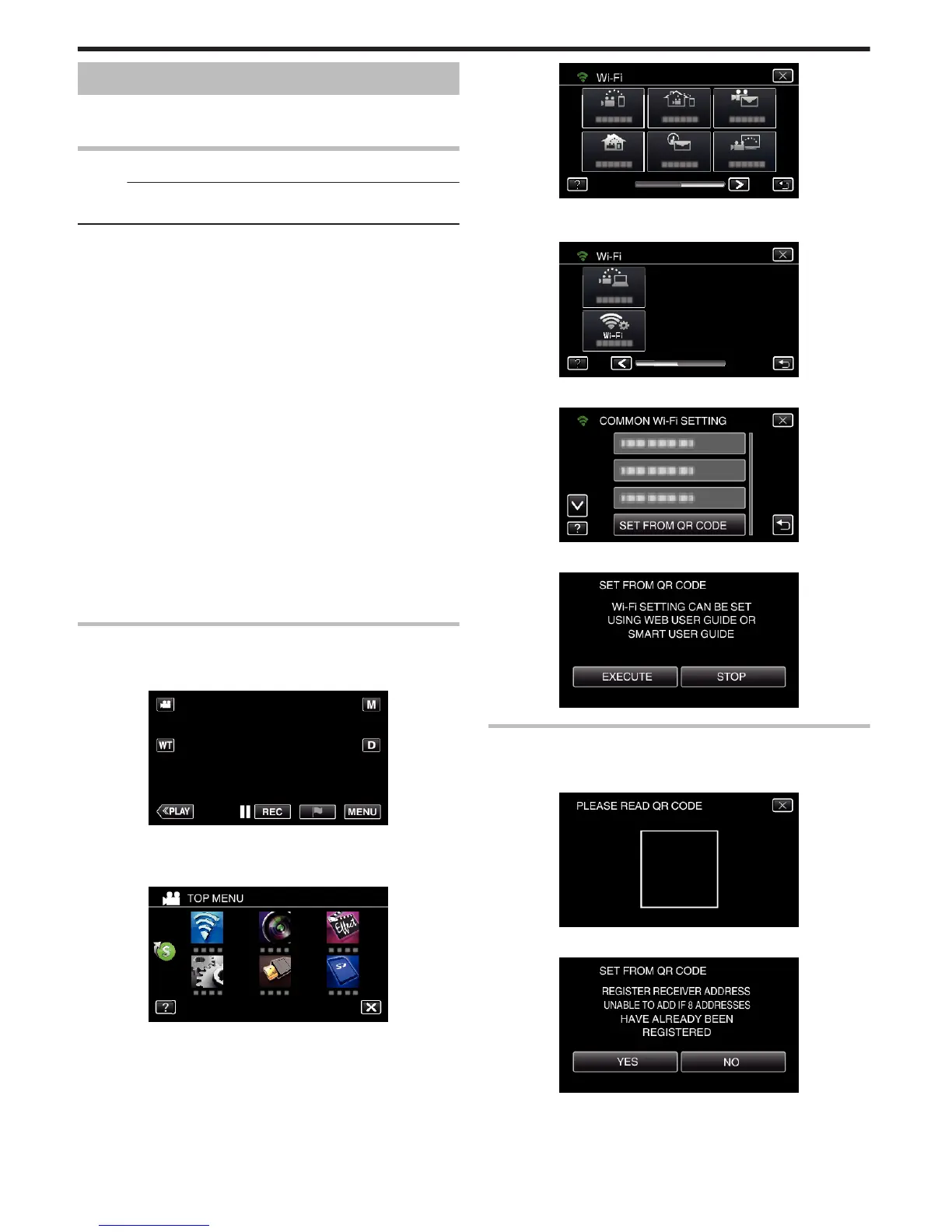
Display the screen for reading the QR code.
1
Tap “MENU”.
(Operation on this camera)
.
0
The top menu appears.
2
Tap the “Wi-Fi” (
Q
) icon.
(Operation on this camera)
.
3
Tap 1 on the lower right of the screen.
(Operation on this camera)
.
4
Tap “COMMON Wi-Fi SETTING”.
(Operation on this camera)
.
5
Tap “SET FROM QR CODE”.
.
6
Tap “EXECUTE”.
.
Read a QR code.
1
Read a QR code.
(Operation on this camera)
.
2
Tap “YES”.
.
0
Contents of the screen vary depending on the QR code that is read
by this unit.
3
Tap “OK”.
Using Wi-Fi by Creating a QR Code (GZ-EX355/GZ-EX310)
216



 To Next Page