EN47
5
S –
5
S
OFF
ANIM.
FOR RECORDING
5-Second Recording
Record a vacation or an important event in 5-second clips
to keep the action moving. This function is available only
for video recording.
1
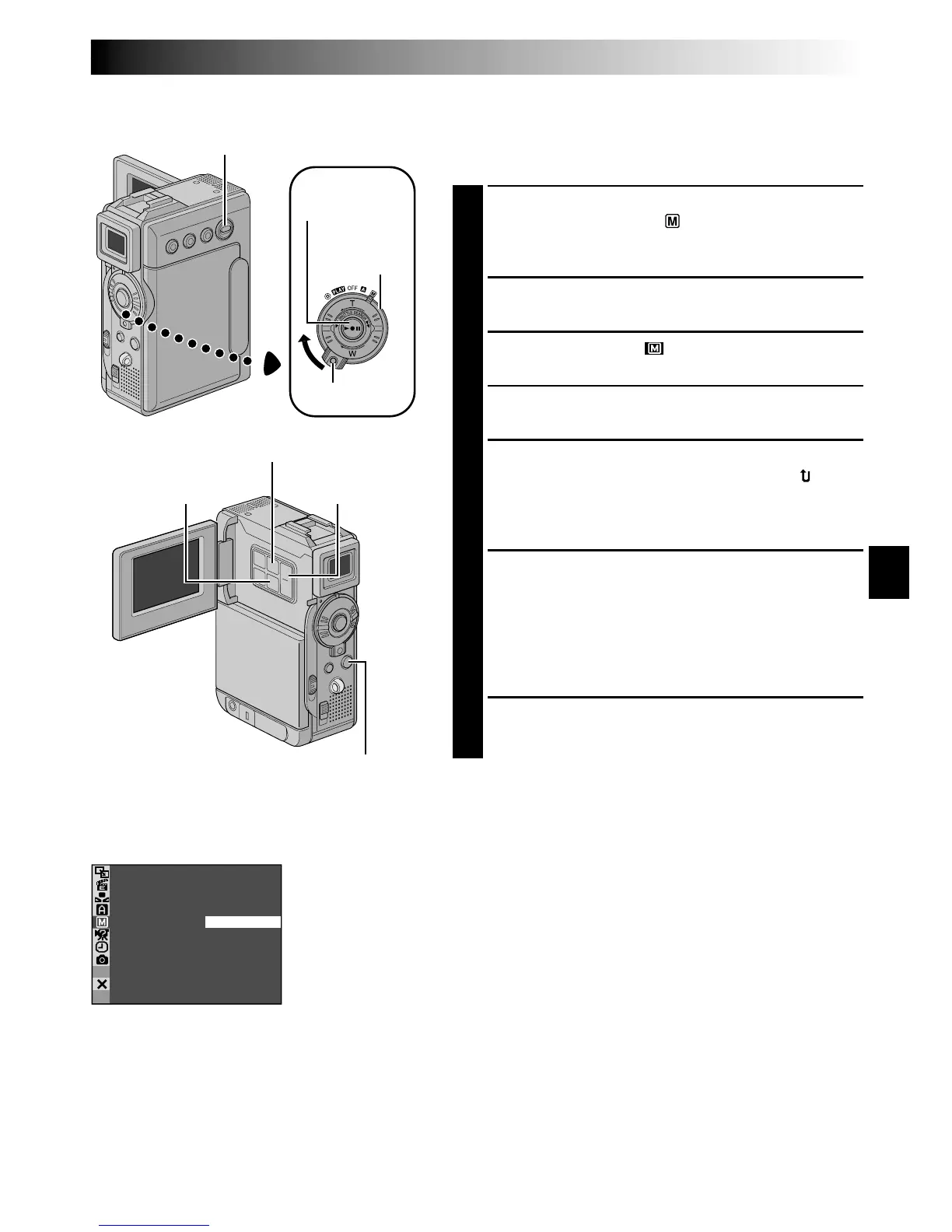
Set the VIDEO/MEMORY Switch to “VIDEO”, then
set the Power Switch to “ ” while pressing down
the Lock Button located on the switch. Pull out the
viewfinder fully or open the LCD monitor fully.
2
Press MENU. The Menu Screen appears.
3
Press + or – to select “ MANUAL”, and press SET/
SELECT. The MANUAL Menu appears.
4
Press + or – to select “5S”, and press SET/SELECT. The
Sub Menu appears.
5
Press + or – to select “5S”, and press SET/SELECT.
Selection is complete. Press + or – to select “ RE-
TURN”, and press SET/SELECT twice to close the
Menu Screen.
•“5S” appears.
6
Press the Recording Start/Stop Button. The tally lamp
lights and beep sounds to indicate the start of
recording, and after 5 seconds the camcorder enters
Record-Standby mode.
•Even if you press the Recording Start/Stop Button
again within 5 seconds after recording starts,
Record-Standby mode is not engaged.
7
To exit the 5S mode, select “OFF” in step 5.
To Take A Snapshot In The 5-Second Recording Mode . . .
.... instead of pressing the Recording Start/Stop Button in
step 6, select the desired Snapshot mode in the Menu
Screen, then press SNAPSHOT. The camcorder
records a 5-second still (墌 pg. 52). When “5S” is set
to “ANIM.” (墌 pg. 41) this function is not available.
NOTE:
When “5S” is set to “ANIM.” in the Menu Screen the
5-second recording mode is not available. Animation
recording of a few frames only is taken instead (
墌
pg. 41).
Display
MANUAL Menu
Power Switch
Lock Button
MENU Button
Recording Start/
Stop Button
VIDEO/MEMORY
Switch
SNAPSHOT Button
SET/SELECT
Button
+, – Button


 To Next Page