EasyManua.ls Logo

JVC GY-HM170U - User Manual

JVC GY-HM170U
212 pages
Print Icon
To Next Page IconTo Next Page
Loading...
.
4K MEMORY CARD CAMERA RECORDER
GY-HM250U/GY-HM250E
GY-HM180U/GY-HM180E
GY-HM170U/GY-HM170E
INSTRUCTIONS
.
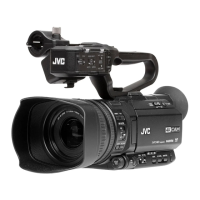
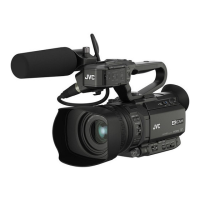
The illustration here shows how the handle unit is attached using the unit supplied.
The specifications and appearance of this product are subject to changes for further improvement
without prior notice.
Please check the latest version of the INSTRUCTIONS from the following Mobile User Guide. You can
also download the PDF from the Mobile User Guide.
Mobile User Guide
When you are outside, you can refer to the instructions from your Android phone or iPhone.
http://manual3.jvckenwood.com/pro/mobile/global/
You can view the Mobile User Guide using the browser on your Android phone or iPhone.
GY-HM250U(G)/GY-HM250E(G)
GY-HM180U(G)/GY-HM180E(G)
GY-HM170U(G)/GY-HM170E(G)
Thank you for purchasing this product.
Before operating this unit, please read the
instructions carefully to ensure the best
possible performance.
In this manual, each model number is
described without the last letter (U/E) which
means the shipping destination.
(U: for USA and Canada, E: for Europe)
Only “U” models (GY-HM250U/GY-HM180U/
GY-HM170U) have been evaluated by UL.
Please read the following before getting started:
For Customer Use:
Model No.
Serial No.
Enter below the Serial No. which is located
on the body.
Retain this information for future reference.
GY-HM250U/GY-HM180U/GY-HM170U
IM 1.05 B5A-3921-00


Table of Contents

Other manuals for JVC GY-HM170U

Questions and Answers

  • K
    keverettSep 18, 2025
    What to do if playback does not start on my JVC GY-HM170U after selecting a clip thumbnail?
    • A
      Amber TaylorSep 18, 2025
      If playback does not start on your JVC Camcorder after selecting a clip thumbnail, ensure the selected clip is a playable clip. Playback is not possible if the clip has a different video format setting.
  • D
    Dylan LarsonAug 25, 2025
    What to do if my JVC Camcorder is unable to start recording?
    • R
      robinwatsonAug 25, 2025
      If your JVC Camcorder is unable to start recording, check the following: Ensure the record trigger button/lock switch on the handle is turned on. Verify the write-protect switch of the SD card is turned off. Confirm the camera recorder is set to the Camera mode using the [MODE] selection button. Ensure the SD card inserted is compatible with the recording format.
  • K
    kimcarlosAug 25, 2025
    How to fix a JVC GY-HM170U Camcorder when the power does not turn on?
    • W
      Wendy RodriguezAug 26, 2025
      If your JVC Camcorder's power does not turn on, check if the AC adapter is properly connected and the battery is charged. If you've just turned it off, wait at least 5 seconds before turning it on again.
  • T
    tcrawfordAug 27, 2025
    What to do if images on the LCD monitor and viewfinder screen appear dark or blurred on my JVC GY-HM170U?
    • D
      Danielle JohnsonAug 27, 2025
      Readjust the brightness of the LCD monitor and viewfinder. Check if the [ND FILTER] switch is set to “1/16”, or if the iris is closed. Also, verify if the shutter speed setting is too high or if the amount of peaking is too little. To adjust the contour for the LCD monitor image and viewfinder image, use the [LCD/VF Peaking] menu by adjusting the contour of the viewfinder image. (The contour of the LCD monitor will also be adjusted at the same time.) This can be found under [Main Menu] B [LCD/VF] B [LCD/VF Peaking].
  • H
    hughesdavidSep 22, 2025
    Why are the images and audio during live streaming choppy on my JVC GY-HM170U Camcorder?
    • J
      John SinghSep 22, 2025
      If the images and audio sound during live streaming are choppy on your JVC Camcorder, it might be due to the network adapter and connection not supporting the specified encoding bit rate. Try reducing the encoding bit rate.
  • C
    Cory VasquezSep 23, 2025
    Why are the date and time not displayed on my JVC GY-HM170U?
    • C
      cassandrapayneSep 23, 2025
      The date and time are only displayed on the Display 1 and Display 2 screens in the Camera mode (during shooting). Check if [System] B [Record Set] B [Time Stamp] is set to “On”? To display the date and time, set it to “Off.”
  • D
    David AndersonSep 9, 2025
    Why does playback not start after selecting a clip thumbnail and pressing the Set button (R) on my JVC GY-HM170U Camcorder?
    • M
      morrismadelineSep 9, 2025
      The selected clip may not be a playable clip. Playback is not possible if the clip has a different video format setting.
  • D
    Danny ColeSep 12, 2025
    Why is the time code and user’s bit not displayed on my JVC GY-HM170U Camcorder?
    • A
      Adam MathewsSep 12, 2025
      Even in Camera mode or Media mode, the time code and user’s bit may not be displayed depending on the type of display. Check if [LCD/VF] B [Display Settings] B [TC/UB] is set to “Off”. To display the time code or user’s bit, set it to “TC” or “UB.”
  • R
    Robert FowlerSep 3, 2025
    Why does battery alarm appear on my JVC GY-HM170U even after loading a charged battery?
    • M
      Matthew ZamoraSep 3, 2025
      The battery alarm may appear on your JVC Camcorder even after loading a charged battery if the battery is too old.
  • M
    Mary SerranoSep 1, 2025
    What to do if clips cannot be uploaded to the FTP server from my JVC GY-HM170U Camcorder?
    • S
      Sarah HeathSep 1, 2025
      If clips cannot be uploaded to the FTP server from your JVC Camcorder, adjust the [Clip Server] settings. Note that the maximum size of the recorded clip is 64 GB. If a file size limit is set in the FTP server settings, set the size limit to more than 64 GB.

JVC GY-HM170U Specifications

General IconGeneral
Effective Pixels12.4 MP
Filter Size58mm
Image StabilizationOptical
Video FormatAVCHD, MP4
Maximum Resolution1920 x 1080
TimecodeYes
Display TypeLCD
Screen Size3.5 inches
Camera TypeCamcorder
Sensor Type1/2.3" CMOS
35mm Equivalent Focal Length29.5mm - 354mm
ND Filter1/4, 1/16
Recording MediaSD/SDHC/SDXC
Video Recording1920 x 1080
Audio Recording2-channel PCM
Audio Input2 x XLR
Audio Output3.5mm Stereo Mini Jack
Video OutputHDMI, Composite
Viewfinder TypeLCD

Related product manuals