EasyManua.ls Logo

JVC GY-HM150U - User Manual

JVC GY-HM150U
104 pages
Print Icon
To Next Page IconTo Next Page
Loading...
HD MEMORY CARD CAMERA RECORDER
GY-HM150U
GY-HM150E
INSTRUCTIONS
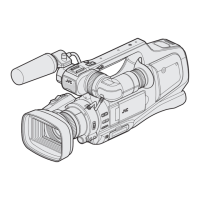
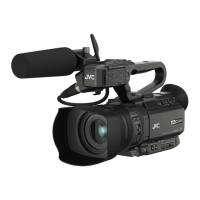
* The illustration shows the GY-HM150U/GY-HM150E with the supplied microphone attached.
For Customer Use:
Enter below the Serial No. which is located on the body.
Retain this information for future reference.
Model No. GY-HM150U
Serial No.
Please read the following before getting started:
Thank you for purchasing this JVC product.
Before operating this unit, please read the instructions
carefully to ensure the best possible performance.
In this manual, each model number is described without the last letter
(U/E) which means the shipping destination. (U: for USA and Canada,
E: for Europe)
Only “U”models (GY-HM150U) have been evaluated by UL.
LST1229-001A
GY-HM150U.book Page 1 Monday, September 5, 2011 1:48 AM

Table of Contents

Other manuals for JVC GY-HM150U

Questions and Answers

  • D
    Daniel GarciaSep 15, 2025
    Why are the date and time not displayed on my JVC GY-HM150U?
    • B
      Brittany EdwardsSep 15, 2025
      The date and time are only displayed on the STATUS 2 and STATUS 3 screens in the Camera mode (during shooting). To display the time on the STATUS 1 screen, set [Time Display] of [Status Display] in the [LCD/VF] menu to a value other than AOffB.
  • M
    Maria AnthonyAug 25, 2025
    What to do if the camera image is not output on the LCD monitor and viewfinder screens of my JVC GY-HM150U Camcorder?
    • W
      William StevensonAug 25, 2025
      If the camera image is not appearing on the LCD monitor and viewfinder screens, first ensure that the camcorder is set to Camera mode by checking if the [CAM] indicating lamp is red. If not, switch to Camera mode using the [CAM/MEDIA] selection switch. Also, if you're using the viewfinder with [VF Slide SW] set to AEnableB in the [LCD/VF] menu, make sure the viewfinder is pulled out. Finally, if any cables are connected to the [HDMI], [COMPONENT OUT] or [A/V OUT] terminal, disconnect them, as video images will not appear on the viewfinder when these are connected.
  • T
    Thomas HensleyAug 25, 2025
    How to fix dark or blurred images on JVC GY-HM150U Camcorder LCD monitor and viewfinder screens?
    • L
      Lauren BuchananAug 26, 2025
      If the images on your JVC Camcorder's LCD monitor and viewfinder screens appear dark or blurred, try these adjustments: Readjust the brightness of the LCD monitor screen and viewfinder. Check if [ND FILTER] is set to AONB. Ensure the iris isn't closed. Verify that the shutter speed setting isn't too high.
  • E
    emma66Aug 26, 2025
    What to do if the subject is too dark on my JVC Camcorder?
    • C
      clarkgabriellaAug 27, 2025
      If your subject appears too dark when using your JVC Camcorder, try the following: Use the Lolux mode. Set exposure to the [+] side. Switch to manual shooting mode and increase sensitivity using the [GAIN] switch. Set the [GAIN] switch to AAGCB. Open up the aperture.
  • L
    Linda BenjaminSep 16, 2025
    Why am I unable to switch from the Camera mode to Media mode on my JVC GY-HM150U Camcorder?
    • C
      Craig FrenchSep 16, 2025
      You cannot switch to the Media mode during recording (mode indicator is red) or recording pause (yellow displays such as [STBYC] and [STBYF]). To switch to the Media mode, cancel recording pause and set to the stop mode (white display).
  • T
    Tammy WoodSep 23, 2025
    Why does my JVC GY-HM150U remote control not work?
    • B
      Bailey ChavezSep 23, 2025
      If the remote control does not work, replace the battery. The remote control may not function outdoors or under strong light conditions. Set [Wireless Remote] in the [Others] menu to AOnB. Disconnect the wired remote control if it is connected.
  • T
    Tracey MarshallSep 8, 2025
    Why doesn't the [AUDIO LEVEL CH-1/CH-2] adjustment knob work on my JVC Camcorder?
    • S
      sharon93Sep 8, 2025
      If the [AUDIO LEVEL CH-1/CH-2] adjustment knob does not work on your JVC Camcorder, check if the [CH1/CH2 AUDIO SELECT] switch is set to AAUTOB.
  • G
    George UnderwoodSep 8, 2025
    Why can't I initialize (format) my SDHC/SDXC card on my JVC GY-HM150U?
    • R
      Rebecca LiuSep 9, 2025
      If you cannot initialize (format) your SDHC/SDXC card on your JVC Camcorder, check if the write-protect switch of the SDHC/SDXC card is turned on. Make sure that the write-protect switch is turned off.
  • D
    Danielle FletcherSep 2, 2025
    What to do if my JVC GY-HM150U Camcorder is unable to start recording?
    • V
      vicki31Sep 2, 2025
      If your JVC Camcorder won't start recording, check if the write-protect switch on the SDHC/SDXC card is enabled; if it is, turn it off. Also, verify that the camcorder is in Camera mode by ensuring the [CAM] indicating lamp lights up red. If not, set the [CAM/MEDIA] selection switch to [CAM].
  • L
    Lance SmithAug 31, 2025
    How to display CPU and Program version on JVC Camcorder?
    • L
      Lisa YoungAug 31, 2025
      To display the CPU and Program version on your JVC Camcorder, turn the power ON. While holding down the [OIS] button, perform the following operations: hold down the [USER1] and [USER2] buttons, then press the [MENU] button for less than 1 second. Press the [MENU] button again.

JVC GY-HM150U Specifications

General IconGeneral
Sensor typeCCD
Number of CCDs3
Total megapixels- MP
Optical sensor size1/4 \
Digital zoom- x
Optical zoom10 x
Image stabilizerYes
Focal length range3.7 - 37 mm
Interchangeable lens-
Image stabilizer typeOptical Image Stabilization (OIS)
Maximum aperture number2.8
Minimum aperture number1.8
Maximum focal length (35mm film equiv)390 mm
Minimum focal length (35mm film equiv)39 mm
Memory slots2
Camcorder media typeMemory card
Disc types supportedNo
Compatible memory cardsSDHC, SDXC
Internal storage capacity- GB
Camera shutter speed0.0001 - 0.27 s
Display diagonal2.7 \
Display aspect ratio16:9
Display resolution (numeric)230000 pixels
Viewfinder typeElectronic
Viewfinder resolution260000 pixels
Viewfinder screen size0.24 \
Camcorder typeHandheld camcorder
Product colorBlack
Video resolutions720 x 480, 1280 x 720, 1440 x 1080, 1920 x 1080 pixels
Supported video modes1080i, 480i, 480p, 720p
Video formats supportedAVI, MOV, MP4, MPEG2
Maximum video resolution1920 x 1080 pixels
Analog signal format systemNTSC, PAL
Bitrate at maximum video resolution35 Mbit/s
Audio formats supportedLPCM
Headphone connectivity3.5 mm
USB 2.0 ports quantity0
Component video (YPbPr/YCbCr) out1
Battery voltage7.2 V
Charging sourceAC
Battery capacity- mAh
Battery life (max)- h
Storage temperature (T-T)-20 - 50 °C
Operating temperature (T-T)0 - 40 °C
Operating relative humidity (H-H)30 - 80 %
Cables includedAV, Component
Power consumption7.8 W
Weight and Dimensions IconWeight and Dimensions
Depth366 mm
Width138 mm
Height179 mm
Weight1400 g

Related product manuals