EasyManua.ls Logo

JVC KD-DB912BT - User Manual

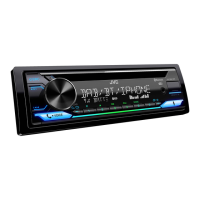
JVC KD-DB912BT
172 pages
Print Icon
To Next Page IconTo Next Page
Loading...
Data Size: B6L (182 mm x 128 mm)
Book Size: B6L (182 mm x 128 mm)
ENGLISH
ESPAÑOL
NEDERLANDS
PORTUGUÊS
B5A-3095-00 [E]
KD-DB912BT
CD RECEIVER
INSTRUCTION MANUAL
RECEPTOR CON CD
MANUAL DE INSTRUCCIONES
CD-RECEIVER
GEBRUIKSAANWIJZING
RECEPTOR CD
MANUAL DE INSTRUÇÕES
JS_JVC_KD_DB912BT_E_C.indd 1JS_JVC_KD_DB912BT_E_C.indd 1 7/23/2019 4:59:50 PM7/23/2019 4:59:50 PM

Table of Contents

Other manuals for JVC KD-DB912BT

Questions and Answers

  • J
    jillian85Sep 12, 2025
    Why does “LOADING” appear when I enter search mode on my JVC KD-DB912BT Car Stereo System?
    • H
      Henry RodriguezSep 12, 2025
      If “LOADING” appears when you enter search mode on your JVC Car Stereo System, the unit is still preparing the iPod/iPhone music list. It may take some time to load, try again later.
  • K
    Kenneth MooreSep 12, 2025
    Why is my iPod/iPhone not turning on or working with my JVC Car Stereo System?
    • R
      rogerslisaSep 12, 2025
      If your iPod/iPhone does not turn on or work with your JVC Car Stereo System: - Check the connection between this unit and iPod/iPhone. - Disconnect and reset the iPod/iPhone using hard reset.
  • J
    jacksonmarkSep 10, 2025
    What does “NO INFO”/“NO DATA” mean on my JVC KD-DB912BT?
    • L
      Lance JenkinsSep 10, 2025
      If “NO INFO” or “NO DATA” appears on your JVC Car Stereo System, the Bluetooth device cannot get the contact information.
  • A
    Alexander LopezSep 9, 2025
    What does “NO ENTRY”/“NO PAIR” mean on my JVC Car Stereo System?
    • A
      Adam WashingtonSep 9, 2025
      If “NO ENTRY” or “NO PAIR” appears on your JVC Car Stereo System, there is no registered device connected or found via Bluetooth.
  • D
    Daniel CastanedaSep 8, 2025
    What does “NOT SUPPORT” mean on my JVC KD-DB912BT Car Stereo System?
    • J
      Jordan LeeSep 8, 2025
      If “NOT SUPPORT” appears on your JVC Car Stereo System, the connected phone does not support the Voice Recognition feature or phonebook transfer.
  • R
    Ray McdonaldAug 23, 2025
    Why is there no sound coming from my JVC KD-DB912BT Car Stereo System?
    • M
      Michael RyanAug 23, 2025
      If you cannot hear any sound from your JVC Car Stereo System, first adjust the volume to the optimum level. If that doesn't work, check the cords and connections to ensure they are properly connected.
  • H
    hloveSep 6, 2025
    Why can't I control the connected Bluetooth audio player on my JVC KD-DB912BT?
    • C
      Christopher DavisSep 6, 2025
      If the connected Bluetooth audio player cannot be controlled on your JVC Car Stereo System: - Check whether the connected Bluetooth audio player supports Audio/Video Remote Control Profile (AVRCP). - Disconnect and connect the Bluetooth player again.
  • C
    Chelsea BurkeSep 5, 2025
    Why is sound being interrupted during Bluetooth playback on my JVC Car Stereo System?
    • D
      Dalton HughesSep 5, 2025
      If the sound is being interrupted or skipped during playback of a Bluetooth audio player on your JVC Car Stereo System: - Reduce the distance between the unit and the Bluetooth audio player. - Turn off, then turn on the unit and try to connect again. - Other Bluetooth devices might be trying to connect to the unit.
  • J
    john48Sep 4, 2025
    Why is voice calling not successful on my JVC KD-DB912BT?
    • C
      Cynthia FreemanSep 4, 2025
      If voice calling is not successful on your JVC Car Stereo System: - Use voice calling in a quieter environment. - Reduce the distance from the microphone when you speak the name. - Make sure the same voice as the registered voice tag is used.
  • C
    Caroline ParkSep 3, 2025
    Why is the phone sound quality poor on my JVC KD-DB912BT Car Stereo System?
    • E
      Emily CoxSep 3, 2025
      If the phone sound quality is poor on your JVC Car Stereo System: - Reduce the distance between the unit and the Bluetooth device. - Move the car to a place where you can get a better signal reception.

Summary

Software License Agreement

Terms of Use and Restrictions

Details user rights, obligations, and limitations for using the software.

Termination and Export Rules

Outlines conditions for agreement termination and software export restrictions.

Legal and Miscellaneous Provisions

Covers copyright, liability, confidentiality, and general legal clauses.

Before Use and Basics

Faceplate Overview

Identifies and describes the main buttons and display areas on the unit.

Basic Operations

Explains fundamental actions like turning on/off and adjusting volume.

Getting Started

Faceplate Handling

Instructions for attaching, detaching, and resetting the unit's faceplate.

Initial Setup Procedures

Steps for cancelling the demonstration and setting the clock and date.

Basic Settings Configuration

Digital Radio Operation

Tuning and Selecting DAB Stations

Step-by-step guide to searching and selecting DAB services.

Analog Radio Operation

Station Search Methods

How to automatically or manually search for radio stations.

CD, USB, and iPod Operation

Media Device Connection

How to connect USB drives and Apple devices for playback.

Basic Media Playback Controls

Overview of fundamental playback operations and source selection.

CD, USB, and iPod Playback Controls

Track and File Navigation

How to fast forward, rewind, select tracks, and folders.

Playback Modes and Control

Managing repeat, random play, music drives, and control modes.

Spotify Streaming Service

JVC Remote Application

Remote App Preparation

Steps to install and prepare the JVC Remote application.

Connecting and Using the Remote App

How to connect your phone and start using the application.

JVC Remote Application Settings

Bluetooth Connection and Profiles

Bluetooth Pairing and Auto-Connection

First-Time Bluetooth Pairing

Step-by-step guide for initially connecting a Bluetooth device.

Automatic Bluetooth Pairing

How to enable automatic pairing for connected devices.

Bluetooth Mobile Phone Operations

Handling Incoming Calls

Steps for answering, rejecting, and managing incoming calls.

Call Management During Conversation

Operations during an active call, like ending or swapping calls.

Bluetooth Voice Quality and Call Settings

Optimizing Voice Call Quality

Settings for microphone gain, noise reduction, and echo cancellation.

Incoming Call Settings

Configuring auto-answer and button illumination colors for calls.

Bluetooth Phonebook and Voice Control

Accessing Call History and Phonebook

How to view recent calls and stored contacts.

Voice Recognition Dialing

Using voice commands to make calls and control phone functions.

Bluetooth Device Management and Compatibility

Bluetooth Audio Playback

Selecting and Playing Bluetooth Audio

How to select the BT AUDIO source and start playback.

Bluetooth Audio Playback Controls

Managing playback, skipping tracks, and repeat/random modes.

Amazon Alexa Voice Assistant

Initial Alexa Setup

Steps for setting up Alexa for Android and iPhone/iPod touch.

Amazon Alexa Manual Pairing and Basic Operations

Amazon Alexa Music Playback

Audio Settings - Equalizer (EQ)

Audio Settings - Custom Sound Profiles

Audio Settings - Advanced Sound Tuning

Audio Settings - Crossover Configuration

Audio Settings - 3-Way Crossover Details

Audio Settings - Digital Time Alignment

Troubleshooting - General and Media Issues

Troubleshooting - Bluetooth and Spotify Issues

Troubleshooting - Alexa and Bluetooth Connectivity

Installation and Connection Safety

Installation Safety Warnings

Critical safety guidelines for power supply and wiring during installation.

Installation Guide - In-Dash Mounting

Wiring Connection Guide

JVC KD-DB912BT Specifications

General IconGeneral
DIN size1 DIN
CD playerYes
Impedance4 Ω
Output power200 W
Product colorBlack
Volume controlRotary
Disc types supportedCD
Audio output channels4.0 channels
Equalizer bands quantity13
Maximum power per channel50 W
Audio formats supportedAAC, SBC
Display typeLCD
USB version2.0
Bluetooth version4.2
USB port positionFront
Bluetooth profilesA2DP, AVRCP
USB connector typeUSB Type-A
USB ports quantity1
Bluetooth functionsHandsfree calling
Package weight1600 g
AM band range531 - 1611 kHz
FM band range87.5 - 108 MHz
LW band range153 - 279 kHz
Supported radio bandsFM, LW, MW
Weight and Dimensions IconWeight and Dimensions
Weight1200 g

Related product manuals