EasyManua.ls Logo

JVC KD-DB912BT - User Manual

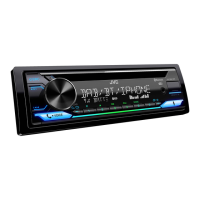
JVC KD-DB912BT
172 pages
Print Icon
To Next Page IconTo Next Page
Loading...
Data Size: B6L (182 mm x 128 mm)
Book Size: B6L (182 mm x 128 mm)
ENGLISH
ESPAÑOL
NEDERLANDS
PORTUGUÊS
B5A-3095-00 [E]
KD-DB912BT
CD RECEIVER
INSTRUCTION MANUAL
RECEPTOR CON CD
MANUAL DE INSTRUCCIONES
CD-RECEIVER
GEBRUIKSAANWIJZING
RECEPTOR CD
MANUAL DE INSTRUÇÕES
JS_JVC_KD_DB912BT_E_C.indd 1JS_JVC_KD_DB912BT_E_C.indd 1 7/23/2019 4:59:50 PM7/23/2019 4:59:50 PM

Table of Contents

Other manuals for JVC KD-DB912BT

Questions and Answers

  • D
    Dr. Audrey GarciaSep 2, 2025
    Why doesn't the source change to “USB” when I connect a USB device to my JVC Car Stereo System?
    • B
      Bridget ClineSep 2, 2025
      If the source does not change to “USB” on your JVC Car Stereo System: - Turn the power off and unplug the USB device. - Then, turn on the power and reattach the USB device. - If the problem persists, turn the power off and on (or reset the unit) before replacing with another USB device.
  • S
    suttontimothySep 1, 2025
    What to do if “CANNOT PLAY” appears on my JVC KD-DB912BT?
    • J
      Jennifer FloresSep 1, 2025
      If “CANNOT PLAY” appears on your JVC Car Stereo System, connect a USB device that contains playable audio files.
  • X
    xsantosAug 31, 2025
    Why does my JVC KD-DB912BT display “USB HUB IS NOT SUPPORTED”?
    • D
      Diana FryAug 31, 2025
      Your JVC Car Stereo System cannot support a USB device connected via a USB hub.
  • D
    deleoncoryAug 30, 2025
    What to do if “READING” keeps flashing on my JVC KD-DB912BT?
    • T
      tgarzaAug 30, 2025
      If “READING” keeps flashing on your JVC Car Stereo System: - Avoid using too many hierarchical levels and folders. - Reload the disc or reattach the device (USB/iPod/iPhone).
  • J
    John MitchellAug 29, 2025
    Why is the elapsed playing time not correct on my JVC KD-DB912BT?
    • N
      nsmithAug 29, 2025
      The accuracy of the elapsed playing time on your JVC Car Stereo System depends on the recording process used earlier for the disc or USB.
  • B
    Benjamin FullerAug 28, 2025
    Why is the playback order not as intended on my JVC Car Stereo System?
    • D
      Derrick LarsonAug 28, 2025
      The playback order on your JVC Car Stereo System is determined by the order in which files were recorded (disc) or the file name (USB).
  • J
    Jennifer BlackAug 27, 2025
    What to do if my JVC Car Stereo System displays “PLEASE EJECT”?
    • L
      Lisa ColeAug 27, 2025
      If your JVC Car Stereo System displays “PLEASE EJECT”, press the indicated button, then insert the disc correctly.
  • C
    Charles WilliamsAug 27, 2025
    Why are correct characters not displayed on my JVC KD-DB912BT?
    • J
      johnstonchrisAug 27, 2025
      The JVC Car Stereo System can only display uppercase letters, numbers, and a limited number of symbols. Also, depending on the display language you have selected, some characters may not be displayed correctly.
  • R
    Ryan MorrisAug 25, 2025
    Why can't I pair a Bluetooth device with my JVC KD-DB912BT Car Stereo System?
    • E
      Eugene SmithAug 26, 2025
      If you cannot pair a Bluetooth device with your JVC Car Stereo System: - Make sure you have entered the same PIN code to both the unit and Bluetooth device. - Delete pairing information from both the unit and the Bluetooth device, then perform pairing again.
  • P
    Paige HoltAug 25, 2025
    Why is no Bluetooth device detected by my JVC KD-DB912BT?
    • C
      campbellpatrickAug 25, 2025
      If no Bluetooth device is detected by your JVC Car Stereo System: - Search from the Bluetooth device again. - Reset the unit.

Summary

Software License Agreement

Terms of Use and Restrictions

Details user rights, obligations, and limitations for using the software.

Termination and Export Rules

Outlines conditions for agreement termination and software export restrictions.

Legal and Miscellaneous Provisions

Covers copyright, liability, confidentiality, and general legal clauses.

Before Use and Basics

Faceplate Overview

Identifies and describes the main buttons and display areas on the unit.

Basic Operations

Explains fundamental actions like turning on/off and adjusting volume.

Getting Started

Faceplate Handling

Instructions for attaching, detaching, and resetting the unit's faceplate.

Initial Setup Procedures

Steps for cancelling the demonstration and setting the clock and date.

Basic Settings Configuration

Digital Radio Operation

Tuning and Selecting DAB Stations

Step-by-step guide to searching and selecting DAB services.

Analog Radio Operation

Station Search Methods

How to automatically or manually search for radio stations.

CD, USB, and iPod Operation

Media Device Connection

How to connect USB drives and Apple devices for playback.

Basic Media Playback Controls

Overview of fundamental playback operations and source selection.

CD, USB, and iPod Playback Controls

Track and File Navigation

How to fast forward, rewind, select tracks, and folders.

Playback Modes and Control

Managing repeat, random play, music drives, and control modes.

Spotify Streaming Service

JVC Remote Application

Remote App Preparation

Steps to install and prepare the JVC Remote application.

Connecting and Using the Remote App

How to connect your phone and start using the application.

JVC Remote Application Settings

Bluetooth Connection and Profiles

Bluetooth Pairing and Auto-Connection

First-Time Bluetooth Pairing

Step-by-step guide for initially connecting a Bluetooth device.

Automatic Bluetooth Pairing

How to enable automatic pairing for connected devices.

Bluetooth Mobile Phone Operations

Handling Incoming Calls

Steps for answering, rejecting, and managing incoming calls.

Call Management During Conversation

Operations during an active call, like ending or swapping calls.

Bluetooth Voice Quality and Call Settings

Optimizing Voice Call Quality

Settings for microphone gain, noise reduction, and echo cancellation.

Incoming Call Settings

Configuring auto-answer and button illumination colors for calls.

Bluetooth Phonebook and Voice Control

Accessing Call History and Phonebook

How to view recent calls and stored contacts.

Voice Recognition Dialing

Using voice commands to make calls and control phone functions.

Bluetooth Device Management and Compatibility

Bluetooth Audio Playback

Selecting and Playing Bluetooth Audio

How to select the BT AUDIO source and start playback.

Bluetooth Audio Playback Controls

Managing playback, skipping tracks, and repeat/random modes.

Amazon Alexa Voice Assistant

Initial Alexa Setup

Steps for setting up Alexa for Android and iPhone/iPod touch.

Amazon Alexa Manual Pairing and Basic Operations

Amazon Alexa Music Playback

Audio Settings - Equalizer (EQ)

Audio Settings - Custom Sound Profiles

Audio Settings - Advanced Sound Tuning

Audio Settings - Crossover Configuration

Audio Settings - 3-Way Crossover Details

Audio Settings - Digital Time Alignment

Troubleshooting - General and Media Issues

Troubleshooting - Bluetooth and Spotify Issues

Troubleshooting - Alexa and Bluetooth Connectivity

Installation and Connection Safety

Installation Safety Warnings

Critical safety guidelines for power supply and wiring during installation.

Installation Guide - In-Dash Mounting

Wiring Connection Guide

JVC KD-DB912BT Specifications

General IconGeneral
DIN size1 DIN
CD playerYes
Impedance4 Ω
Output power200 W
Product colorBlack
Volume controlRotary
Disc types supportedCD
Audio output channels4.0 channels
Equalizer bands quantity13
Maximum power per channel50 W
Audio formats supportedAAC, SBC
Display typeLCD
USB version2.0
Bluetooth version4.2
USB port positionFront
Bluetooth profilesA2DP, AVRCP
USB connector typeUSB Type-A
USB ports quantity1
Bluetooth functionsHandsfree calling
Package weight1600 g
AM band range531 - 1611 kHz
FM band range87.5 - 108 MHz
LW band range153 - 279 kHz
Supported radio bandsFM, LW, MW
Weight and Dimensions IconWeight and Dimensions
Weight1200 g

Related product manuals