EasyManua.ls Logo

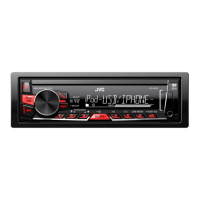
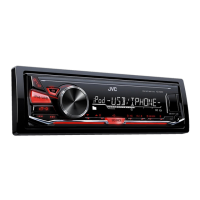
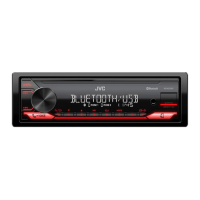
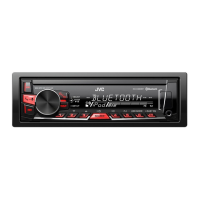
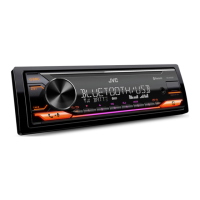
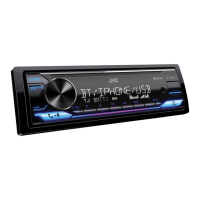
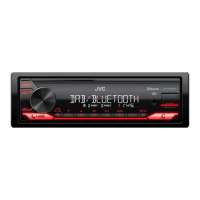
JVC KD-X282DBT - User Manual

JVC KD-X282DBT
44 pages
Print Icon
To Next Page IconTo Next Page
Loading...
Data Size: B6L (182 mm x 128 mm)
Book Size: B6L (182 mm x 128 mm)
ENGLISH
ESPAÑOL
NEDERLANDS
PORTUGUÊS
B5A-3845-00 [E]
KD-X282DBT / KD-X182DB
DIGITAL MEDIA RECEIVER
INSTRUCTION MANUAL
RECEPTOR DE MEDIOS DIGITALES
MANUAL DE INSTRUCCIONES
DIGITALE MEDIAONTVANGER
GEBRUIKSAANWIJZING
RECEPTOR MÉDIA DIGITAL
MANUAL DE INSTRUÇÕES
KD-X282DBT_E_B5A-3845-00_Cover_1st Draft.indd 1KD-X282DBT_E_B5A-3845-00_Cover_1st Draft.indd 1 6/9/2021 11:47:16 PM6/9/2021 11:47:16 PM

Questions and Answers

  • S
    Sheila JonesAug 26, 2025
    Why is there no sound from my JVC Receiver?
    • M
      Mr. William CarterAug 26, 2025
      If you cannot hear any sound from your JVC Receiver, try the following: First, adjust the volume to a level that is audible. Second, check all cords and connections to ensure they are properly connected.
  • K
    Karen MartinAug 27, 2025
    What does “MISWIRING CHECK WIRING Turn the power off, then check to be sure the terminals THEN PWR ON” mean on my JVC Receiver?
    • J
      John MillerAug 27, 2025
      This message on your JVC Receiver indicates a wiring issue. To resolve it, turn the power off, then check to be sure the terminals of the speaker wires are insulated properly. After checking the wiring, turn the power back on.
  • R
    Rita HessAug 27, 2025
    What to do if I can't select a source on my JVC KD-X282DBT?
    • M
      Michael BrownAug 27, 2025
      If you are unable to select a source on your JVC Receiver, check the [SOURCE SELECT] setting.
  • E
    Eric AguilarAug 27, 2025
    How to fix poor radio reception on JVC Receiver?
    • A
      anthonymannAug 27, 2025
      To improve radio reception on your JVC Receiver: * Connect the antenna firmly. * Note that static noise may occur while listening to the radio.
  • M
    melaniegreenAug 28, 2025
    Why is the sound interrupted during Bluetooth playback on my JVC KD-X282DBT Receiver?
    • C
      Charles WagnerAug 28, 2025
      If the sound is being interrupted during Bluetooth playback on your JVC Receiver: * Reduce the distance between the receiver and the Bluetooth audio player. * Try turning the receiver off and then back on, and attempt to connect again. * Be aware that other Bluetooth devices might be trying to connect to the receiver.
  • J
    John BakerAug 28, 2025
    Why is the phone sound quality poor on my JVC KD-X282DBT Receiver?
    • K
      Kelsey HuntAug 28, 2025
      If the phone sound quality is poor when using your JVC Receiver, try reducing the distance between the receiver and the Bluetooth device. Alternatively, move your car to a location with better signal reception.
  • L
    Lori MorenoAug 29, 2025
    How to fix echo during phone calls on JVC KD-X282DBT?
    • G
      George FischerAug 29, 2025
      If you're experiencing echo or noise during phone conversations with your JVC Receiver, adjust the microphone unit’s position. You can also check the [ECHO CANCEL] setting.
  • B
    Brenda MoralesAug 29, 2025
    Why is my JVC KD-X282DBT displaying incorrect characters?
    • C
      Christopher CaldwellAug 29, 2025
      If your JVC Receiver is displaying incorrect characters, it may be due to the unit's display limitations. This unit can only display uppercase letters, numbers, and a limited number of symbols. Also, depending on the display language you have selected, some characters may not be displayed correctly.
  • H
    hpetersAug 30, 2025
    Why is the phone call sound not coming from the car speakers on my JVC KD-X282DBT Receiver?
    • J
      James MccormickAug 30, 2025
      If you cannot hear phone call sound from the car speakers when using your JVC Receiver, press during a call to switch between hands-free and private talk mode.
  • A
    Anne MartinezAug 30, 2025
    How to improve voice calling on JVC KD-X282DBT?
    • J
      John DavisAug 30, 2025
      If voice calling is unsuccessful with your JVC Receiver, try using voice calling in a quieter environment. Also, reduce the distance from the microphone when speaking the name, and make sure to use the same voice as the registered voice tag.

Summary

Before Use

How to Read This Manual

Explains how to interpret manual displays, operations, and references.

Basics

Faceplate Overview

Shows and explains the unit's front panel controls and indicators.

Getting Started

Initial Setup Steps

Guides through initial setup for crossover type, clock, date, and basic settings.

Digital Radio

About DAB Broadcasting

Explains what DAB is and its features like digital quality sound.

Digital Radio Operations

Searching and Selecting Services

Covers searching, selecting, and storing DAB radio services.

Digital Radio Settings

Tuner and Program Type Settings

Covers tuner settings like AF, TI, PTY, and program type codes.

Analog Radio

Station Search and Storage

Steps to search, store, and recall radio stations.

USB Operations

Connecting and Basic Playback

Instructions for connecting a USB device and basic playback controls.

USB File Management

Playback Modes and Searching

Covers repeat, random play, quick search, and file selection.

AUX and Remote App

AUX Audio Input

How to connect and listen to audio via the auxiliary input jack.

Bluetooth Introduction

Connection and Microphone Setup

Overview of Bluetooth profiles, codecs, and microphone connection.

Bluetooth Pairing and Settings

Pairing and Compatibility Checks

Steps to pair devices and check compatibility.

Bluetooth Phone Operations

Receiving and Managing Calls

Operations for receiving and managing phone calls via Bluetooth.

Bluetooth Call Quality and Making Calls

Improving Voice Quality and Making Calls

Adjusting voice quality settings and making calls.

Bluetooth Contact Management

Managing Contacts and Voice Dialing

Accessing contacts, dialing, and using voice recognition.

Bluetooth Registered Devices and Modes

Calling Registered Numbers and Mode Settings

Making calls to stored numbers and configuring Bluetooth modes.

Bluetooth Audio and Audio Settings

Bluetooth Audio Playback

How to play audio from a Bluetooth device.

Audio Settings - EQ and Sound Adjustments

EQ Setting and Sound Enhancements

Covers EQ settings, easy EQ, and pro EQ adjustments.

Audio Settings - Advanced Adjustments

Subwoofer, Speaker, and Gain Settings

Details on subwoofer, speaker output, and gain adjustments.

Audio Settings - Crossover and DTA

Crossover, DTA, and Car Settings

Settings for crossover types, digital time alignment, and car parameters.

Audio Settings - Sound Effects and Connections

Sound Effects and Connection Types

Adjusting sound effects and managing speaker/lineout connections.

Audio Settings - Crossover Details

Crossover Frequency and Slope Settings

Detailed settings for crossover frequency, slope, and gain for speakers.

Audio Settings - Subwoofer and 3-Way Crossover

Subwoofer LPF and 3-Way Crossover Setup

Settings for subwoofer LPF and detailed options for 3-way crossover.

Audio Settings - Filter Parameters

Filter Adjustments (HPF, LPF, Q Factor)

Adjustments for High Pass Filter (HPF), Low Pass Filter (LPF), and Q Factor.

Specifications

Model, Bluetooth, and Audio Specs

Technical specifications for the KD-X282DBT, Bluetooth, and audio features.

References and Resources

Maintenance and File Information

Instructions for cleaning, finding more info, playable files, and USB device notes.

Troubleshooting - General and Radio Issues

General, DAB, and Analog Radio Problems

Troubleshooting common issues for general, DAB, and analog radio functions.

Troubleshooting - USB and Bluetooth

USB Playback and Device Errors

Troubleshooting USB playback, device recognition, and error messages.

Bluetooth Connection and Audio Issues

Troubleshooting Bluetooth connection, audio playback, and call quality.

Troubleshooting - Bluetooth Errors and Installation Prep

Bluetooth Error Messages and Connection Stability

Specific Bluetooth error messages and connection instability troubleshooting.

Installation;Connection Safety

Installation Safety Warnings and Cautions

Safety warnings and cautions for installing the unit.

Installation;Connection Procedures

Installation Components and Steps

Lists installation parts and outlines general, in-dash, and sleeve-less installation steps.

Installation;Connection Wiring

Wiring Diagrams and Vehicle Specifics

Explains wiring connections and ISO connector specifics for certain cars.

Specifications - Radio, USB, and Auxiliary

Technical Specifications for Radio, USB, and Aux

Detailed specs for DAB, FM/AM radio, USB, and auxiliary interfaces.

Specifications - Model, Bluetooth, and Audio

Model, Bluetooth, and Audio Specifications

Technical specs for the KD-X282DBT, Bluetooth, and audio features.

JVC KD-X282DBT Specifications

General IconGeneral
DIN size1 DIN
Impedance75 Ω
Output power200 W
Product colorBlack
Volume controlRotary
Frequency range531 - 1611 Hz
Disc types supported-
Audio output channels7.1 channels
Maximum power per channel50 W
Signal-to-Noise Ratio (SNR)6.2 dB
Mobile operating systems supportedYes
CD-R playbackNo
Audio formats supportedFLAC, MP3, WAV, WMA
Display typeLCD
Illumination colorRed, White
Bluetooth version4.2
USB port positionFront
Bluetooth profilesAVRCP
USB connector typeUSB Type-A
USB ports quantity1
Bluetooth functionsAudiostreaming, Handsfree calling
FM band range87.5 - 108 MHz
LW band range153 - 279 kHz
FM usable sensitivity6.2
Supported radio bandsDAB, FM, LW, MW
Preset stations quantity42
Hands-free callingKeep your hands on wheel with Bluetooth™ Hands-free calling. After pairing your compatible Bluetooth mobile phone to your TomTom GPS, you’ll be able to see incoming call information, make and answer calls, and talk hands-free through your device. You’ll e
Weight and Dimensions IconWeight and Dimensions
Depth100 mm
Width182 mm
Height53 mm
Weight60 g

Related product manuals