T
Thomas PowellSep 6, 2025
What does “USB HUB IS NOT SUPPORTED” mean on JVC KD-X282DBT Receiver?
- CChristopher HortonSep 6, 2025
This message on your JVC Receiver means that the unit cannot support a USB device connected via a USB hub.


 To Next PageTo Next Page
What does “USB HUB IS NOT SUPPORTED” mean on JVC KD-X282DBT Receiver?
This message on your JVC Receiver means that the unit cannot support a USB device connected via a USB hub.
What does “CANNOT PLAY” mean on JVC Receiver?
If “CANNOT PLAY” appears on your JVC Receiver, connect a USB device that contains playable audio files.
Why doesn't the source change to USB on my JVC KD-X282DBT Receiver?
If the source does not change to “USB” when you connect a USB device while listening to another source on your JVC Receiver: * The USB port may be drawing more power than the design limit. Turn the power off and unplug the USB device. Then, turn the power on and reattach the USB device. * If this does not solve the problem, turn the power off and on (or reset the unit) before replacing with another USB device.
 General
| DIN size | 1 DIN |
|---|---|
| Impedance | 75 Ω |
| Output power | 200 W |
| Product color | Black |
| Volume control | Rotary |
| Frequency range | 531 - 1611 Hz |
| Disc types supported | - |
| Audio output channels | 7.1 channels |
| Maximum power per channel | 50 W |
| Signal-to-Noise Ratio (SNR) | 6.2 dB |
| Mobile operating systems supported | Yes |
| CD-R playback | No |
| Audio formats supported | FLAC, MP3, WAV, WMA |
| Display type | LCD |
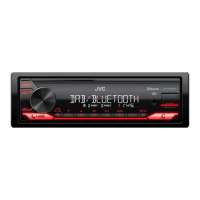
| Illumination color | Red, White |
| Bluetooth version | 4.2 |
| USB port position | Front |
| Bluetooth profiles | AVRCP |
| USB connector type | USB Type-A |
| USB ports quantity | 1 |
| Bluetooth functions | Audiostreaming, Handsfree calling |
| FM band range | 87.5 - 108 MHz |
| LW band range | 153 - 279 kHz |
| FM usable sensitivity | 6.2 |
| Supported radio bands | DAB, FM, LW, MW |
| Preset stations quantity | 42 |
| Hands-free calling | Keep your hands on wheel with Bluetooth™ Hands-free calling. After pairing your compatible Bluetooth mobile phone to your TomTom GPS, you’ll be able to see incoming call information, make and answer calls, and talk hands-free through your device. You’ll e |
 Weight and Dimensions
| Depth | 100 mm |
|---|---|
| Width | 182 mm |
| Height | 53 mm |
| Weight | 60 g |
Explains how to interpret manual displays, operations, and references.
Shows and explains the unit's front panel controls and indicators.
Guides through initial setup for crossover type, clock, date, and basic settings.
Explains what DAB is and its features like digital quality sound.
Covers searching, selecting, and storing DAB radio services.
Covers tuner settings like AF, TI, PTY, and program type codes.
Steps to search, store, and recall radio stations.
Instructions for connecting a USB device and basic playback controls.
Covers repeat, random play, quick search, and file selection.
How to connect and listen to audio via the auxiliary input jack.
Overview of Bluetooth profiles, codecs, and microphone connection.
Steps to pair devices and check compatibility.
Operations for receiving and managing phone calls via Bluetooth.
Adjusting voice quality settings and making calls.
Accessing contacts, dialing, and using voice recognition.
Making calls to stored numbers and configuring Bluetooth modes.
How to play audio from a Bluetooth device.
Covers EQ settings, easy EQ, and pro EQ adjustments.
Details on subwoofer, speaker output, and gain adjustments.
Settings for crossover types, digital time alignment, and car parameters.
Adjusting sound effects and managing speaker/lineout connections.
Detailed settings for crossover frequency, slope, and gain for speakers.
Settings for subwoofer LPF and detailed options for 3-way crossover.
Adjustments for High Pass Filter (HPF), Low Pass Filter (LPF), and Q Factor.
Technical specifications for the KD-X282DBT, Bluetooth, and audio features.
Instructions for cleaning, finding more info, playable files, and USB device notes.
Troubleshooting common issues for general, DAB, and analog radio functions.
Troubleshooting USB playback, device recognition, and error messages.
Troubleshooting Bluetooth connection, audio playback, and call quality.
Specific Bluetooth error messages and connection instability troubleshooting.
Safety warnings and cautions for installing the unit.
Lists installation parts and outlines general, in-dash, and sleeve-less installation steps.
Explains wiring connections and ISO connector specifics for certain cars.
Detailed specs for DAB, FM/AM radio, USB, and auxiliary interfaces.
Technical specs for the KD-X282DBT, Bluetooth, and audio features.