WWW.KAARTA.COM 19
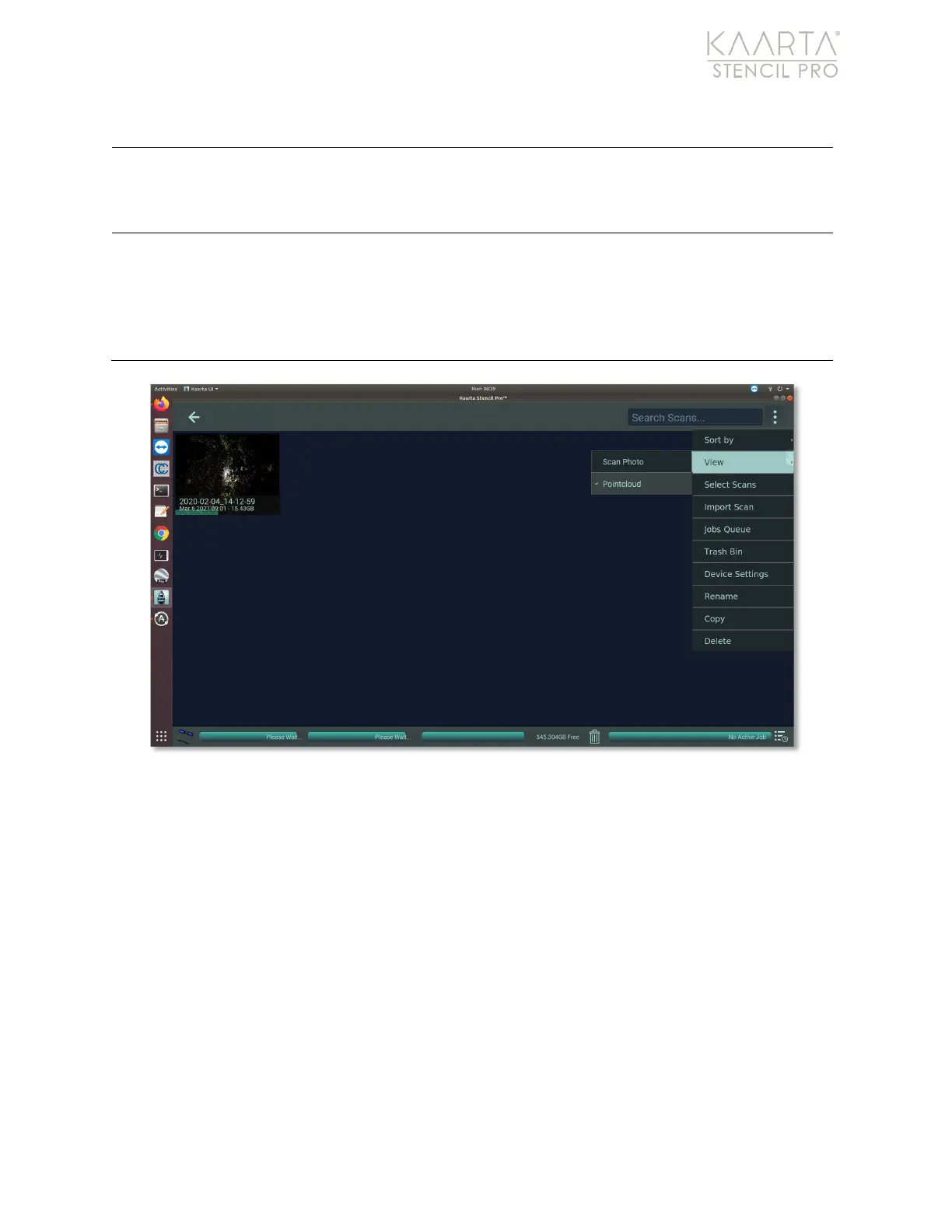
View the contents of the trash bin. You can select
contents of the bin,
permanently Delete one or more files from the system, Restore files to the
Main Gallery, or Empty the contents of the trash bin. Click the back arrow in
the upper left to return to the Main Gallery.
Device Settings provides access to information regarding the system’s Status,
Scanning, Help, and About. The settings screen provides information on the
status of Stencil Pro’s components, the current options available for
Scanning, such as enabling exposure lock or saving a cover photo, and
different ways to access help or support for your Stencil Pro. See
Device
Settings on page 19 for more detailed information.
Figure 5: View Scans by Pointcloud.
Device Settings
The Main Gallery Menu provides access to your device’s system information through tabs
for Status, Scanning, Help, and About. The device settings screen provides information on:
• The status of Stencil Pro’s components.
• The current options available for Scanning, such as saving a cover photo.
• Different ways to access help or support for your Stencil Pro.
STATUS
The Status tab displays the status (active or inactive) of Stencil Pro’s main components;
IMU, and color camera (active or inactive), as well as the status of the scanner (on or off)
(Figure 6).


 To Next Page