WWW.KAARTA.COM 20
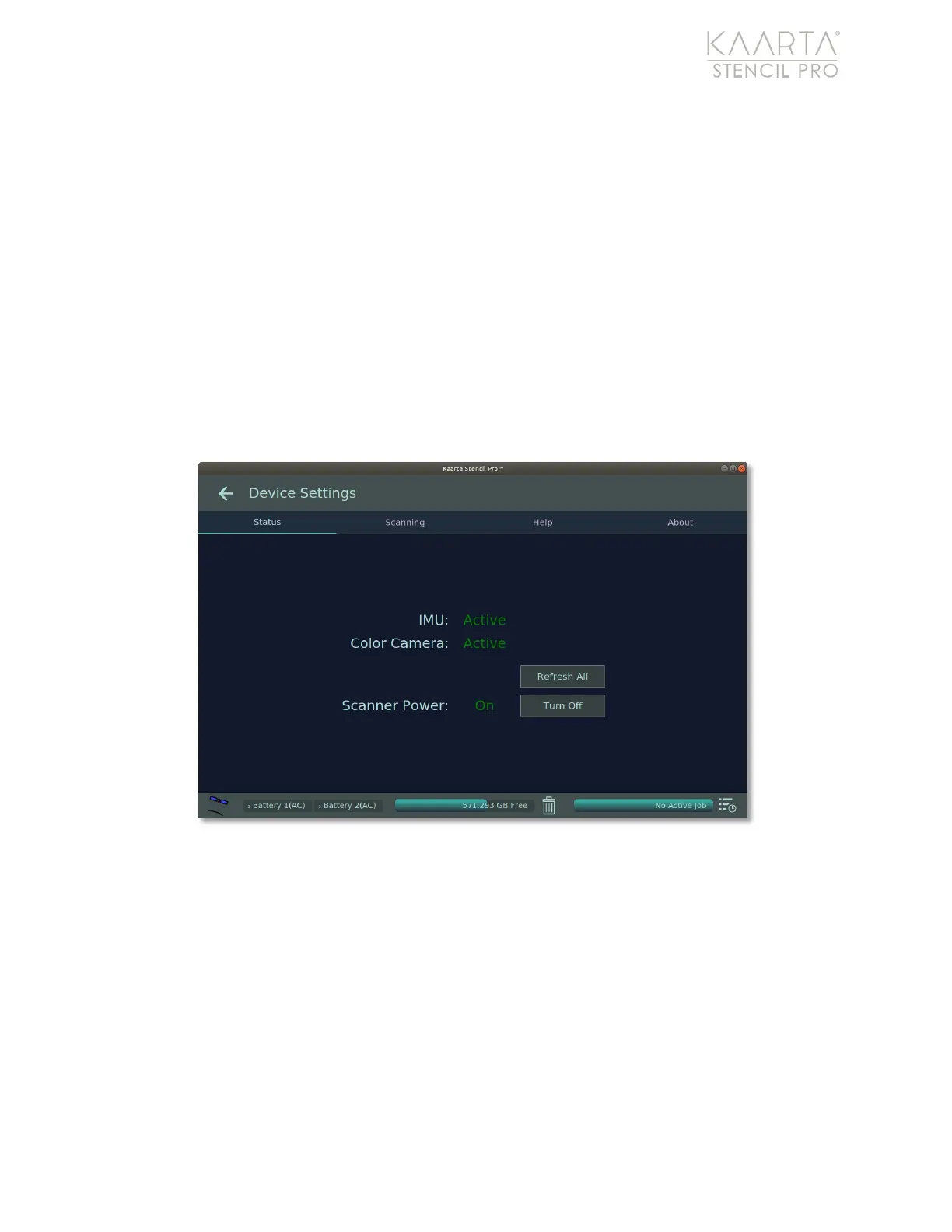
• Refresh All allows you to restart all of Stencil Pro’s main services, including the IMU,
color camera, and scanner. The status of the IMU and color camera are displayed as
either Active or Waiting. The status of the scanner is displayed as either On or Off.
• Turn Off/On allows you to power down (or turn on) the scanner only, which allows
the IMU and color camera to remain active. The status of the scanner power is
displayed as either On, Off or Waiting. To turn the scanner off, press the Turn Off
button. The scanner will power down within a few seconds, and the UI status
changes from On to Off. The lower right LED status light on the controller should
turn red immediately. See the Controller LED Status Lights Layout on page 13 for
more details. When restarting the scanner, allow a few minutes for the scanner
power to update to the On status and the scanner’s LED Status Light to turn to a
blue ready state. If a Waiting status persists, the scanner is not properly connected
to the controller.
Figure 6: The Status tab of Stencil Pro Device Settings.
SCANNING
The Scanning tab displays default settings that can be adjusted to control the output of
the scan (Figure 7). You can disable, enable, or adjust the following features:
• Delete Type options include moving deleted files to the Trash bin (Trash) or
removing them entirely from the system (Delete).
• NTRIP Interface allows you to select the networking device used for routing NTRIP
in the dropdown menu. For more information about configuring your Stencil Pro for
NTRIP, see Getting Best Results with GNSS on page 101.


 To Next Page