WWW.KAARTA.COM 41
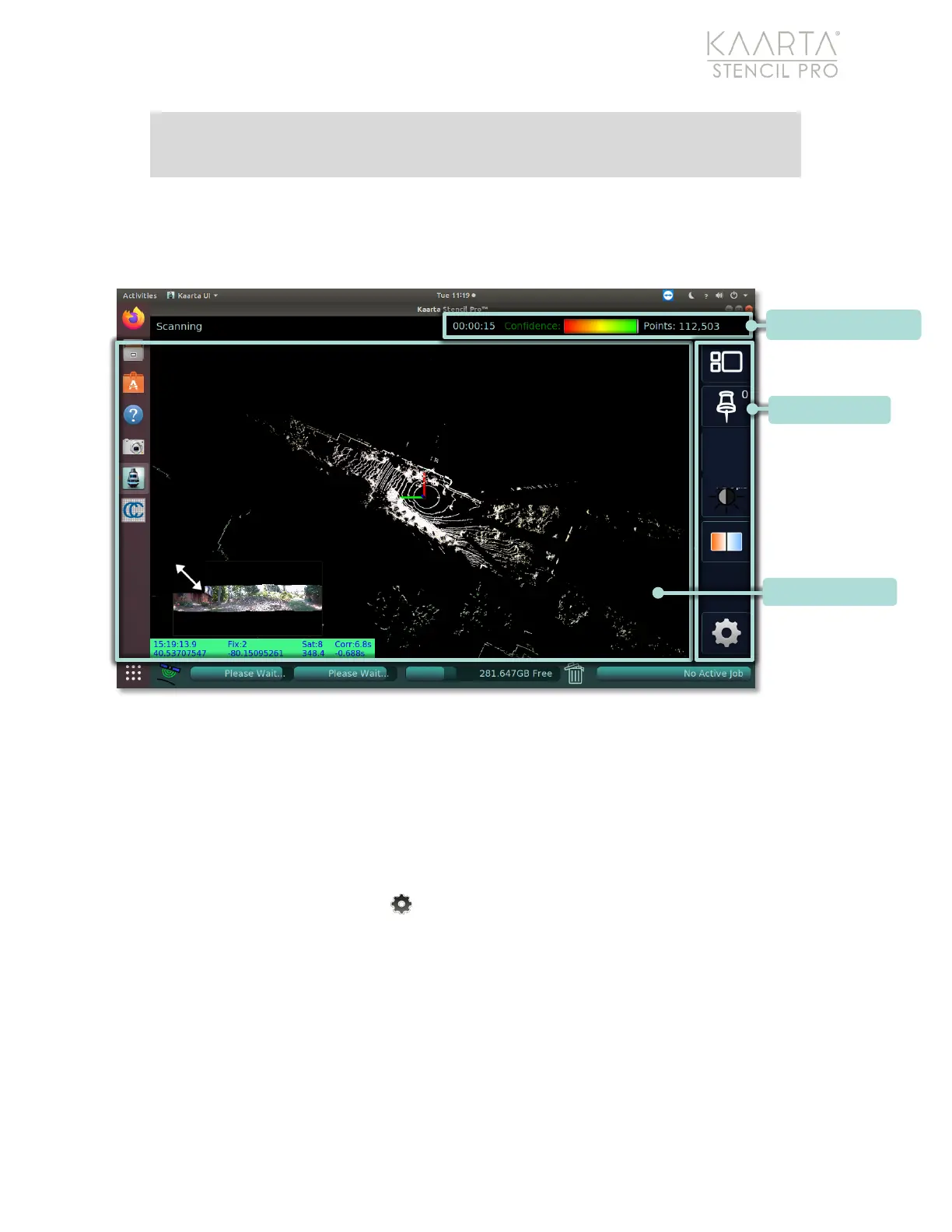
From the Scanning screen, you can change viewing options, such as pointcloud
orientation and zoom capabilities. The Scanning screen is comprised of three sections:
Scanning Menu, Scanning Status bar, and the Scan View (Figure 25).
Figure 25: Scanning Screen Elements.
Scanning Menu
The Scanning Menu is located along the right edge of the UI and contains tools and
options available to you while scanning (see Figure 25). From this menu, you can stop a
scan, reorient the pointcloud in the scan view, and adjust the Color Balance and Exposure
tapping the respective icons.
Tap the Scanning Settings button in the bottom right corner of the UI to expand the
scanning menu further (Figure 26). Tapping the button again will hide those menu
options.
a blue ready state, power cycle the scanner by unplugging the power
connection from the controller.


 To Next Page