SmartVision & SmartVision LITE – User Guide (Rev. 2.7) – Version 1943.4105 31
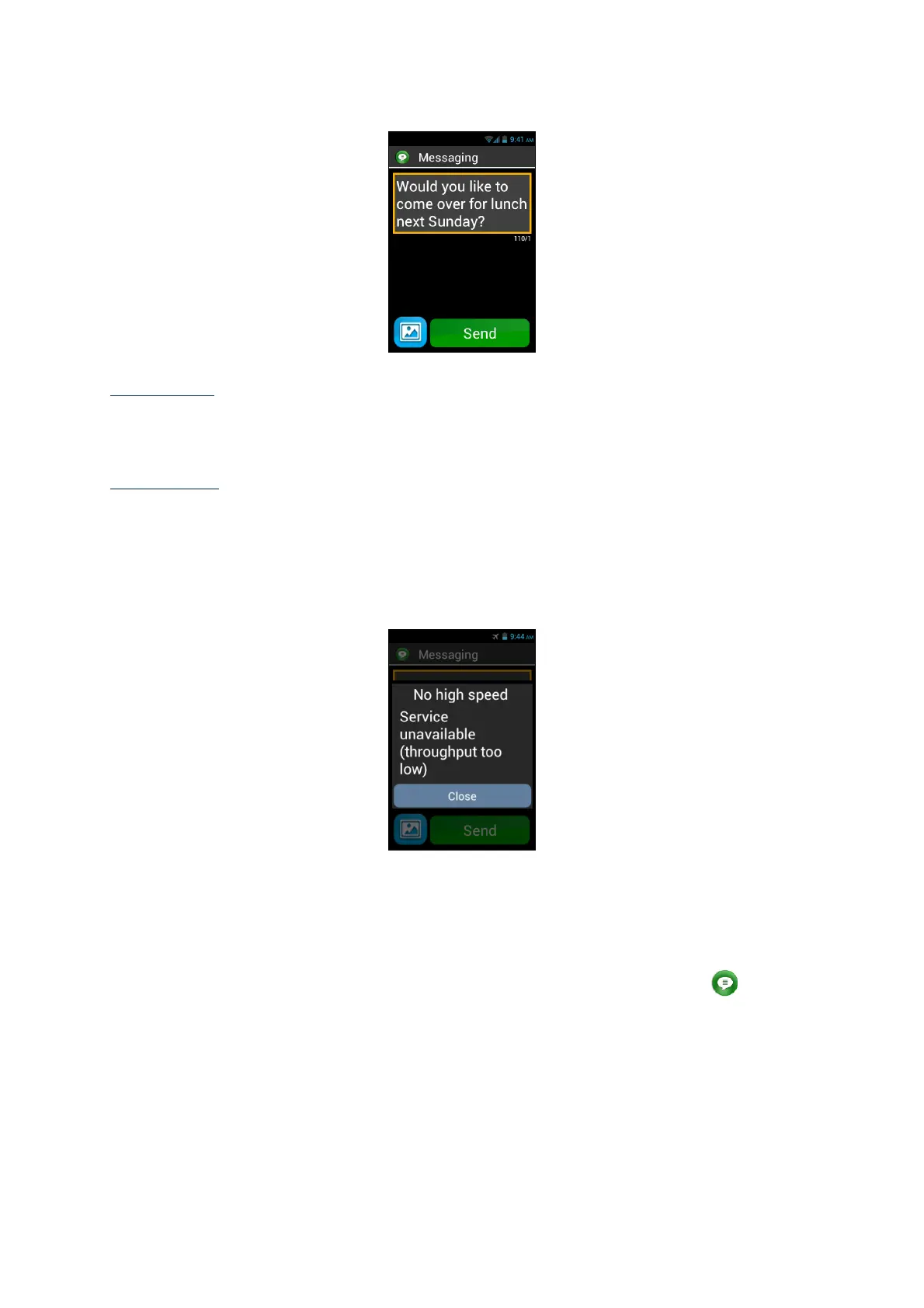
Please note: to add punctuation marks (,? ! …), you must pronounce the name of the
punctuation mark you want. Example: "Would you like to come over for lunch next
Sunday question mark".
Please note: Speech-to-text can be used for up to 30 seconds at a time.
Warning: Speech-to-text feature requires a data connection such as Wi-Fi or 3G. If
you are not connected to a data network or if the connection speed is too low, the
service will not be available and you will get the following alert “No high speed.
Service unavailable (throughput too low).
You are free to use the 3 interfaces on your SmartVision, either separately or in turn.
You can start with the touchscreen mode and continue with the voice control mode or
the other way round, as described in the example below.
Open the "Messaging" application by clicking on the “Messaging” icon from the
touchscreen. As soon as the input field is displayed, choose speech-to-text for your
message. To do so, press and hold the voice control key while you dictate. Release
the key at the end of the message then, briefly press on the same key to "Send".



 To Next Page