SmartVision & SmartVision LITE – User Guide (Rev. 2.7) – Version 1943.4105 4
Introducing SmartVision
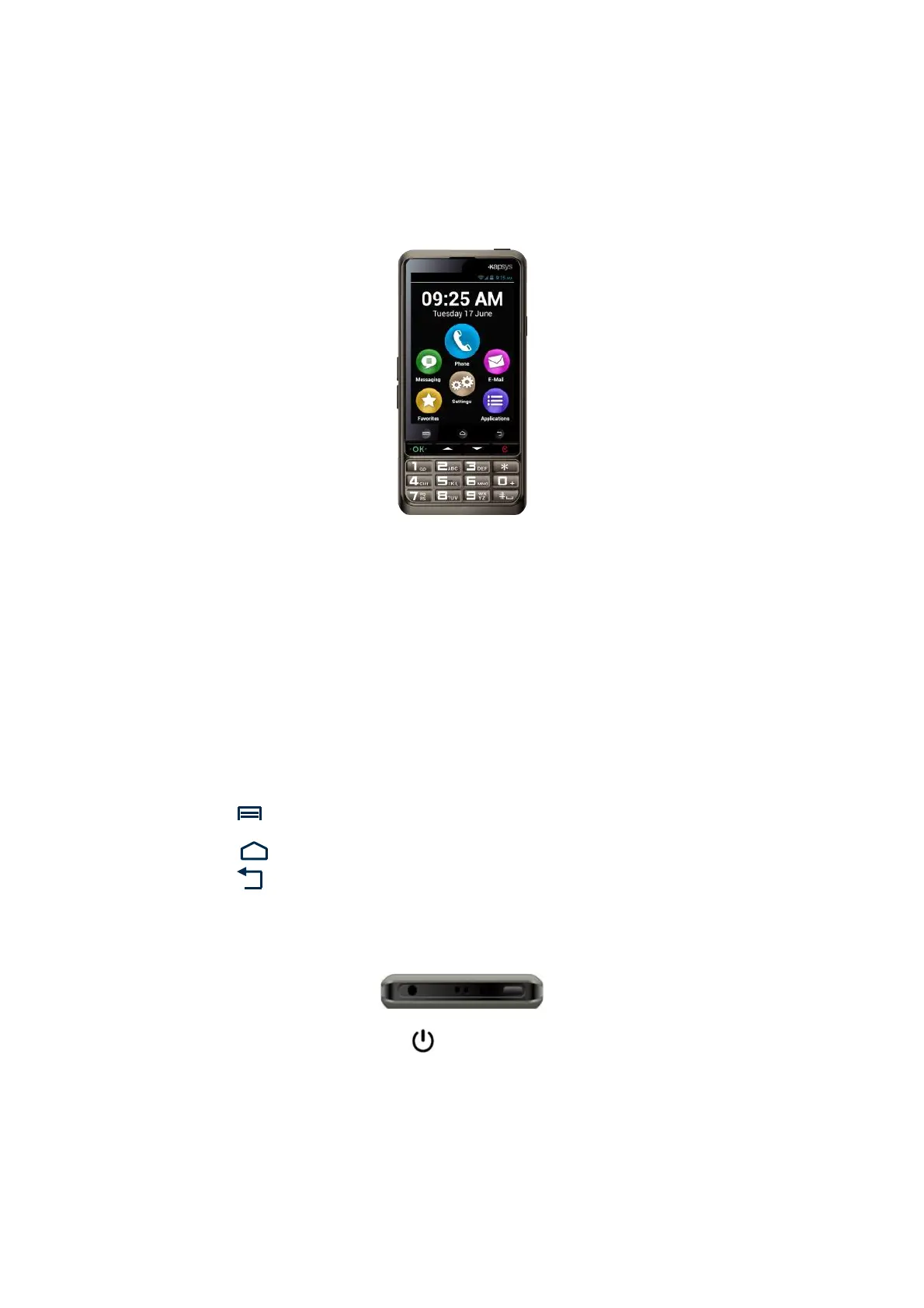
Front panel
The numeric keypad at the bottom part of the front panel enables you to dial a phone
number or type characters for text messaging using multi-tap mode.
4 control keys are located above the keypad:
- "OK" key to pick up a call, or confirm your entry.
- The two arrow keys "" allow to scroll or browse within a menu or a current
page.
- "C" key to end a call or clear an entry.
Above these 4 control keys, there are 3 easily recognizable Android recessed push
buttons:
- “Menu” on the left: press to access the ongoing "Menu".
- “Home”
in the middle: press to go back to the "Home screen" any time.
- “Back”
on the right: press to go "Back" to the previous screen.
Top
The "On Off" and screen off mode button is located on the top right side of the
handset. Press and hold this button to start or stop your SmartVision. A short key
press will set the handset to standby mode and an additional short press will
reactivate it. On the middle, a clip for the necklace.
Then, the audio 3.5 jack on the left side of the "On Off" button connects to the
earphones supplied with the device.



 To Next Page